|
Coolutils ConverterTotal HTML ConverterTotal PDF ConverterTotal Doc ConverterTotal Excel ConverterTotal CAD ConverterTotal CSV ConverterTotal XML ConverterTotal Mail ConverterTotal Outlook ConverterTotal Thunderbird ConverterOST to PST ConverterTotal Image ConverterTotal Audio ConverterTotal Movie Converter
|

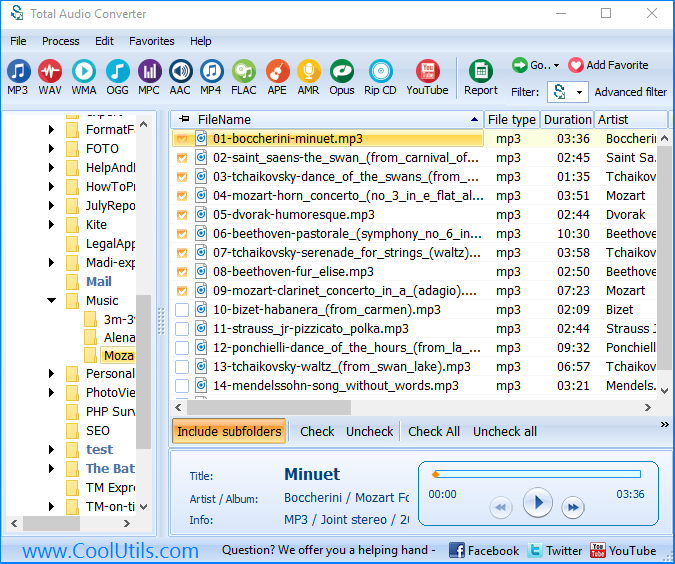
AAC files are almost as popular as MP3 now. Both these formats give ability to compress audio tracks in size for storing them compactly on portable players, PC or memory cards. AAC gives better sounding quality than MP3; it is supported by the most of modern gadgets. However, it is not as good in sounding as lossless audio formats, such as FLAC. FLAC is suitable for playing music on high-quality professional stereo systems; it encodes sound in full, not cutting any frequencies. If you want to convert AAC to FLAC use new Total Audio Converter. The only shortcoming of this lossless audio format is its size – the tracks will need a few times bigger memory space. Total Audio Converter supports command line mode that means you can process your AAC files in a background mode, enabling conversion with the help of Windows cmd processor. When using AAC command line converter, you don't need to launch program's interface, as all conversion parameters are specified in the text command that consists of a few parts:
To enable AAC to FLAC command line converter, you need to enter ‘AudioConverter.exe' before the conversion command. In general, it will look like this: AudioConverter.exe C:\Audio\*.aac C:\Converted –c FLAC. This command will convert all AAC files from ‘Audio' folder to FLAC format, storing the converted copies in ‘Converted' folder. Total Audio Converter supports batch conversion, so you can convert all files by one command. For keeping converted files in the right order, you can apply name mask, using any tags you want. Total Audio Converter with command line support is available for downloading. Get it here and turn your AAC files to full-size lossless FLAC tracks! Related topicsConvert MP3 to AAC with custom settingsConvert WAV to AAC with custom settings
|
   |