|
Coolutils ConverterTotal HTML ConverterTotal PDF ConverterTotal Doc ConverterTotal Excel ConverterTotal CAD ConverterTotal CSV ConverterTotal XML ConverterTotal Mail ConverterTotal Outlook ConverterTotal Thunderbird ConverterOST to PST ConverterTotal Image ConverterTotal Audio ConverterTotal Movie Converter
|
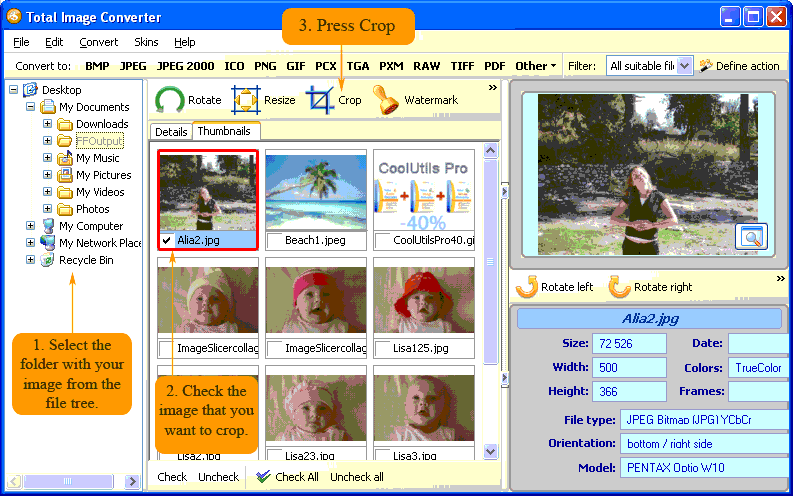
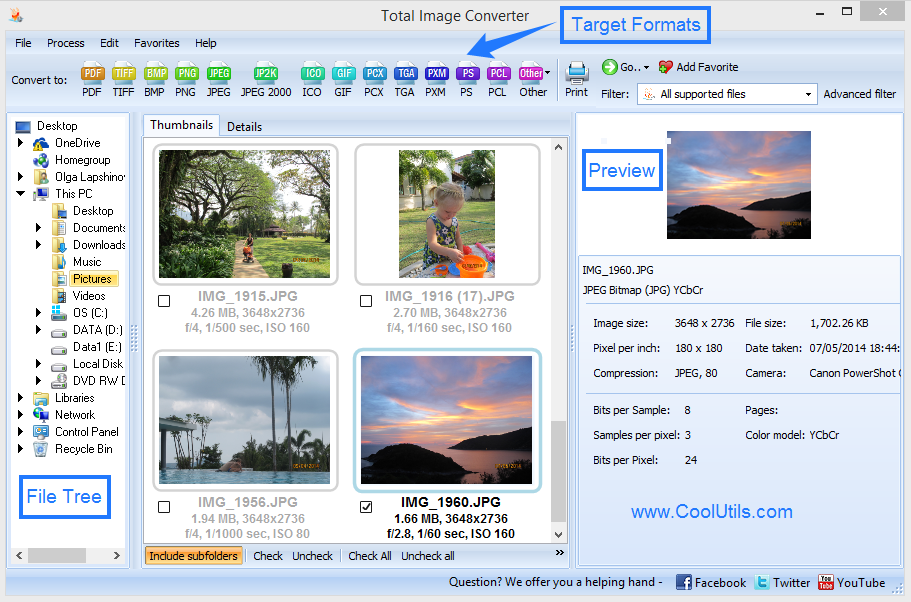
How to Crop an ImageCropping means removing unneccasary borders of an image. You crop an image when you cut some parts off. That's what you need to create an astonishing avatar out of your photo. Total Image Converter can crop your image in 3 clicks.
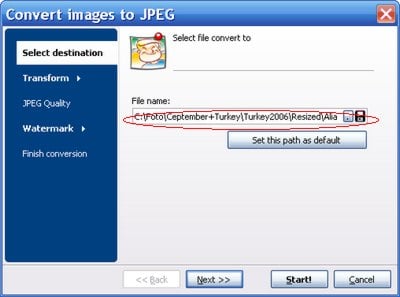
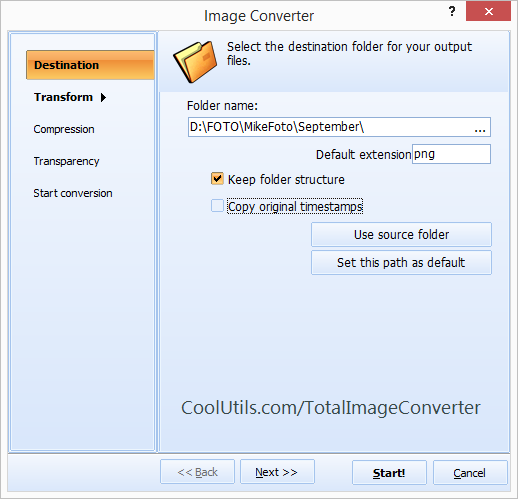
Here comes Wizard. First, select the destination folder and the new name for the resized file in Select Destination step.
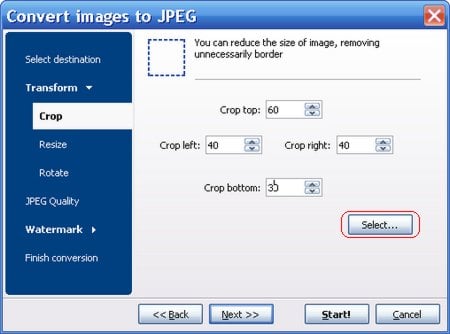
Second go to Transform step and press Crop. Here you may crop a certain number of pixels from each side or use rectangle method.
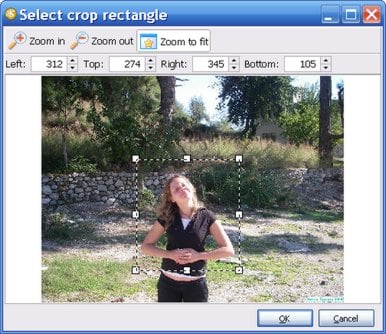
To use rectangle method press Select button. Here you may set the numbers and immediately see the result. Press Ok when all is done.
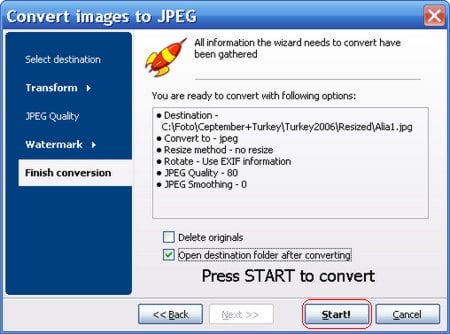
Now go to the Finish Conversion step. Here you browse all the settings you made. In case you want something to be changed go back to the step you need and change that. Note that you may ask the program delete originals (think twice about that!) and open destination folder after conversion. That's it.
Press Start! to crop your image. The result is:
Download your copy of Total Image Converter now for free (valid for 30 days) and crop your images at ease! Learn how to process ther file types:
|
  Related articles |