Need help? Reach us at 

 +1 (855) 418-2323
Need help? Reach us at
+1 (855) 418-2323

You have a folder full of videos — or an entire drive — and you need to know what is actually in there: which files are HD, which are SD, how long each clip runs, what codec they use. Windows Explorer shows file names and sizes but nothing else useful. Print Maestro reads any folder you point it at, extracts video metadata from every file it finds, and produces a clean, paginated report you can print or export in seconds.
Quick answer: To print a list of video files, install Print Maestro, point it at the folder of videos, enable Include Subfolders, switch to the Media tab and pick Video List, optionally filter by file mask, click Preview, then Print or Export to PDF, Excel, HTML, or CSV. You get one report with duration, resolution, and codec for every file.
Every video file stores technical properties in its header. Print Maestro reads these properties and puts them in a structured report. For each video file you get:
The report covers subfolders automatically. If your video library is spread across dozens of nested directories, one scan captures all of it.
Print Maestro reads metadata from all common container formats: MP4, MKV, AVI, MOV, WMV, FLV, WebM, MPEG, MPG, 3GP, M4V, TS, and more. The program reads the file header without decoding the video stream, so even large 4K files are scanned in milliseconds each.
Download Print Maestro from the link above and run the installer. Setup takes under a minute. The program runs on Windows 7, 8, 10, and 11. No additional runtimes or frameworks required.
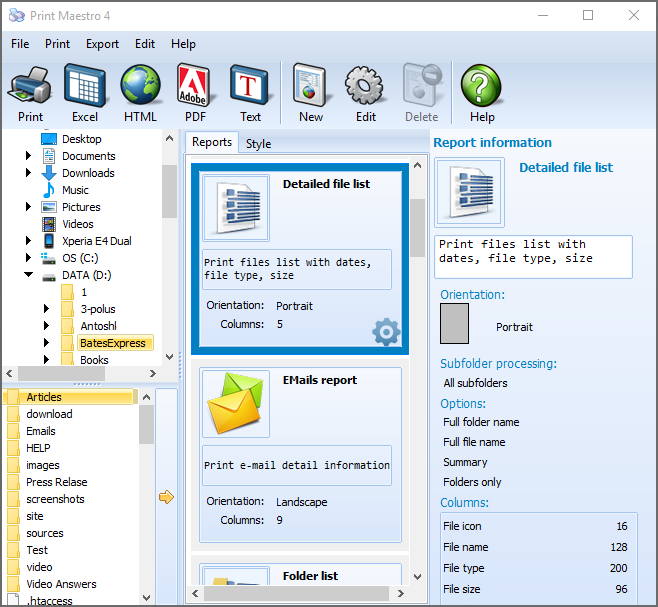
In the left panel you see the full Windows folder tree. Click the folder that contains your video files. If your videos are spread across subfolders, enable Include Subfolders in the settings bar at the top. Print Maestro recurses through all nested directories and includes every video file it finds.
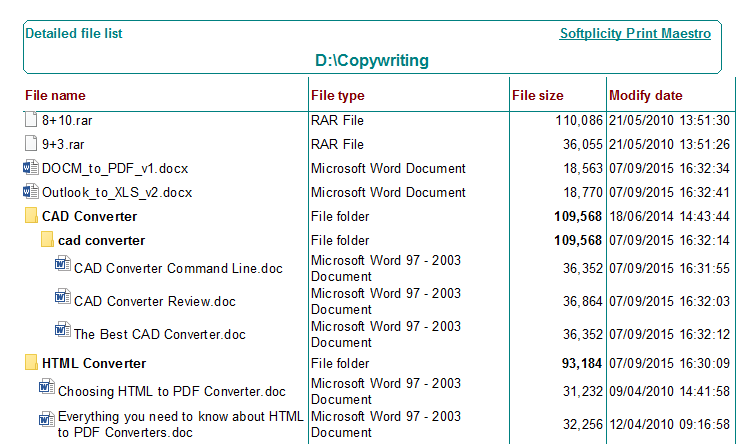
The right panel shows report type options. Switch to the Media tab and select Video List. The preview area at the bottom of the screen instantly shows the report with all detected video files and their metadata columns: Size, Duration, Width, Height, Codec, Aspect Ratio.
Use the file mask field to narrow the report to specific formats: for example, enter *.mp4;*.mkv to include only MP4 and MKV files. You can also apply size filters (e.g., show only files larger than 500 MB) or date filters to focus on recently added content.
Click Preview to open the paginated print preview. Scroll through the pages, verify the columns look correct, and check that all files are present. You can adjust font size, column widths, and page margins before committing to print or export.
Click Print to send the report to any installed printer. Or click Export and choose the output format:
| Method | What you get | Limitations |
|---|---|---|
| Windows Explorer | File name, size, date | No duration, no codec, no resolution. No export. Cannot scan subfolders into a single list. |
| DIR command (CMD) | File names and sizes in a text dump | No metadata. No formatting. Cannot show codec or duration. Hard to share. |
| MediaInfo (standalone) | Detailed info for one file at a time | No bulk export to a report. Cannot generate a list covering an entire folder tree. No print function. |
| Print Maestro | Full metadata report: size, duration, resolution, codec, aspect ratio for every file in any folder tree | Windows only. |
PowerShell can extract video properties using FFprobe or Windows Shell COM objects, but setting up a working script takes time and technical knowledge. Print Maestro does the same in a GUI with no scripting — select the folder, select the report type, click Export.
A real video library is never flat. Files are organized in nested folders by year, project, client, or genre. Print Maestro recurses through the entire tree and produces one consolidated report. You do not need to run the tool separately for each subfolder.
Whether you need a PDF to send to a client, an Excel file for a producer, or a CSV for a production management system, Print Maestro handles all these targets from one interface.
The Video List is one of 15 built-in report types. You can also build a custom report by selecting any combination of metadata columns: mix video properties with file dates, full path, or any other attribute from the file system or file header.
Personal license starts at $39.90. Free 30-day trial with no restrictions — no email or credit card required.
Download Free Trial Buy Now — $39.90
Windows 7/8/10/11
Download free trial and convert your files in minutes.
No credit card or email required.


 Forensic