Need help? Reach us at 

 +1 (855) 418-2323
Need help? Reach us at
+1 (855) 418-2323

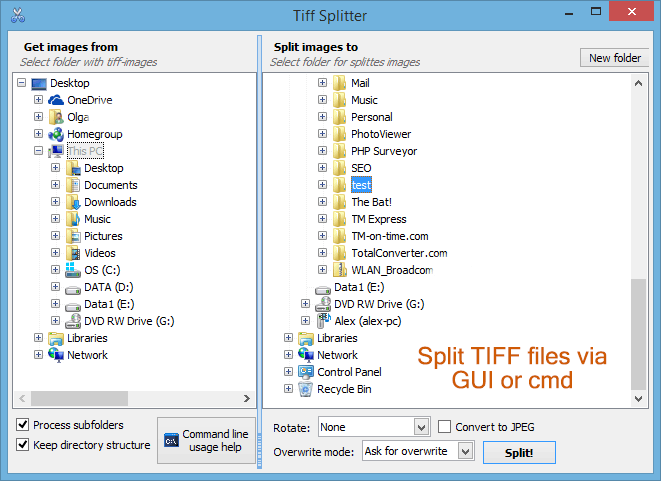
Tiff Splitter is a simple program with one major option - splitting TIFF multi-page files to one-page images. It handles single files or entire folders at once.
Quick answer: To split TIFF files across subfolders, install Tiff Splitter, select the source folder on the left, tick Process subfolders so nested files are included, set the output folder on the right, optionally enable Convert to JPEG, then press Split. Every page is saved separately and the originals stay intact.
Multi-page TIFF files often serve for design projects or scanned documents. A lot of scanners combine scanned pages into one file that is not always comfortable for a user. With the help of Tiff Splitter you can split TIFF files by pages in bulk via basic user inerface or command line.
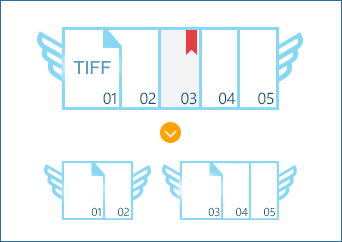

The basic mode provides you with one-page parts of the original documents in TIFF format. As a source you can a select single file or a file folder. If your original folder contains child folders with files you'd like to split, check off Process subfolders. As a result, the program will split TIFF files in subfolders too.
There is one more interesting option. Information in TIFF is too heavy, it takes a lot of memory space to save split pages in tiff. That's why the program offers conversion to JPEG on the go. After splitting you will have the original pages each saved to a separate JPEG file. This way you will compress your images up to 10 times.
It is very simple:
TiffSplitter works from the command line, and you will see the help button for this mode in the program window. A set of simple commands is required to split TIFF images to pages via 'cmd' window. Also this TIFF splitter is available through the right-click file menu. When you click on any TIFF file icon by the right mouse button, you will see a menu with 'Split' item. Clicking on this menu item will open TIFF Splitter's window.
Try this program for free during 30 days. It is much easier than any other splitting tool!
Windows XP/2003/Vista/7/8/10/11
Download free trial and convert your files in minutes.
No credit card or email required.