Need help? Reach us at 

 +1 (855) 418-2323
Need help? Reach us at
+1 (855) 418-2323

Do you have Tiff images on your computer that need to be split? I'm sure you do. If not very often, sometimes you do need to split Tiff files, but you do not know how. This is when you need the Tiff Splitter.
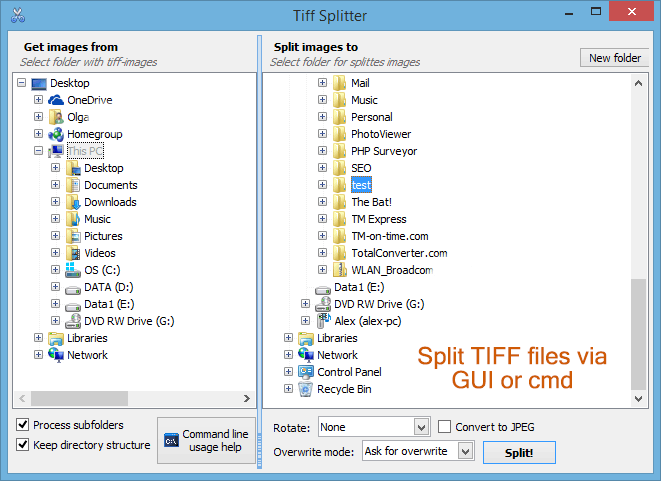
Quick answer: To split a multipage TIFF, install Tiff Splitter, pick the folder with your TIFF files on the left, choose an output folder on the right, optionally tick Convert to JPEG to shrink the pages, then click Split. Each page is saved as a separate file while the original stays untouched.
Tiff Splitter is a very handy easy-to-use tool that can split multipage Tiff files into single pages. This can be done in three different ways: via user interface, command line or right-click on a file.
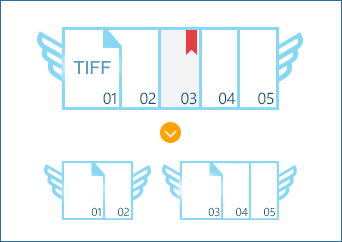

After opening the Tiff Splitter program, from the left column, select the folder where you have your Tiff files. Then select the folder from the right column where you wish to store your split Tiff images, and click on the button Split. There your work is done. Leave the rest to Tiff Splitter.
There are certain options that you may want to go for before clicking the Split button. You may either select a folder you already have on your computer to store the split images in; or you may create a new folder by clicking on the button New Folder. Your split images will be stored in whichever folder you choose.
The other option is of either leaving your images in the Tiff format, or converting them to JPEG first. If you wish to convert them to JPEG before storing them, check the checkbox Convert to JPEG before splitting. Converting to JPEG reduces the file size.
Tiff Splitter may be handled with the command line. Example: TiffSplitter /f "c:\Source Tiff" C:\Output /jpeg.
The third method of splitting Tiffs is by integrating it with the Windows right-click file menu. This way you can right-click the mouse after selecting the Tiff file to split, then select the option Split from the pop-up menu.
The best part of Tiff Splitter is that it splits without altering the original multipage Tiff file. It supports all versions of Tiff files and can also split compressed files. Tiff Splitter is fast, effective, and error free; and has a flexible and powerful interface.
Download your free evaluation copy now and test it on your TIFF images. You can also place an order and get the key to unlock full potential of the app today.
Windows XP/2003/Vista/7/8/10/11
Download free trial and convert your files in minutes.
No credit card or email required.