Need help? Reach us at 

 +1 (855) 418-2323
Need help? Reach us at
+1 (855) 418-2323

 TIFF and PDF apps
A medical imaging department stores patient scans as multi-page TIFF files — each file containing 20–50 pages at 300 DPI. The images need to be uploaded to a web portal that only accepts JPEG. Opening each TIFF in Photoshop, exporting pages one by one, and saving as JPEG would take hours.
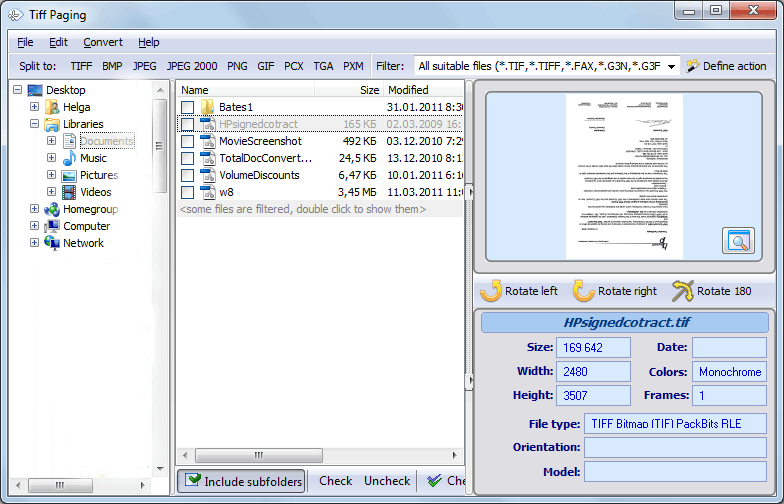
Tiff Paging splits multi-page TIFF files into individual JPEG images in batch. Select a folder, choose JPEG as the output format, set quality options, and click Start. Each TIFF page becomes a separate JPEG file — hundreds of files processed in one operation.
Quick answer: To split a multi-page TIFF into JPEG images, open Tiff Paging, add your TIFF files, click the JPEG button, uncheck Combine pages into one file, set the quality slider to about 85–90, pick an output folder, and click Start. Each TIFF page is saved as a separate JPEG in one batch run, with no quality guesswork.
TIFF is the standard format for high-quality scanned documents and professional imaging. But multi-page TIFFs are difficult to share, view on the web, or import into systems that expect single-page image files. JPEG solves these problems:
| Feature | TIFF | JPEG |
|---|---|---|
| Multi-page support | Yes — dozens of pages in one file | No — one image per file |
| Compression | Lossless (LZW, ZIP) or none | Lossy (adjustable quality) |
| Typical file size | Large (10–100 MB per file) | Small (100 KB–3 MB per page) |
| Web browser support | Not supported natively | Universal |
| Color depth | 1-bit to 48-bit | 8-bit per channel (24-bit color) |
| Best for | Archival, scanning, print production | Web, email, presentations, sharing |
Document_Page001.jpg.JPEG is the most common target, but Tiff Paging can split multi-page TIFFs into other image formats as well:
| Format | Best For |
|---|---|
| JPEG | Web, email, presentations — smallest file size |
| PNG | Lossless compression — text-heavy scans, screenshots |
| BMP | Uncompressed — maximum compatibility with legacy software |
| GIF | Simple graphics with few colors |
| TGA | Video production and 3D rendering workflows |
| PCX | Legacy scanning and fax systems |
Tiff Paging offers several ways to split multi-page TIFFs:
| Mode | Description | Example |
|---|---|---|
| One page per file | Each TIFF page becomes a separate JPEG | 10-page TIFF → 10 JPEG files |
| N pages per file | Group pages into multi-page sets | 10-page TIFF, 2 per file → 5 JPEG files |
| Specific pages | Export only selected page numbers | Pages 3, 5, 7 → 3 JPEG files |
| Page range | Export a continuous range of pages | Pages 5–15 → 11 JPEG files |
| Method | Batch | Multi-page TIFF | JPEG Quality Control | Page Selection |
|---|---|---|---|---|
| Tiff Paging | Yes | Full support | Yes (1–100) | Yes |
| Adobe Photoshop | No | One file at a time | Yes | Manual only |
| IrfanView | Limited | View only | Yes | No |
| Online converters | No | File size limits | No | No |
| ImageMagick (CLI) | Yes | Requires scripting | Yes | Yes (command syntax) |
Scanners produce multi-page TIFFs by default. When scanned pages need to be uploaded to a document management system, CRM, or web portal that only accepts JPEG or PNG, splitting is required.
Medical records and legal exhibits stored as multi-page TIFFs need to be shared with external parties. JPEG files are universally viewable without specialized software.
Marketing materials, catalogs, and brochures stored as high-resolution TIFFs need to be converted to JPEG for use on websites, social media, and email campaigns.
Legacy document archives contain thousands of multi-page TIFFs. When migrating to a new system that requires individual page files, batch splitting saves days of manual work.
A 50 MB multi-page TIFF cannot be emailed. Splitting it into individual JPEG pages — each under 2 MB — makes the content shareable by email.
Drop an entire folder of multi-page TIFFs and split them all at once. No per-file setup, no manual page counting.
Set the compression quality from 1 to 100. Balance file size against image quality for your specific use case — web thumbnails, print-ready images, or archival copies.
Split all pages, a specific range, or individual pages by number. Extract only the pages you need without processing the entire file.
Use file name templates with placeholders for the source name, page number, and sequence counter. Output files are named consistently for easy sorting and identification.
JPEG, PNG, BMP, GIF, TGA, PCX — choose the format that fits your workflow. Switch formats between batches without changing other settings.
Download the free 30-day trial — no email or credit card required. A personal license costs $39.50 and includes one year of free upgrades.
Download free trial and convert your files in minutes.
No credit card or email required.