Logo
Home Products Support Contact About Us
arrow1 File Converters

Convert Excel With Barcode Font to PDF


One of the many power features that sets Excel apart from other spreadsheet programs is its support for barcode fonts. It is an incredibly handy feature to have in any number of use cases when it comes to tracking or generating product specific codes alongside other data.

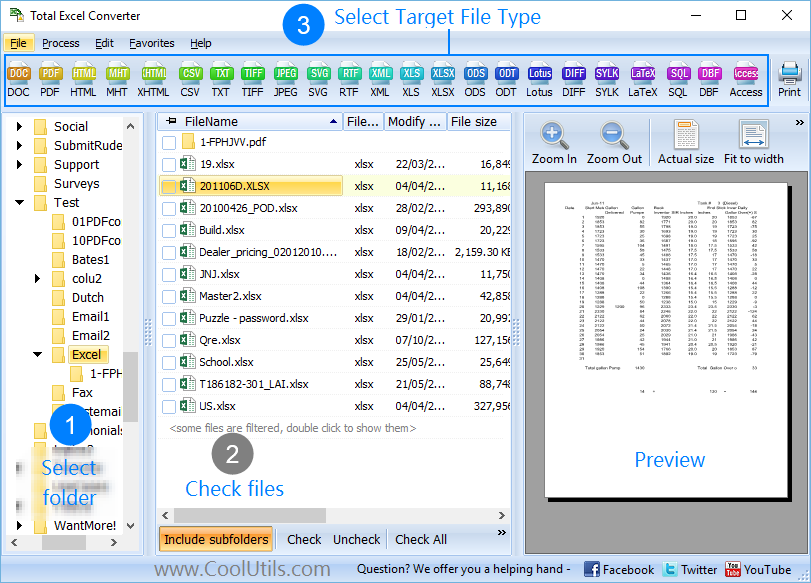
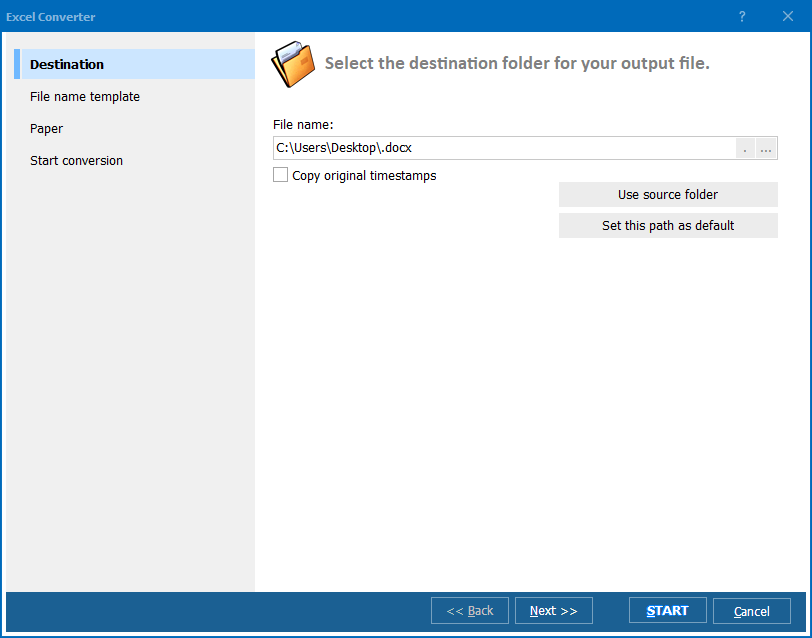
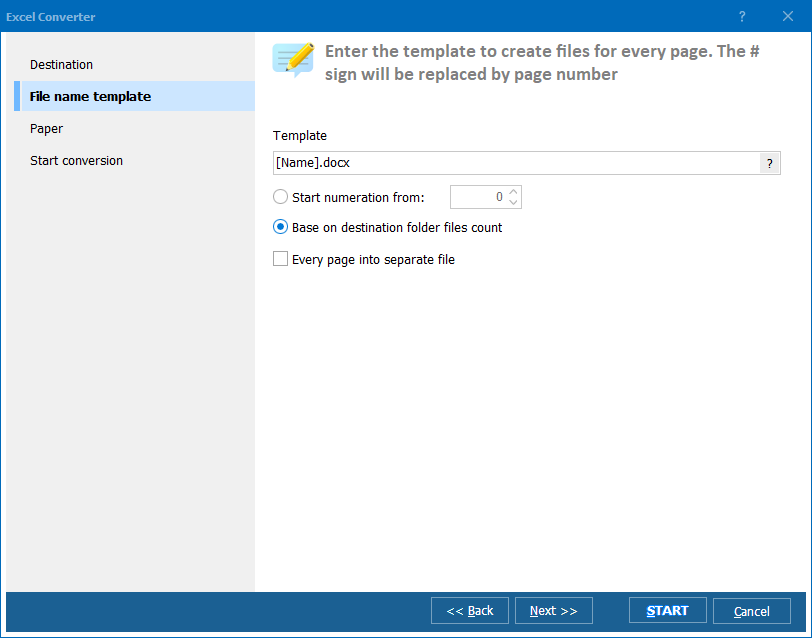
Quick answer: To convert an Excel sheet with a barcode font to PDF, open the file in Total Excel Converter, click the PDF button, go to Document then Fonts and tick both Subset fonts when embedding and Kerning, then click Start. These two options embed the barcode font correctly so the codes stay scannable in the finished PDF.

Unfortunately, the support for barcode fonts can present something of a problem when it comes to converting your data into other formats. The sad fact is, the vast majority of Excel conversion software on the market is simply incapable of converting barcode font info.

When you think of the value of this information and the potential difficulty in exporting the relevant data by hand, you can see how this could present a pretty major problem in many circumstances - particularly if you are dealing with a huge amount of files to process.

Both Total Excel Converter and the server based Total Excel Converter X are fully equipped to handle barcode fonts. All you have to do is check two options in Document > Fonts and the software will do the rest. The relevant settings are:

  • Subset fonts when embedding.
  • Kerning.

Barcode font support is just one of many reasons that make our market-leading Excel conversion software stand out from the pack. You will also benefit from the ability to:

  • Handle a huge range of input and output formats.
  • Include custom headers and footers in appropriate output formats.
  • Handle bulk conversion needs with ease.
  • Take advantage of a built-in renamer to take control of your output file naming requirements.

Both versions of our software can be run via the command line and an intuitive GUI is available when using the desktop version. The server-based Total Excel Converter X version also supports ActiveX for direct integration with your own web-based applications.

The support for barcode fonts is just one example of the sort of attention to detail that comes as a natural consequence of over a decade's worth of continual development. Thousands of happy customers worldwide have already benefitted from the power of both Total Excel Converter and Total Excel Converter X. We encourage you to discover our software's power and functionality for yourself by downloading a free trial demo of either version today!


quote

Total Excel Converter Customer Reviews 2026

Rate It
Rated 4.7/5 based on customer reviews
5 Star

"Our pick lists use a barcode font in Excel, and every other converter we tried turned the codes into unreadable garbage in the PDF. Total Excel Converter with Subset fonts when embedding and Kerning both ticked kept the barcodes scannable straight off the printed sheet."

5 Star Owen Fitzgerald Warehouse Systems Manager, Fitzgerald Distribution Co.

"We generate product labels with a barcode font inside Excel and needed the PDF export to stay scannable at the warehouse scanner. Enabling the two font-embedding options under Document then Fonts before clicking Start fixed the kerning issue that used to break our codes."

5 Star Lena Sorensen Inventory Analyst, Sorensen Retail Group

"Barcode fonts in our spreadsheets kept losing their spacing when exported to PDF before we found this setting. Ticking Subset fonts when embedding solved it for our Code 39 labels, though we did have to experiment with one older barcode font that needed the kerning box checked as well."

4 Star Victor Marchetti Operations Supervisor, Marchetti Packaging Ltd.

Convert Excel With Barcode Font to PDF — FAQ ▼

Why do barcodes disappear when I convert Excel to PDF?

Most converters do not embed the barcode font into the PDF, so the codes turn into plain numbers or blank cells. Total Excel Converter embeds the font correctly, which keeps the barcodes intact and scannable.

How do I keep barcode fonts when converting Excel to PDF?

Open the file in Total Excel Converter, click the PDF button, go to Document then Fonts, and tick both Subset fonts when embedding and Kerning. These options embed the barcode font into the output PDF.

What do the Subset fonts and Kerning options do?

Subset fonts when embedding stores the exact glyphs your barcode uses inside the PDF, and Kerning preserves the spacing between characters. Together they ensure the barcode renders the same way it does in Excel.

Can I convert many barcode spreadsheets at once?

Yes. Total Excel Converter handles bulk conversion, so you can point it at a whole folder of barcode spreadsheets and convert them all with the same font settings in one run.

Is there a server version for barcode conversion?

Yes. Total Excel Converter X is the server-based edition. It supports the same barcode font handling and adds ActiveX so you can integrate conversion into your own web applications.

Can I run barcode conversion from the command line?

Yes. Both the desktop and server versions run from the command line, so you can script barcode-to-PDF conversion or schedule it to run automatically.


Start working now!

Download free trial and convert your files in minutes.
No credit card or email required.

⬇ Download Free Trial Windows 7/8/10/11 • 37 MB

Support
Excel Converter Preview1
Excel Converter Preview2
Excel Converter Preview3

Latest News

Newsletter Subscribe

No worries, we don't spam.


© 2026. All rights reserved. CoolUtils File Converters

Cards