Combine PDF with Bookmarks
Today, you can join several PDFs together in seconds. But what if the original files have bookmarks you want to keep? This makes the task complicated. The PDF Combiner will join documents together preserving the original markings. This is a quick and reliable way to merge PDF files with bookmarks.
Finding the necessary information in a larger file is usually more difficult. This is particularly true for the corporate world, where locating specific data quickly is vital. For CoolUtils, accuracy and quality are top priorities. Discover a simple way to keep original bookmarks and add new ones during the merger.
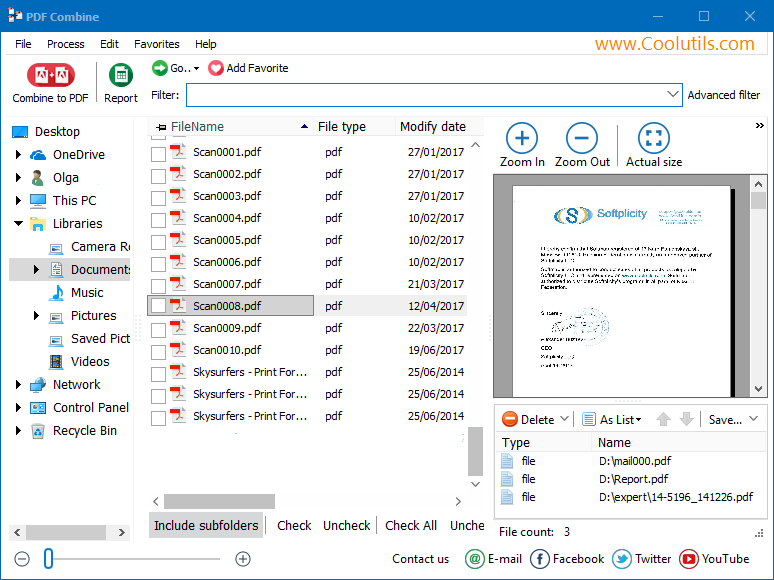
Quick answer: To combine PDFs while keeping bookmarks, open PDF Combine, check the source files and arrange them with Up and Down, press Combine to PDF, then in the wizard generate bookmarks from the source files, document titles, or an external txt file. Click Start and the merged PDF keeps the original markings and adds the new ones.
All-in-One
This user-friendly tool for Windows works on its multiple versions: 2000, 2003, Vista, 7, 8, and 10. It creates multi-page documents with impressive speed and precision. PDF Combiner has a wide range of options, so you can fine-tune the result. Add a table of contents, set a cover page, and
combine PDF files with bookmarks in 3 ways:
- adding bookmarks from source files,
- bookmarking the title, or
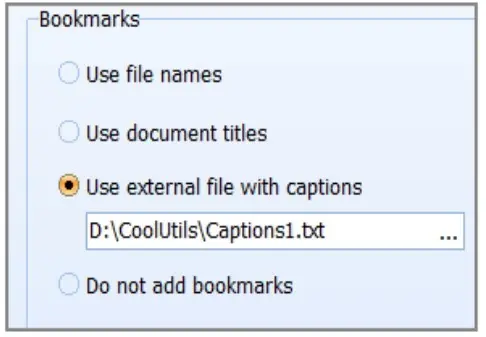
- adding bookmarks from a *.txt file.
Impressive Customization
The tool generates different document types, such as banking documentation, e-books, invoices, and more! Flexible customization ensures the output meets your needs every time. Unlock the highest quality and speed of merger with PDF Combiner. With the utility, you can not only combine PDF files with bookmarks in different ways. It also allows you to:
- set and adjust footers and headers (e.g., dates, page numbers, or company name),
- set a cover page for the PDF,
- combine files by folder,
- include audio (mp3) files,
- append PDFs,
- include or delete blank pages, and more!
How to Merge PDF Files with Bookmarks
PDF Combine is convenient for beginners and pros. You will master it in seconds! The intuitive interface is well-designed and easy to navigate. The wizard will guide you through every stage.
Start the program via the Start menu, by clicking on the desktop icon or from the command line. Just choose the source files, launch the process, and click through the windows. The system will prompt you to create bookmarks if necessary. Here is how to combine PDF with bookmarks:
- Pick The Files You Want To Combine
The program will merge PDF with bookmarks separately or by folder! Check the corresponding boxes to specify the sources. Each can be previewed in the program. Using the 'Up' and 'Down' options, arrange the files in the necessary order.
- Adjust the Settings
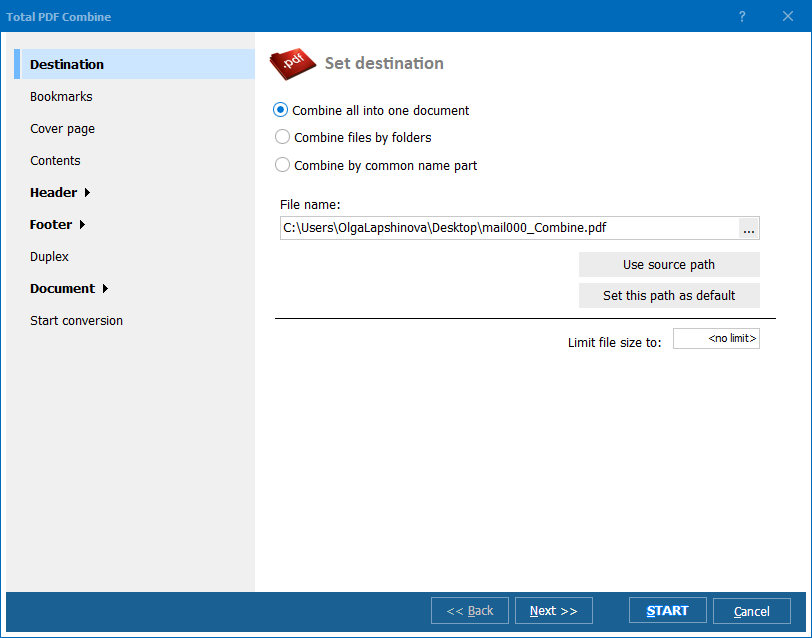
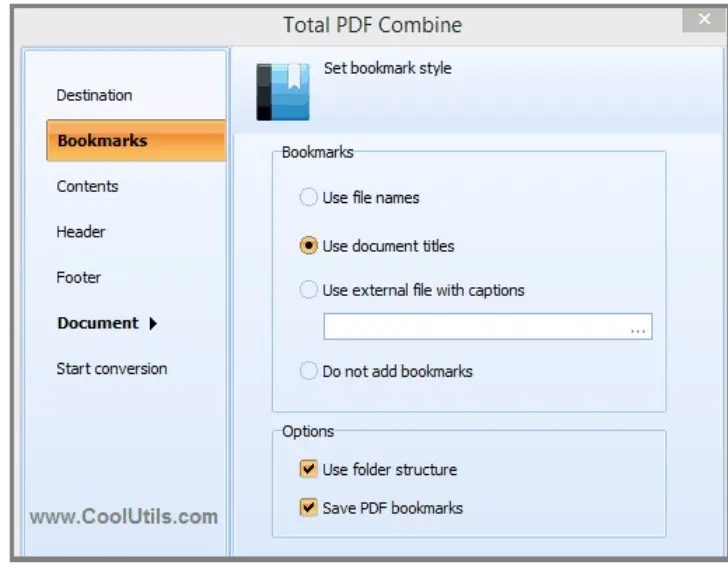
Press the 'Combine to PDF' button in the upper left corner. This launches the wizard with the following sections: Select destination, Bookmarks, Header, Footer, and Start Conversion. Change the output settings according to your needs. The system allows you to add a header or a footer to every page. Bookmarks may be generated based on:
- the original file names,
- the titles of the original documents, or
- an external *.txt file.
- Launch the Conversion.
Press the 'Start' button. Upon completion, the result will land in the destination you specified. Voila! This is a clear and intuitive process.
Flexible Pricing
Download the free demo version to test PDF Combiner for 30 days. We offer a range of lifetime licenses to suit everyone's needs. Merge PDF with bookmarks as long as you want - unlimited access offers great value for your money! Choose a price for developer, server, commercial, or home use. Site licensing is also available, and every client receives free upgrades for the first 12 months!
Combine PDF with Bookmarks — FAQ
Can I merge PDF files and keep the bookmarks?
▼
Yes. PDF Combine joins documents while preserving the original bookmarks of each source file. It can also add new bookmarks during the merge, so the combined PDF stays easy to navigate.
How does PDF Combine create bookmarks?
▼
PDF Combine builds bookmarks in three ways: from the original file names, from the titles of the source documents, or from an external txt file. You pick the method in the wizard before starting the merge.
How do I combine PDF files with bookmarks step by step?
▼
Open PDF Combine, check the source files and arrange them with the Up and Down options, then press Combine to PDF. In the wizard choose your bookmark source, adjust headers and footers if needed, and click Start. The result lands in the destination folder you specified.
Which Windows versions does PDF Combine support?
▼
PDF Combine runs on Windows 2000, 2003, Vista, 7, 8, and 10. The interface is designed for both beginners and advanced users, and the program can also be launched from the command line.
Can I add headers, footers, or a cover page when merging with bookmarks?
▼
Yes. Besides bookmarks, PDF Combine lets you set headers and footers with details such as dates, page numbers, or a company name, add a cover page, combine files by folder, include mp3 audio, append PDFs, and insert or delete blank pages.
Is there a free trial for PDF Combine?
▼
Yes. You can download a free demo and test PDF Combine for 30 days. Lifetime licenses are available for home, commercial, server, and developer use, and every client receives free upgrades for the first 12 months.
Can PDF Combine bookmark files from a text file?
▼
Yes. You can supply an external txt file and PDF Combine will generate the bookmarks from it during the merge. This is useful when you want custom bookmark labels that differ from the file names or document titles.
How do I add bookmarks to a PDF?
▼
Open PDF Combine, add your source files, then in the wizard turn on bookmarks and pick a source for the labels: file names, document titles, or an external text file. The bookmarks are generated automatically as the files merge, no manual clicking required.


 +1 (855) 418-2323

 TIFF and PDF apps