Need help? Reach us at 

 +1 (855) 418-2323
Need help? Reach us at
+1 (855) 418-2323

 TIFF and PDF apps
With PDF Combine, you can flexibly merge PDF files, with a wide range of customizable parameters. The folder-based merger is one of its strengths. It helps you achieve the goal faster, and the original structure of the files may be preserved if necessary.
The system will batch combine PDF files, joining your documents together quickly and easily. It will only take seconds! We have made the process as intuitive and simple as possible. Even beginners will master it quickly, as navigation is effortless. When the operation is complete, the output will land in the specified location.
You are only a few clicks away from a flawless combined document! Here is how to merge PDF files in a folder with the help of the most multifaceted utility developed by CoolUtils.
Quick answer: To combine PDF files by folder, open PDF Combine, click the source folder in the file tree, check the files (or click Check All), press Combine to PDF, set the destination and tick keep folder structure, then click Start. Each subfolder becomes its own merged PDF in seconds, with no upload.
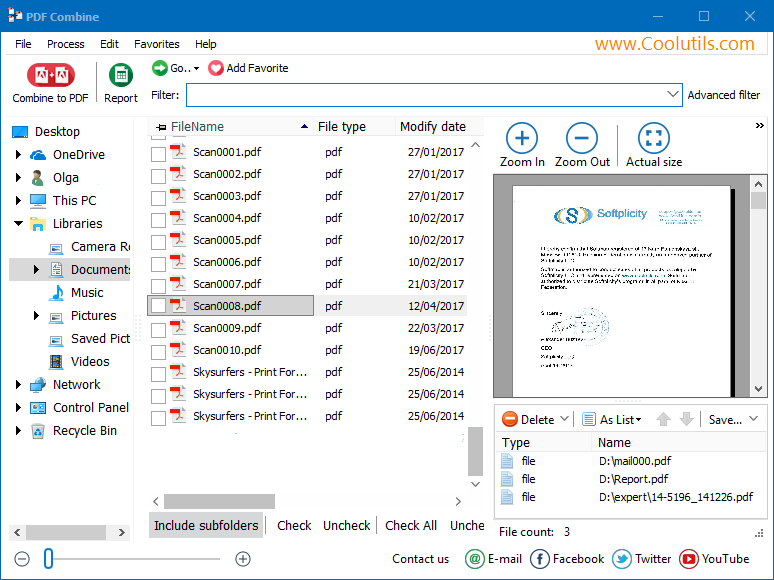
Launch PDF Combiner to choose your folder for the merger.
Click the necessary folder in the file tree on the left to reveal its contents. You can preview each file with zoom options and rearrange the order.
Check the boxes individually next to the files, or click the "Check All" button at the bottom for convenience. Subfolders will be included in the merger if you click the corresponding button under the file list.
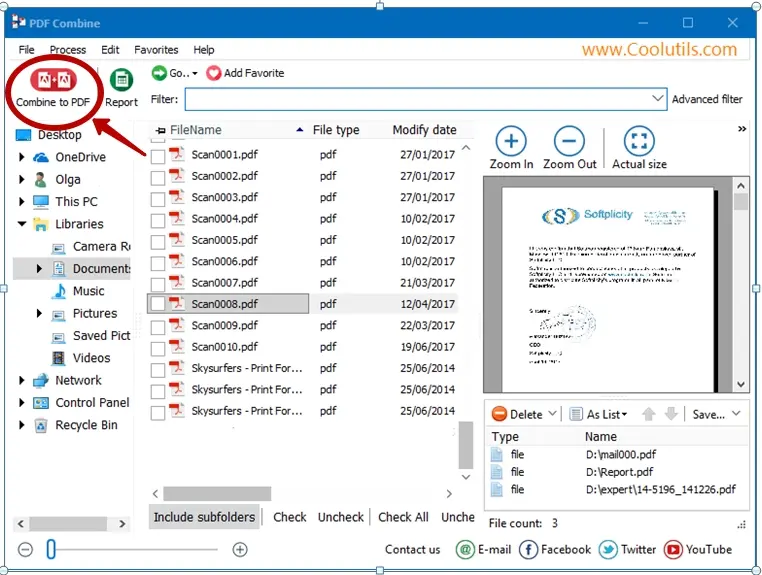
Click on the "Combine to PDF" button at the top of the file tree to set the parameters. This opens the wizard window, so you can fine-tune the output.
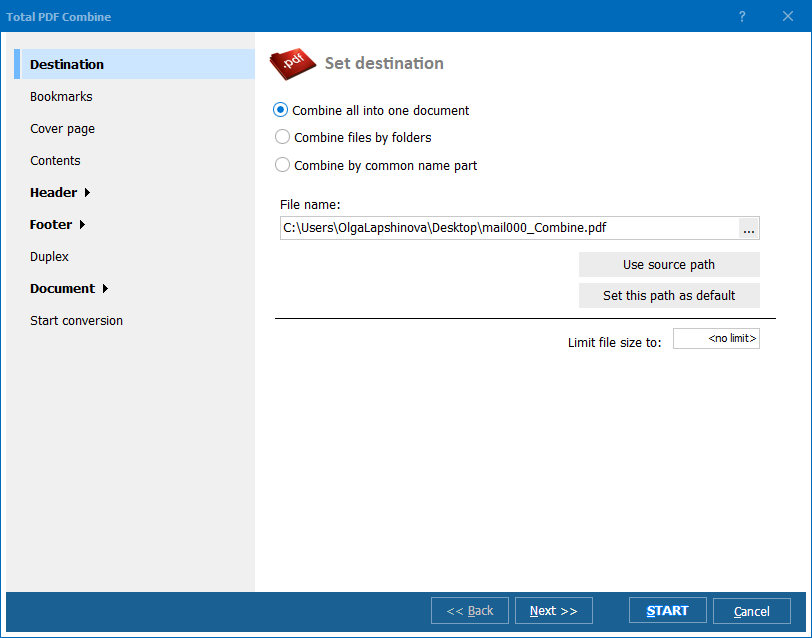
Specify where you want to save the file (the tool will combine PDF documents to one folder) and choose any other desired options (aside from Destination, the sections include Bookmarks, Contents, Header, Footer, and Document). If you want to keep the folder structure, check the corresponding box.
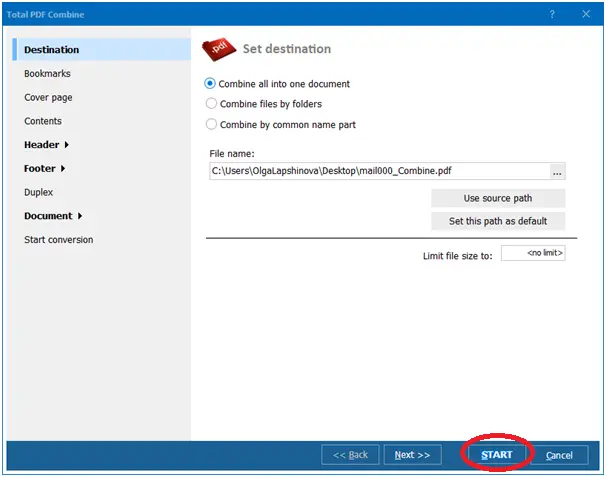
After all the settings are ready, click "Start" to initiate the merger. This should only take a few seconds. Upon completion, you will find the combined document in your preferred location. Voila!
Note that the system may also be launched from the command line. This allows you to open it within other programs. The functionality and speed are the same. Any popular version of Windows is supported, from 2000 to 10.
The wizard lets you make a variety of adjustments to produce professional-looking documents with flawless navigation. Here are just some of the things you can do with PDF Combine:
Download free trial and convert your files in minutes.
No credit card or email required.




