Need help? Reach us at 

 +1 (855) 418-2323
Need help? Reach us at
+1 (855) 418-2323

 TIFF and PDF apps
When printing complex PDF documents with mixed page orientation, there can be a problem with printing some pages. As a rule, when making printer settings, user specifies what page orientation is used for printout. If there are some pages in other orientation, they may be printed incorrectly. The solution is to print only portrait pages from PDF file with further printing landscape ones. It is a convenient solution when the most of document pages are in portrait mode, and one or a few are in landscape mode (e.g. report tables or charts).
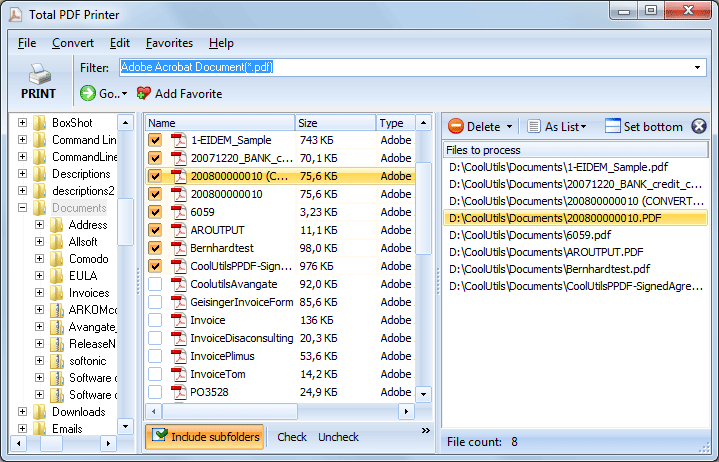
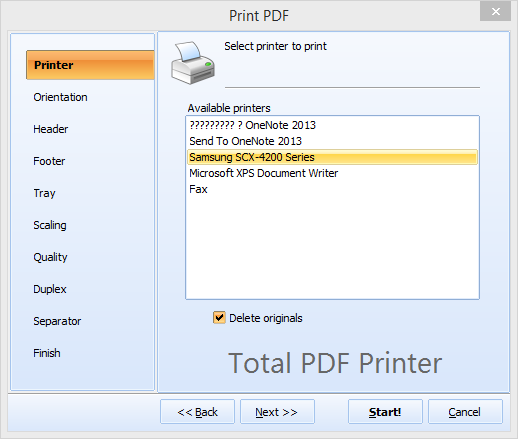
Quick answer: To print only portrait pages from a PDF, open Total PDF Printer, select your document in the file list, press the Print button, go to the Orientation tab and check Print only Portrait Pages, then click Start. Only the portrait pages are sent to the printer and the landscape pages are left unprinted, which keeps text pages clean and separate from wide charts.
This task is quite simple with the help of special software - Total PDF Printer, an efficient helper in printing PDF files. It is able to print PDF in batch, separating documents from each other with predefined separator page. Also it allows printing only portrait or landscape pages of the document.
If you require printing only portrait pages of the document, follow these steps:
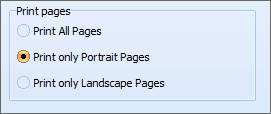
As a result this batch PDF printer will print only portrait pages of selected source files. Landscape pages will be left unprinted.

It is not a problem if you have printing hardware with a few trays or have a few printers connected to your computer. With our app you can effectively manage all your printing devices, just choose proper tray from the list of available trays. Moreover, Total PDF Printer allows to adjust printing quality to save ink.
Print your PDF files efficiently using Total PDF Printer. Start with the free trial version to test its functionality.
If you have any questions or concerns about Total PDF Printer, don't hesitate to ask us. We will guide you through the setting and help to choose the best license. Fill in the contact form today!
Download free trial and convert your files in minutes.
No credit card or email required.

Related Topics
How to Print PDF Fit-to-Page — Scale Any PDF to Your Paper Size
