Need help? Reach us at 

 +1 (855) 418-2323
Need help? Reach us at
+1 (855) 418-2323

 TIFF and PDF apps
A law firm receives 3,000 pages of discovery documents in PDF and TIFF format. Every page must be labeled with a unique sequential number before the files can be entered into evidence. Doing this manually in Adobe Acrobat — one file at a time — takes days of tedious work.
Tiff PDF Cleaner stamps Bates numbers on PDF and TIFF files in batch. Select your folders, configure the numbering format, and click Start. The program processes hundreds of files, applies sequential Bates numbers to headers or footers, and saves the stamped documents — all in one operation.
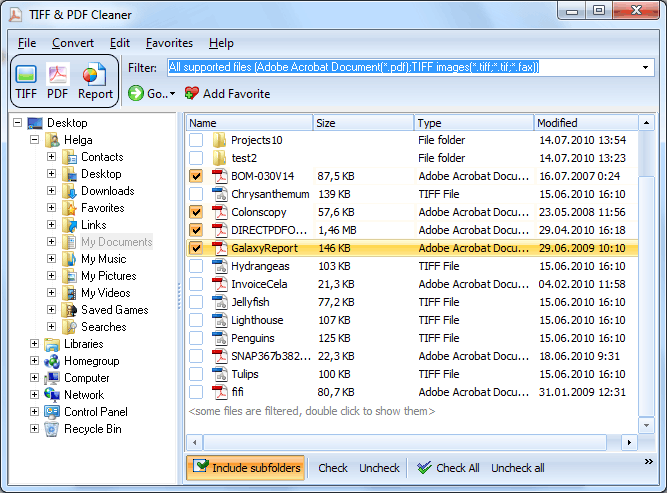
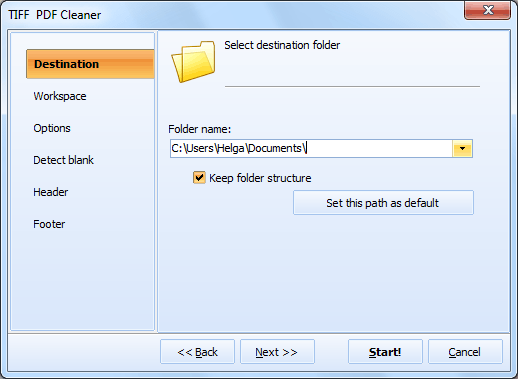
Quick answer: To add Bates numbering to PDF and TIFF files, install Tiff PDF Cleaner, click Add Folder to load your documents, open the PDF or TIFF wizard, go to the Header & Footer tab, enter a prefix with the page-number placeholder, set the starting number and position, then click Start. The program numbers every page sequentially across all files in one batch.
Bates numbering (also called Bates stamping) is a method of labeling document pages with unique sequential identifiers. Each page receives a number — typically with a prefix and leading zeros — so that any page in a collection can be referenced unambiguously. Examples: CASE001-000001, DOC-0001, 2024-00001.
Bates numbers are used in:
{PageNumber} placeholder for sequential numbering. Add a prefix (e.g., CASE001-) and set the starting number. Leading zeros are supported for consistent digit length.Bates numbers are just one option. Tiff PDF Cleaner lets you stamp any combination of the following into page headers and footers:
| Element | Description |
|---|---|
| Sequential page number | Continuous numbering across all files in the batch (Bates stamping) |
| Page number within file | Resets to 1 for each new file |
| Custom prefix/suffix | Text before or after the number (e.g., CASE-, -2024) |
| Date | Current date in your chosen format |
| File name | Name of the source file stamped on each page |
| Custom text | Any fixed text string (e.g., "CONFIDENTIAL", company name) |
| Logo / image | Company logo or watermark image in the header or footer |
When you process a batch of files, Tiff PDF Cleaner numbers pages sequentially across all documents. If the first file has 10 pages (numbered 1–10), the second file starts at page 11. This produces a single continuous sequence across the entire document collection — exactly what courts and auditors expect.
You can set the starting number to any value. If a previous batch ended at page 5,000, start the new batch at 5,001 and the sequence continues without gaps.
| Task | Manual (Adobe Acrobat) | Tiff PDF Cleaner |
|---|---|---|
| Stamp one file | Open, add header, set numbering, save | Same effort for a single file |
| Stamp 100 files | Repeat the process 100 times, track last number manually | Select folder, configure once, click Start |
| Sequential numbering across files | Must track and enter the starting number for each file | Automatic — numbers continue across files |
| TIFF files | Acrobat does not handle TIFF files | PDF and TIFF in the same batch |
| Custom prefix | Supported but must be set per file | Set once, applied to all files |
| Blank page removal + stamping | Two separate operations | Both in one pass |
| Command-line automation | Not available | Full command-line support |
Attorneys must produce documents with Bates numbers so opposing counsel and the court can reference specific pages. A missing or duplicate number can result in sanctions. Tiff PDF Cleaner applies consistent, gap-free numbering to thousands of pages.
Industries like pharmaceuticals, finance, and healthcare require numbered document trails. Bates stamping provides a verifiable, sequential record that auditors can follow page by page.
A claim file may contain medical records, police reports, repair estimates, and correspondence — hundreds of pages from different sources. Bates numbering ties them into a single referenced collection.
Merger and acquisition due diligence involves reviewing thousands of financial and legal documents. Bates numbers let the review team cite specific pages in their reports without ambiguity.
When paper archives are scanned to TIFF or PDF, each page needs a unique identifier for the digital catalog. Bates stamping during the scanning cleanup phase saves a separate numbering step later.
Select folders containing hundreds of PDF and TIFF files. Set your Bates format once and apply it to every page in every file. No per-file setup, no manual number tracking.
Most Bates stamping software works only with PDFs. Tiff PDF Cleaner handles both PDF and multi-page TIFF files in the same batch. Mixed-format document collections are processed together.
Remove blank pages, crop black scanner borders, compress TIFF files, and add Bates stamps — all in one pass. Clean up scanned documents and stamp them simultaneously.
Set the prefix, starting number, number of digits, font, size, and position. Place the stamp in the header or footer, aligned left, center, or right. Add the date or file name alongside the Bates number.
Run Tiff PDF Cleaner from a .bat script for automated Bates stamping. The program generates the command line from your current settings — copy it from the Command Line tab.
TiffPDFCleaner.exe /s "C:\Discovery\*.pdf" /o "C:\Stamped\" /bates_start 1 /bates_prefix "CASE001-"
Save this in a .bat file to standardize the Bates stamping process across your team.
Download the free 30-day trial — no email or credit card required. A personal license costs $59.90 and includes one year of free upgrades.
CASE001-) and suffix to the sequential number. Leading zeros are supported for consistent digit length.
Download free trial and convert your files in minutes.
No credit card or email required.

Related Topics
Delete Blank Pages In TIFF Files
