Need help? Reach us at 

 +1 (855) 418-2323
Need help? Reach us at
+1 (855) 418-2323

 TIFF and PDF apps
A scanning bureau delivers 200 PDF files. The pages inside contain scanned content but no indication of which file they belong to. When someone prints a page or views it on screen, there is no way to trace it back to its source document. The same problem occurs with legal exhibits, medical records, and archived invoices — the pages themselves carry no file identification.
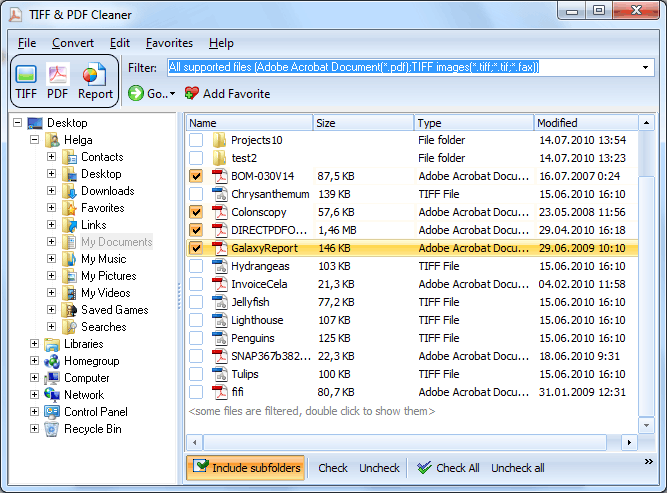
Tiff PDF Cleaner adds the file name to the header or footer of every page in your PDF files — automatically and in batch. Select your folders, set the [name] tag in the header field, and click Start. Every page in every PDF gets labeled with the file name of its source document.
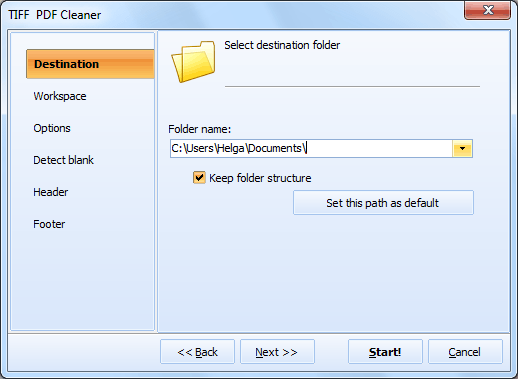
Quick answer: To stamp the file name on every PDF page, launch Tiff PDF Cleaner, add the folder of PDF files, click the PDF button to open the wizard, go to the Header tab, type the [name] tag, set font and position, choose an output folder, and click Start. The whole batch is labeled automatically, so any printed page traces back to its source file.
[name] into the header input field. This placeholder is replaced with the actual file name of each document during processing. You can combine it with other text, e.g., Source: [name].The file name tag is just one of several placeholders available. You can combine multiple elements in the same header or footer:
| Placeholder / Element | What It Produces |
|---|---|
[name] | File name of the source document (e.g., Invoice_2024_March.pdf) |
[page] | Page number within the current file |
| Sequential number | Continuous page numbering across all files (Bates numbering) |
[date] | Current date in your chosen format |
| Custom text | Any fixed text (e.g., "CONFIDENTIAL", department name, project ID) |
| Logo / image | Company logo or watermark in the header or footer |
Example header: Source: [name] — Page [page] produces "Source: Contract_Draft.pdf — Page 3" on the third page of that file.
Tiff PDF Cleaner was originally designed to detect and delete blank pages in scanned documents. The header/footer feature works alongside blank page removal in a single pass. This means you can:
All three operations happen at once — no need to run the files through multiple tools or multiple passes.
| Task | Manual (Adobe Acrobat) | Tiff PDF Cleaner |
|---|---|---|
| Add file name to one PDF | Open, add header, type name, save | Same effort for a single file |
| Add file name to 100 PDFs | Repeat 100 times, type each name manually | Select folder, set [name] tag, click Start |
| Dynamic file name | Must type each file's name manually | [name] tag inserts the actual file name automatically |
| Remove blanks + add name | Two separate operations | One pass does both |
| TIFF files | Acrobat does not edit TIFF headers | PDF and TIFF in the same batch |
| Subfolder processing | Must open each subfolder manually | Enable "Include Subfolders" for recursive processing |
| Automation | No command-line option | Full command-line support |
Courts and opposing counsel reference documents by file name. Adding the name to every page header ensures that any printed or extracted page can be traced back to its source exhibit.
A scanning service delivers hundreds of PDFs. Stamping the file name on every page provides an internal cross-reference between the physical paper and its digital copy.
Auditors work with supporting documents from multiple sources. The file name in the header tells them exactly which statement, invoice, or receipt they are reviewing — even when pages are printed and mixed together.
Patient files scanned to PDF need identification on every page. The file name stamp prevents pages from different patients being confused when records are printed or faxed.
When departments share PDF reports, the file name in the header acts as a reference label. Recipients always know which file a printed page came from.
The [name] placeholder automatically inserts the correct file name for each document in the batch. No need to type each name manually — the program reads it from the file system.
Process entire folder trees in one operation. Hundreds of PDF files are stamped with their file names without per-file configuration.
Remove blank pages, crop black scanner borders, add file names, insert page numbers, and compress files — all in a single pass. One tool replaces several separate utilities.
Tiff PDF Cleaner handles both PDF and multi-page TIFF files. The same header/footer settings apply to both formats in the same batch.
Run Tiff PDF Cleaner from a .bat script for automated processing. The program generates the command line from your current settings — copy it from the Command Line tab.
TiffPDFCleaner.exe /s "C:\Scans\*.pdf" /o "C:\Labeled\" /header "[name]" /header_align center
Add this to a scheduled task for automated file name stamping on incoming documents.
Download the free 30-day trial — no email or credit card required. A personal license costs $59.90 and includes one year of free upgrades.
[name] in the input field. Click Start. Every page in every PDF will receive the file name in its header.[name] tag is a placeholder that gets replaced with the actual file name of each document during processing. For example, if the file is called “Invoice_March.pdf”, every page in that file will show “Invoice_March.pdf” in the header.[name] — Page [page] will produce “Contract.pdf — Page 3” on the third page.
Download free trial and convert your files in minutes.
No credit card or email required.

Related Topics
How to Stamp Bates Numbers on PDF and TIFF Files
