Need help? Reach us at 

 +1 (877) 395-3616
Need help? Reach us at
+1 (877) 395-3616

 File Converters
Reduce PDF file size for email attachments, uploads and storage with Total PDF Converter. The Windows application processes one document or a batch of PDFs and saves the results on your computer. Select your files, choose PDF output and compression, then save the compressed documents to your chosen folder.
Windows 7, 8, 10 and 11. Free 30-day trial.
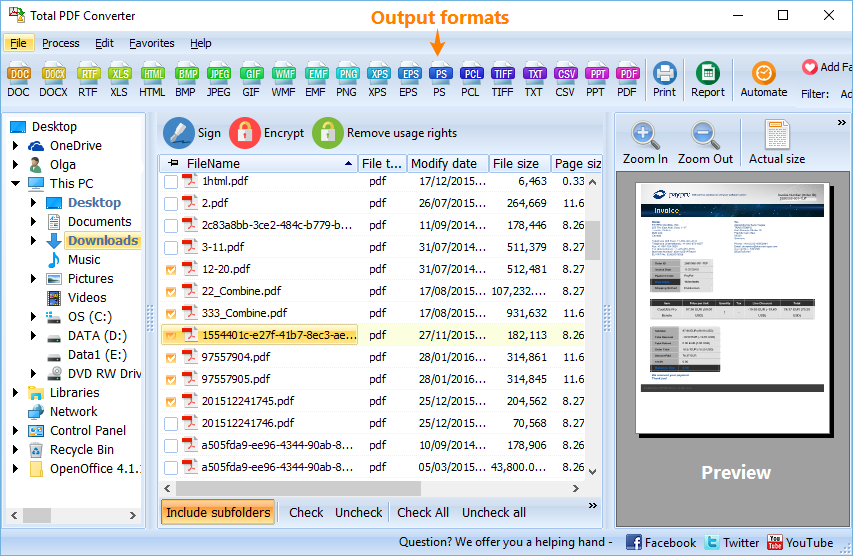
Open Total PDF Converter and browse to the folder containing your documents. Tick the files you want to process. To work through the whole folder, use Check All.
For your first run, choose a representative document and save the output to a separate folder. This makes it easy to compare the result with the original before processing the rest.
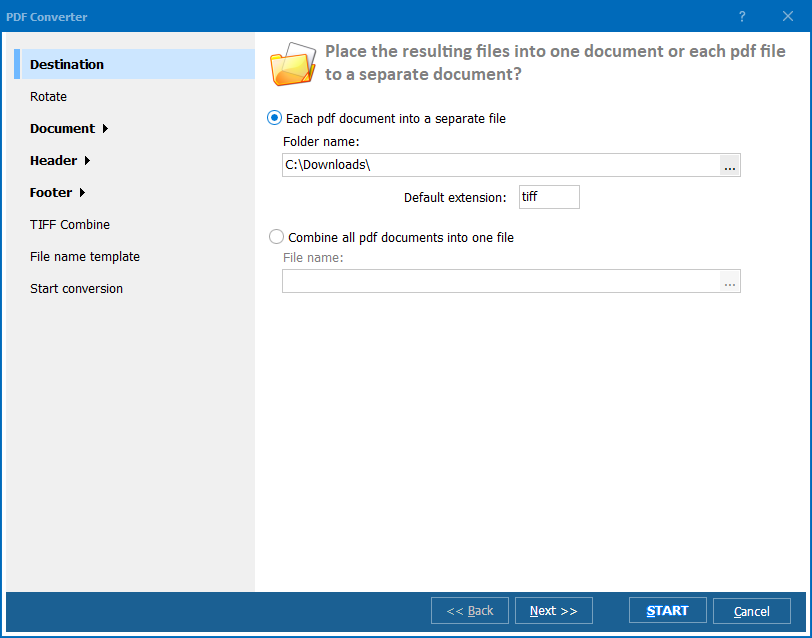
Click the PDF output option to open the conversion wizard. Set the destination folder and configure PDF file compression. Keep PDF as the output format when your recipient needs a PDF document.
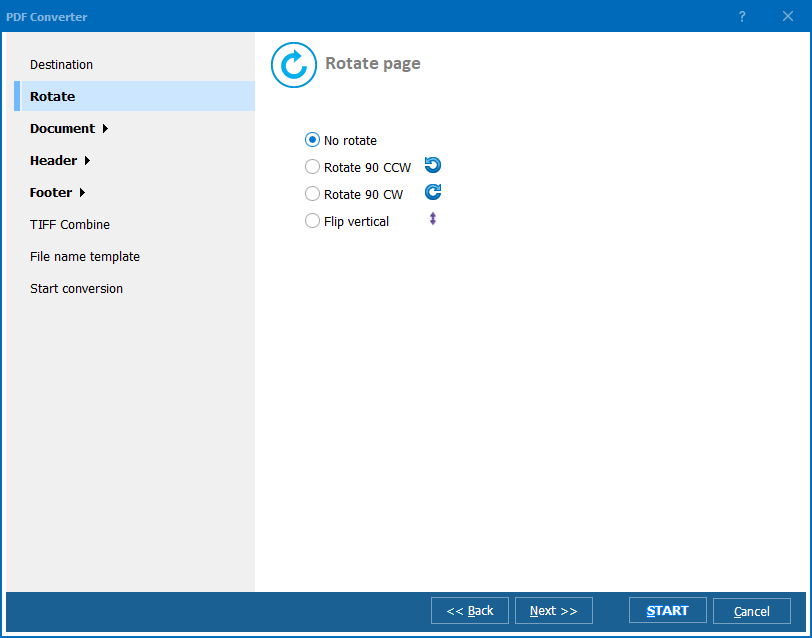
Review any other output settings before starting. If the job is simply to reduce file size, keep the required pages and avoid adding unrelated changes to the document.
Start the conversion, then open the PDF in your destination folder. Compare its file size with the original and check a few representative pages, including pages with small text, tables and images.
If you are preparing the file for an upload form, compare the saved size with that form's limit. Use the saved PDF when attaching or uploading the document.
Batch processing is useful when you have a folder of reports, invoices, manuals or other documents to prepare. Select the PDFs together and apply your output settings in one run.
For a mixed collection, begin with a small sample that reflects the files in the folder. A short text document and a long illustrated report may produce different results. Once you have reviewed the sample, process the remaining documents with the settings that suit the job.
Save the results in a clearly named folder, such as Compressed PDFs, so the originals and the files ready to send are easy to distinguish.
Total PDF Converter is a Windows desktop application. After installation, you can process PDFs without an internet connection or uploading the documents to an online converter.
This is a practical option for recurring document work: open a local folder, select the files and save the output where you need it.
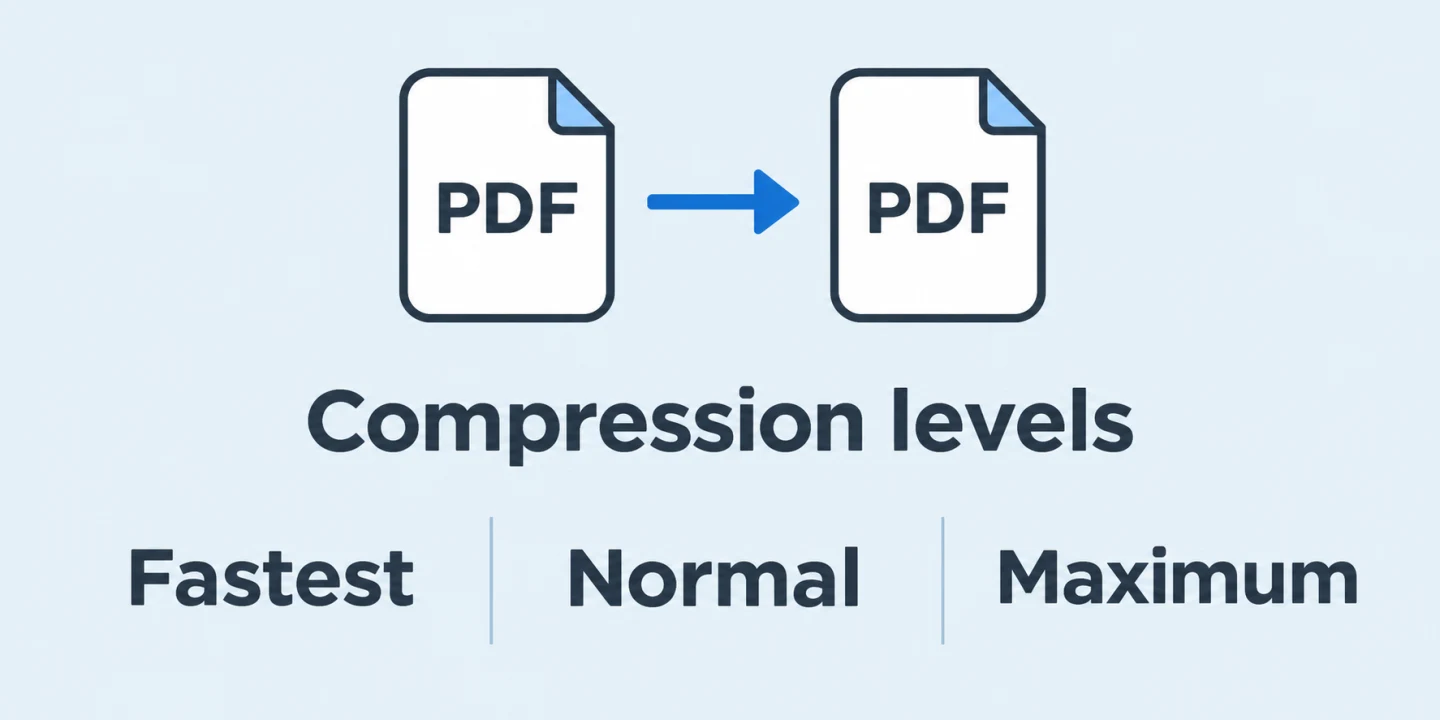
PDF compression is available at three levels: Fastest, Normal and Maximum. When choosing a setting, compare the saved result with your requirements for file size and readability.
For repeated jobs or scripts, registered users can also use the command-line PDF converter. The -c PDF option selects PDF output, and -pc selects the PDF compression level.
This example uses Maximum compression and writes the output to a separate folder:
PDFConverter64.exe "C:\PDF\Input\report.pdf" "C:\PDF\Output\report.pdf" -c PDF -pc Maximum
Create the destination folder, then run the command in Command Prompt from the program's installation folder. Replace the example paths with your own source and destination paths, keeping quotation marks around paths that contain spaces.
File size is the amount of storage a document uses, measured in KB or MB. Page size describes the dimensions of its pages, such as A4 or Letter.
If an upload form rejects a PDF because it is too large, check the limit in KB or MB. If a printer or document specification requires a different paper format, use the guide to change PDF page size. These are separate requirements, even though both are sometimes described as “resizing a PDF.”
Download Total PDF Converter, select a document and save a compressed PDF to a separate folder. Review the result, then use batch processing for the rest of your files.
Download free trial and convert your files in minutes.
No credit card or email required.
© 2026. All rights reserved. CoolUtils File Converters