Need help? Reach us at 

 +1 (855) 418-2323
Need help? Reach us at
+1 (855) 418-2323

 File Converters
MSG email files can be migrated to Microsoft Outlook in a few ways. It depends on what you want to do with those files. Let's go into detail so that you could choose the best solution.
Quick answer: To import many MSG files into Outlook at once, use Total Mail Converter to convert all the MSG messages into one PST file, then open that PST inside Outlook. It appears as a separate mail account with every date, subject, and original formatting preserved. This is far faster than opening or importing MSG files one by one, no matter how many you have.
If you choose the first option, the mail client will open a message. If there are many MSG files for viewing, you will need to open each one separately. They will not be imported into the program, and you will not be able to resend them or edit.
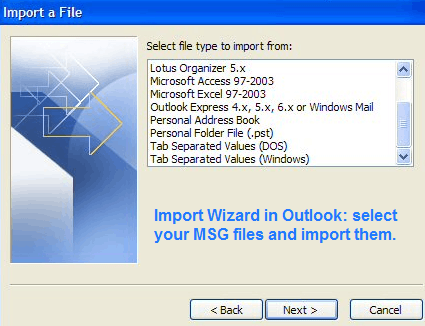
In this case you should import MSG files into Outlook. After the MSG file is imported once, it will stay inside the program. You can open, edit or send it just as you do with your regular emails. If you have just a few MSG files, import them one by one. However, if you have a hunderd of them use this shortcut: convert all your MSG files to one PST and import that PST into MS Outlook.
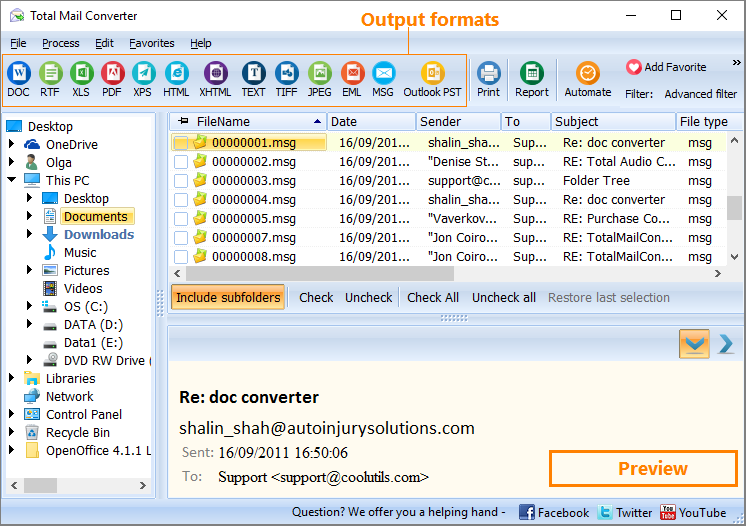
Combining all MSG files into one PST file with further import to MS Outlook is the quickest and the most comfortable approach to manage this problem. A program that can do such mail grouping automatically is Total Mail Converter. It will convert all MSG messages into one PST (Outlook mail storage file) and then open this PST file inside Outlook.
In MS Outlook it will look like a separate mail account imported to the client. Date, time, subject and all other mail parameters will be preserved, as well as original formatting. The biggest advantage of this method is short time required for migrating all MSG files into Outlook. No matter, how many you emails have, all they will be processed as quickly as one.
It's up to you to decide what method suites you best. Please, note that the fisrt one is free, while the second one requires purchasing a license of Total Mail Converter ($49.90) but it is faster and less cumbersome.
Download free trial and convert your files in minutes.
No credit card or email required.