Where I Can Find Outlook PST File
There are different reasons why you may need to find a PST file. Having an extra back-up copy of the critical email data is one of the most common things that make people look for the Outlook PST file. So where can you find the personal application data and how to get a PST file with no special effort on your end?
![]()
If you use Microsoft Outlook without an Exchange server, all application data are automatically downloaded to your computer and stored in a single PST file. In addition to mail, the Outlook PST file stores your Contacts, Notes, Tasks, and Calendar Entries — all objects that are visible in the folder tree.
As a rule, the Outlook PST file can be found in one of these directories, depending on your Outlook version:
- Outlook 2007-2010:
C:\Users\username\AppData\Local\Microsoft\Outlook
- Outlook 2013 and later:
C:\Users\username\Documents\Outlook Files
The folder with app data is hidden. So to navigate to it, you must enable the display of hidden folders. To do this, perform the below action:
- Check the “View/Advanced” options;
- Go to “Files and folders”;
- Pick “Hidden files and folders”;
- Select the “Show hidden files & folders” option.
The above manipulations will help you navigate to the folder where the Outlook PST file is stored. Work with data files effectively.
![]()
Quick answer: To find your Outlook PST file, enable hidden folders, then open %localappdata%\Microsoft\Outlook on Windows 7 and Outlook 2007-2010, or C:\Users\username\Documents\Outlook Files on Outlook 2013 and later. You can also browse, open, and convert these data files quickly with Outlook Viewer or Total Outlook Converter without hunting through Explorer.
Where Is Outlook PST File Windows 10
In most cases, you don’t need to worry about where your Microsoft Outlook data files are. But if you want to create a back-up repository or move application data to a hard drive, here’s how to find the location of your PST datafile and how to work with it. The place Microsoft Outlook stores your application data files depends on the version of Outlook you are using.
By default, Outlook 2007 and 2010 store PST data in the AppData folder in the following directory:
C:\Users\username\AppData\Local\Microsoft\Outlook
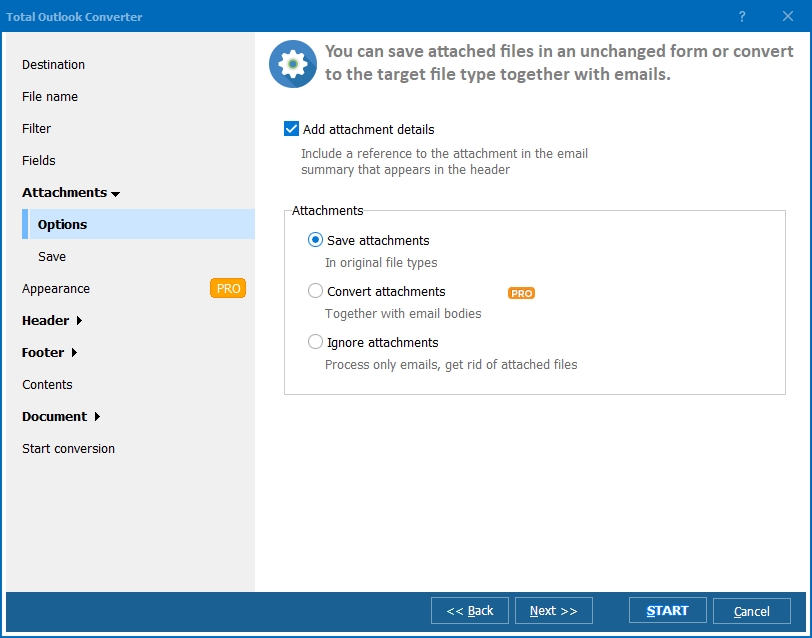
So you can follow this path to get to the target data files, or you can employ Outlook Viewer to speed up the process.
![]()
When it comes to Microsoft Outlook 2013 and later versions, the location of your PST files is moved to the Documents folder. You can access them by leading to:
C:\Users\username\Documents\Outlook Files
Where Is Outlook PST File in Windows 7
By default, the PST file is saved to the current user’s directory in the system documents and settings folder. On Windows 7, enter the following path in the address bar of the explorer:
%localappdata%\Microsoft\Outlook\
The search client will automatically open a list of data files for their further copy or migration.
How to Change Outlook Datafile Location
Having found a list of app data, it won’t move the PST file to any location convenient for you. You just need to exit Microsoft Outlook and transfer the file to any folder. We recommend that you perform the transfer and not copying. Otherwise, when starting Microsoft Outlook, you will receive a warning that the PST file isn’t found.
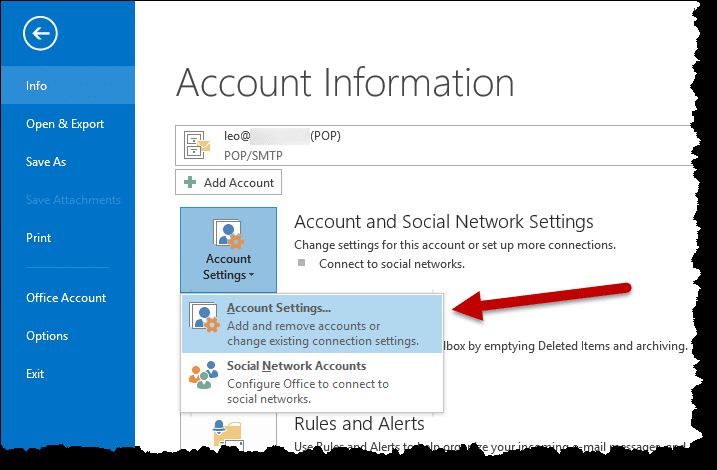
You can find the current location of your PST files very quickly through Outlook documents and settings. For example, in Outlook 2010, you need to:
- Open the “File” section of the main menu;
- Select “Account Settings …”.
In Outlook 2007, the “Account Settings …” item is available through another section of the “Tools” menu. Selecting this item will open the “Account Settings” dialog box, where you can check documents and settings. Opening the “Data Files” tab, you will see a list of locations for all types of MS files. Here you can independently choose the location of each data file by clicking on the “Open folder…” button. It will open the Outlook directory in the explorer, and you can modify the path. Apart from changing the file location, you can also change its format by using the
Outlook Converter program.
Final Say
No matter if you are an IT professional or just an ordinary MS user who wants a clone of a PST file, Outlook remains the most ubiquitous and convenient application. Now, you know a lot more about how to work with the data files of this program.
Finding the Outlook PST File — FAQ
Where is my Outlook PST file stored?
▼
On Windows 7 and Outlook 2007-2010 the PST lives in the hidden AppData path %localappdata%\Microsoft\Outlook. From Outlook 2013 onward it moves to C:\Users\username\Documents\Outlook Files. You can browse straight to either location in File Explorer.
Where is the Outlook PST file on Windows 10?
▼
The location depends on your Outlook version rather than on Windows 10 itself. Older Outlook builds keep the PST in the AppData\Local\Microsoft\Outlook folder, while Outlook 2013 and later store it in the Documents\Outlook Files folder.
Why can I not see the PST folder?
▼
The AppData folder is hidden by default. Open the View or Advanced options in File Explorer, go to Files and folders, and turn on Show hidden files and folders. The Outlook data folder then becomes visible and you can open it.
How do I find the PST file fast?
▼
Type the environment path %localappdata%\Microsoft\Outlook into the Explorer address bar and press Enter to jump straight to the folder. Alternatively, open the file in Outlook Viewer or Total Outlook Converter to browse its contents without locating it manually.
How do I change the Outlook PST file location?
▼
Close Outlook first, then move (do not copy) the PST file to the folder you prefer. In Outlook go to File then Account Settings, open the Data Files tab, and point Outlook at the new path so it does not warn that the file is missing.
Can I open the PST file without searching the disk?
▼
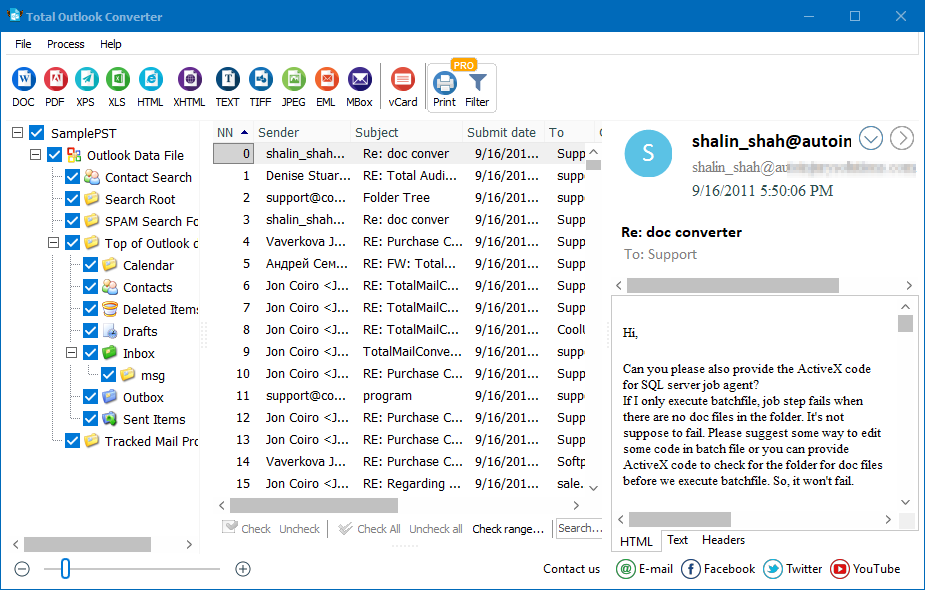
Yes. Total Outlook Converter and Outlook Viewer open a PST file directly, showing its folders, contacts, and messages. This lets you preview or convert the data before deciding whether to copy or relocate the file.


 +1 (855) 418-2323

 File Converters