Need help? Reach us at 

 +1 (855) 418-2323
Need help? Reach us at
+1 (855) 418-2323

 TIFF and PDF apps
(includes 30 day FREE trial)
(only $59.90)
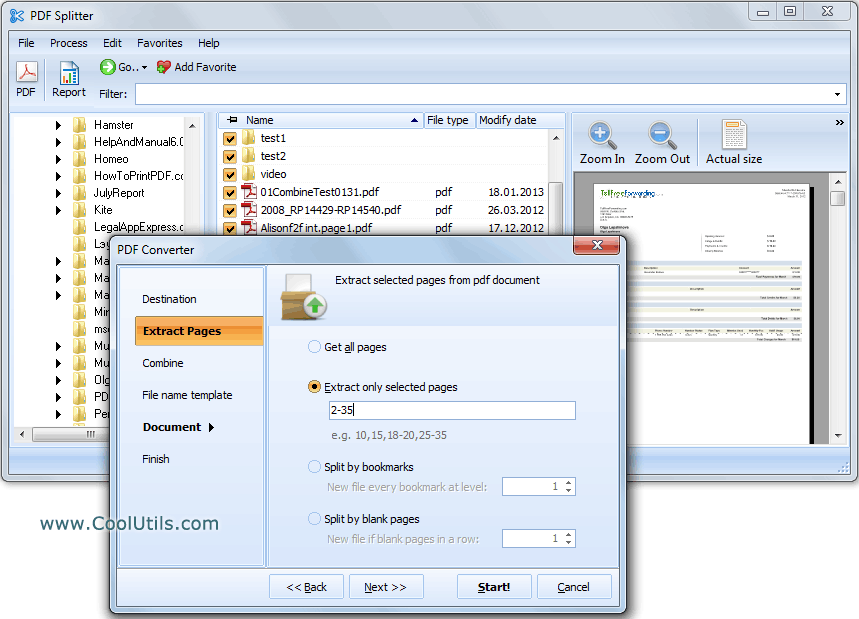
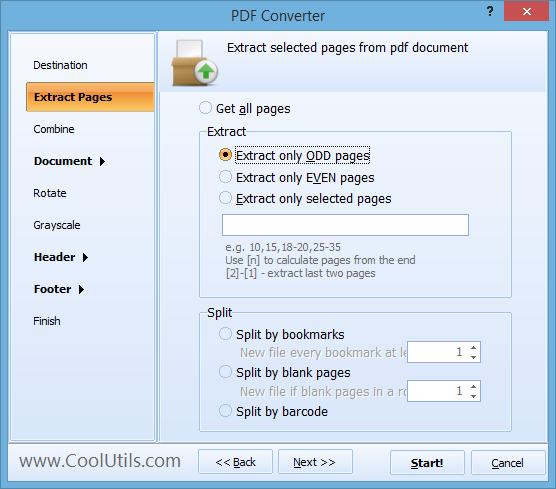
Quick answer: To extract odd or even pages from a PDF, launch PDF Splitter, select your PDF files, click Split PDF, open the Extract Pages tab and choose Extract only ODD pages or Extract only EVEN pages (or a custom range), then pick a destination folder and press Start. Hundreds of files are processed in one batch run in seconds.
The most common reason is manual duplex printing. Printers without automatic duplex mode can only print one side at a time. You print all odd pages (1, 3, 5...), reload the paper face-down, then print all even pages (2, 4, 6...). The result is a double-sided document from a single-sided printer.
Another scenario: a scanned PDF where odd pages are the front of each form and even pages are the back. You need only the front sides for data entry. Extracting odd pages gives you exactly that — no blank backs, no irrelevant content.
Publishers split manuscripts by odd and even pages for different press runs. Legal teams extract specific page subsets from large filings. Accounting departments pull every other page from interleaved invoice batches. The need comes up whenever pages follow an alternating pattern.
Doing this manually in a PDF editor means clicking every other page in the thumbnail panel, then extracting. For a 50-page file, that takes minutes. For a folder of 100 files, it takes a full day. PDF Splitter does it in seconds.
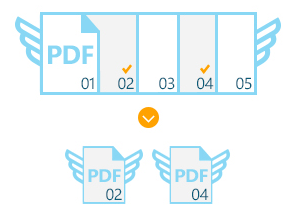
The entire process takes seconds, even for large batches. Original files remain untouched — PDF Splitter creates new output files for the extracted pages.
PDF Splitter includes a command-line interface for automated workflows:
PDFSplitter.exe C:\Documents\*.pdf -ExtractOdd -o C:\Output\
Schedule this in Windows Task Scheduler to process incoming files automatically. The command-line version runs without a GUI and fits into document processing pipelines. Use -ExtractEven for even pages, or -Pages:1,3,5-10 for custom ranges.
 Odd, even, or custom ranges. Extract only odd pages, only even pages, or specify any combination of page numbers and ranges. One tool covers every page extraction scenario.
Batch processing. Select a folder with 500 PDFs and extract pages from all of them in one run. Each output file is named to match the source. No manual file-by-file handling.
Page grouping. Instead of one file per extracted page, group pages into multi-page output files. Extract odd pages from a 100-page PDF and get a single 50-page PDF — or split into files of 10 pages each.
Watermarks and stamps. Add page numbers, date stamps, filenames, or custom text to headers and footers of extracted pages. Useful for labeling extracted subsets before distribution.
More than page extraction. PDF Splitter also splits by bookmarks, by page count, by blank pages, and by barcode. One tool handles every splitting and extraction task.
One-time purchase. A single license at $59.90 covers the software for life. Free upgrades for 12 months. No subscriptions, no per-file charges.
| Task | Manual (Acrobat) | PDF Splitter |
|---|---|---|
| Extract odd pages from 100 files | 4–8 hours | Under 30 seconds |
| Extract even pages | Click every other page | One setting for all files |
| Custom page ranges | Select pages manually | Type range: 1-5, 10, 15-20 |
| Group extracted pages | Not supported | Set pages per output file |
| Automation | Not possible | Command-line + Task Scheduler |
| Software cost | Adobe Acrobat ($240/yr) | PDF Splitter ($59.90 once) |

(includes 30 day FREE trial)
(only $59.90)
Download free trial and convert your files in minutes.
No credit card or email required.