Logo
Home Products Support Contact About Us
arrow1 TIFF and PDF apps


How to Join TIFF Files into One Multi-Page Document

You receive 50 scanned pages as individual TIFF files and need to send them as one document. Opening each file in a graphics editor, copying, pasting, and saving is slow and error-prone. Tiff Combine reads TIFF, BMP, JPEG, PNG, ICO, WMF, and other image formats and joins them into a single multi-page TIFF or PDF — in batch, with control over compression, orientation, color space, and cropping.

Single-Page TIFF vs Multi-Page TIFF: What Is the Difference?

Single-page TIFF

A standard TIFF file stores one image. Scanners often produce one .tif per page. A 40-page contract scan becomes 40 separate files. Sending, archiving, or attaching them is inconvenient — recipients must open each file individually, and file names may not indicate the correct page order.

Multi-page TIFF

The TIFF format supports multiple images (frames) inside a single file. A multi-page TIFF works like a PDF — one file, many pages. Viewers show a page list or thumbnails. This is the standard format for fax archives, medical imaging, and legal document storage. Joining single-page TIFFs into a multi-page file reduces clutter and keeps page order intact.

Key Features of Tiff Combine

  • Batch merge — select hundreds of files or entire folders and join them in one operation. No per-file manual work.
  • Multiple combine modes — merge all files into one document, create a separate output per subfolder, group by common name part, or split by blank page.
  • Mixed input formats — TIFF, BMP, JPEG, PNG, ICO, WMF, EMF, and other image types. Non-TIFF images are converted on the fly during the merge.
  • TIFF compression control — choose LZW, JPEG, ZIP, CCITT Fax 3, CCITT Fax 4, or no compression. Match the compression to your use case: LZW for general files, CCITT for black-and-white faxes, JPEG for photo scans.
  • Orientation and cropping — rotate images (90°, 180°, 270°) and crop margins before merging. Remove scanner borders without a separate editor.
  • Output to TIFF or PDF — join files into a multi-page TIFF or export directly to PDF with one click.

How to Join TIFF Files — Step by Step

Step 1. Select the Source Folder

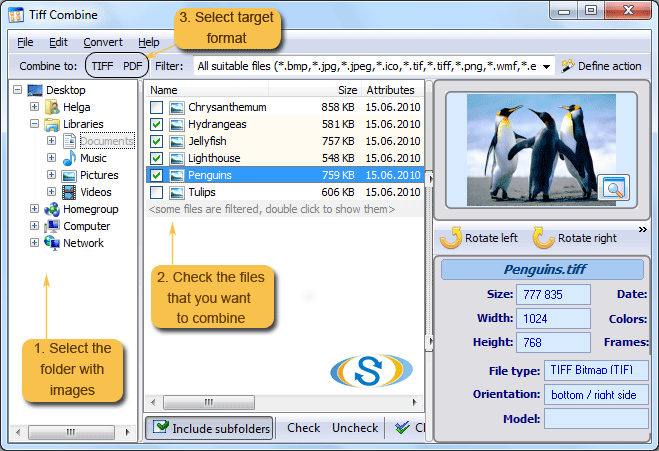
Launch Tiff Combine. The folder tree on the left shows your drives. Navigate to the folder with the images. The file list in the center shows all compatible files with name, size, date, and a thumbnail preview on the right. Tick the files you want to join, or click Check to select all. Enable Include subfolders to scan nested directories.

Step 2. Choose the Output Format

On the toolbar, click Combine to TIFF or Combine to PDF. The settings wizard opens.

Step 3. Set the Combine Mode

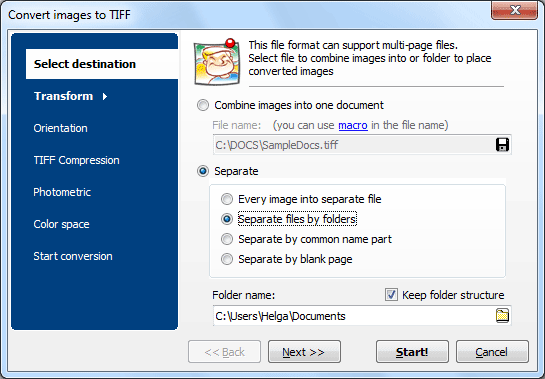
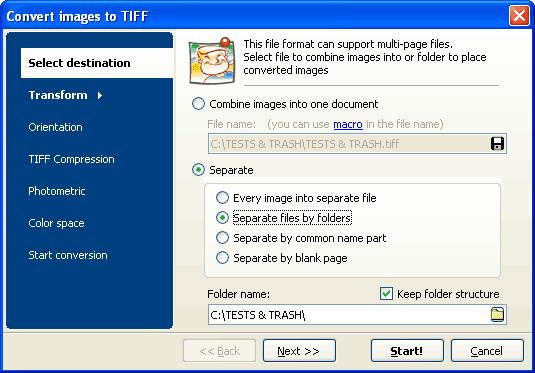
On the Select destination tab, choose how files are grouped:

  • Combine images into one document — all selected files go into a single output file.
  • Separate files by folders — one output file per subfolder. Good for folder-organized archives.
  • Separate by common name part — files that share a name prefix are grouped together.
  • Separate by blank page — blank images act as delimiters between documents.

Step 4. Configure Image Options

Use the tabs on the left to adjust:

  • Orientation — rotate all images or auto-detect orientation.
  • TIFF Compression — LZW, JPEG, ZIP, CCITT Fax 3/4, Packbits, or None.
  • Photometric — RGB, Min-is-Black, Min-is-White for black-and-white scans.
  • Color space — keep original, convert to grayscale, or convert to black-and-white.

Step 5. Click Start

Click Start. Tiff Combine reads every image, applies compression and orientation settings, and writes the output file. A progress bar shows the status. Large batches of 1,000+ files are processed without memory issues.
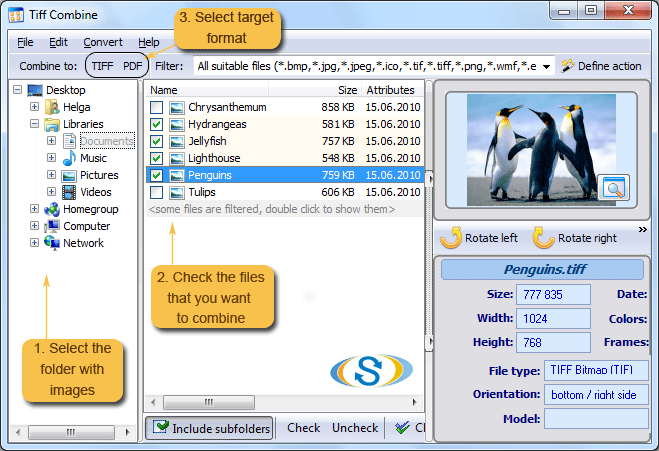
Tiff Combine — select files and output format

Tiff Combine — combine mode and destination settings

Command-Line Merge

Tiff Combine includes a command-line interface for automated processing:

TiffCombine.exe /s "C:\Scans\*.tif" /o "C:\Output\Combined.tiff" /c LZW

Parameters: /s — source files (wildcards supported), /o — output file path, /c — compression type (LZW, JPEG, ZIP, CCITT3, CCITT4, None). Save the command in a .bat file and schedule it with Windows Task Scheduler for nightly batch processing of incoming scans.

Combine Modes Compared

ModeBest ForOutputExample
All into one documentMerging all pages into a single file1 output file50 scanned pages → one multi-page TIFF
Separate by foldersFolder-organized archives1 file per subfolderFolders Jan/, Feb/, Mar/ → 3 output files
Separate by common nameFiles with naming convention1 file per name groupINV001_p1.tif, INV001_p2.tif → INV001.tiff
Separate by blank pageBatch scans with separator sheets1 file per blank-delimited groupBlank sheet between documents in a stack

Online TIFF Mergers vs Tiff Combine

FeatureOnline TIFF MergersTiff Combine
Batch size5–20 files, size limits (50–100 MB)Unlimited files, no size limit
Input formatsTIFF onlyTIFF, BMP, JPEG, PNG, ICO, WMF, EMF
Compression optionsNone or autoLZW, JPEG, ZIP, CCITT Fax 3/4, Packbits
Combine modesAll into one only4 modes: one file, by folder, by name, by blank page
CroppingNoYes — remove margins before merge
PrivacyFiles uploaded to third-party servers100% offline — files never leave your PC
Command-line automationNoYes — full CLI with all options
Output formatTIFF onlyTIFF or PDF

Why Choose Tiff Combine?

Four combine modes for any workflow

Most tools offer only "merge all into one." Tiff Combine adds three more modes: per-folder, by name pattern, and by blank-page delimiter. A scanning department that processes mixed document stacks picks the right mode and gets separate output files without manual sorting.

Full compression control

TIFF compression directly affects file size and compatibility. Black-and-white fax archives shrink 10× with CCITT Fax 4. Color photo scans stay sharp with JPEG compression inside TIFF. Tiff Combine lets you choose the algorithm per job instead of forcing one default.

Accepts more than TIFF

Drop BMP, JPEG, PNG, or WMF files alongside TIFFs. Tiff Combine converts them on the fly and includes them in the output. No need to pre-convert images to TIFF format before merging.

Crop and rotate before merging

Scanner output often includes black borders or skewed pages. Set cropping margins and rotation angle in the wizard, and every image is adjusted before it enters the combined file. No separate image editor needed.

Built-in image preview

The preview panel shows a thumbnail of each selected file along with its size, resolution, color depth, and orientation. You verify the content before merging without opening files in another application.

When Do You Need to Join TIFF Files?

  • Scanning and archiving — a document scanner produces one TIFF per page. Join all pages of a contract, report, or form into a single multi-page TIFF for storage and retrieval.
  • Fax server processing — incoming faxes arrive as individual TIFF images. Combine pages of the same fax into one file and archive by sender or date.
  • Medical imaging — X-ray or ultrasound series stored as separate TIFFs are easier to review and share when combined into a single multi-page file per patient visit.
  • Legal discovery — scanned evidence pages need to be presented as a single exhibit file. Multi-page TIFF is the accepted format in many court e-filing systems.
  • Batch photo processing — a photographer converts a set of edited images into one multi-page TIFF for delivery to a print shop that requires all images in a single file.

Download the free 30-day trial — no email or credit card required. A personal license costs $49.50 and includes one year of free upgrades. Works on Windows 7/8/10/11.

Download Free Trial Buy License — $49.50


quote

Tiff Combine Customer Reviews 2026

Rate It
Rated 4.7/5 based on customer reviews
5 Star

"We scan 300-400 pages of property deeds per day. Each page comes out as a single TIFF. Tiff Combine merges them into multi-page files by folder — one folder per deed, one output file. Before this tool, a clerk spent two hours a day assembling files in Paint. Now the whole batch runs in minutes."

5 Star Patricia Novak Records Manager, County Clerk's Office

"Our fax server dumps incoming faxes as individual TIFF pages. I set up a scheduled task with the Tiff Combine command line that runs every 30 minutes, picks up new pages, groups them by name prefix, and outputs multi-page TIFFs into a shared folder. Completely hands-off."

5 Star Ralf Meier IT Administrator, Logistics Company

"Ultrasound series arrive as 8-12 separate TIFF images per patient. Tiff Combine merges them into one file per visit. The CCITT Fax 4 compression keeps file sizes small for our PACS archive. The cropping feature is a bonus — it removes the black border from our older scanner."

4 Star Sandra Liu Medical Records Coordinator

FAQ ▼

Tiff Combine accepts TIFF, BMP, JPEG, PNG, ICO, WMF, EMF, and other common image formats. Non-TIFF files are converted automatically during the merge. You do not need to pre-convert images to TIFF before combining.
Yes. On the toolbar, click Combine to PDF instead of Combine to TIFF. The output is a multi-page PDF that contains all selected images with the same compression and orientation settings.
Tiff Combine supports LZW, JPEG, ZIP, CCITT Fax 3, CCITT Fax 4, Packbits, and no compression. LZW works well for general images, CCITT Fax 4 is best for black-and-white scans, and JPEG suits color photographs.
When you enable 'Separate files by folders,' Tiff Combine creates one output file per subfolder. For example, if your source folder has subfolders Jan, Feb, and Mar, you get three output files — one containing all images from each month.
Yes. Tiff Combine includes a command-line interface that supports all options available in the GUI: source path with wildcards, output file, compression type, orientation, and combine mode. You can save the command in a .bat file and schedule it with Windows Task Scheduler.
Yes. The wizard includes cropping settings that let you remove margins from every image before it enters the combined file. This is useful for cleaning up scanner borders without a separate image editor.
A personal license costs $49.50. The free trial runs for 30 days with full functionality — no email or credit card required. The license includes one year of free upgrades.


Start working now!

Download free trial and convert your files in minutes.
No credit card or email required.

⬇ Download Free Trial Windows 7/8/10/11 • 71 MB

Support
Tiff Combine Preview1
Tiff Combine Preview2

Latest News

Newsletter Subscribe

No worries, we don't spam.


© 2026. All rights reserved. CoolUtils File Converters

Cards