Logo
Home Products Support Contact About Us
arrow1 TIFF and PDF apps

Batch Print PDF and Select Printing Quality


Printing hundreds of PDFs at high quality drains ink cartridges in hours. Printing everything in draft mode saves toner but produces unreadable charts and images. When you batch-print mixed documents — invoices, reports, contracts — you need control over quality per job, not a one-size-fits-all default. Total PDF Printer lets you set printing quality to high, medium, or draft before each batch run, so every job uses exactly the ink it needs.

Why Printing Quality Settings Matter

  • Ink and toner costs — draft mode uses up to 50% less toner than high quality. For internal memos and reference copies, draft is enough.
  • Print speed — lower quality means faster output. A 200-page batch in draft mode finishes noticeably sooner than the same batch at high quality.
  • Output purpose — client-facing proposals need sharp text and clean images (high). Day-to-day office copies do not (medium or draft).
  • Printer wear — consistently printing at maximum quality increases maintenance frequency. Reserving high quality for final documents extends printer life.

How to Print PDFs with Custom Quality

  1. Download and install — get the free 30-day trial (15 MB, Windows 7/8/10/11). No email or credit card required.
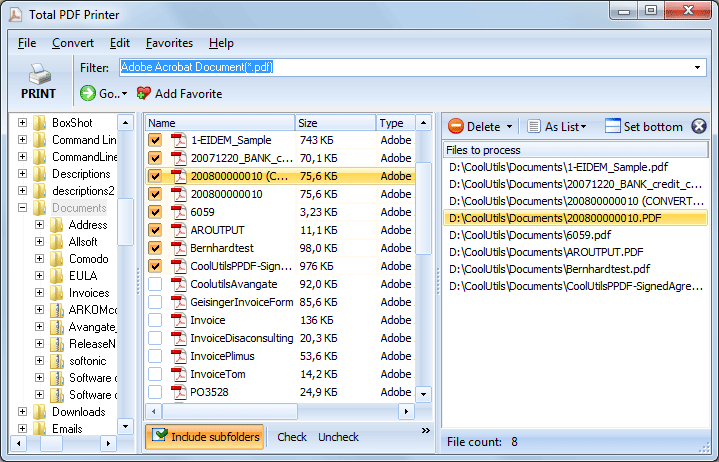
  2. Select files — browse to a folder in the left panel. Check the PDFs you want to print, or click Check All to select every file in the folder.
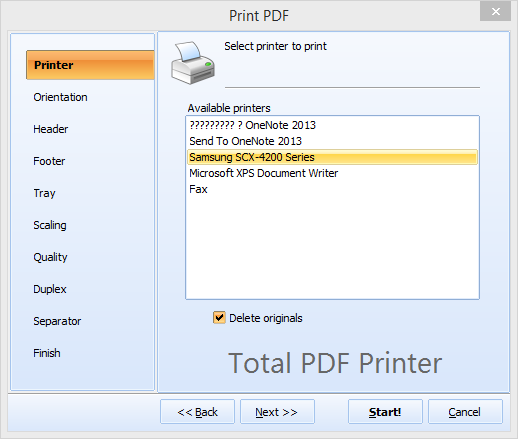
  3. Click Print — this opens the settings wizard.
  4. Go to the Quality tab — choose High, Medium, or Draft. The setting applies to all files in the current batch.
  5. Set other options — choose your printer, paper size, auto-rotate, fit-to-page, and duplex mode.
  6. Click Start — the batch runs silently. A progress bar shows each file being sent to the printer.

Quality Settings via Command Line

Total PDF Printer includes a command-line interface for scripted and scheduled printing. To set quality from a script:

PDFPrinter.exe "C:\Invoices\*.pdf" -p "HP LaserJet" -quality Draft -log "C:\Logs\print.log"

Change -quality Draft to -quality High or -quality Medium as needed. Put this in a .bat file and schedule it with Windows Task Scheduler to auto-print a folder of PDFs every morning at the quality level you choose.

When to Use Each Quality Level

  • High — client proposals, signed contracts, documents with color charts or photos. Every detail matters and will be noticed.
  • Medium — internal reports, meeting handouts, reference copies for filing. Readable and clean without the ink cost of high quality.
  • Draft — proofreading copies, internal memos, temporary printouts you will discard after a meeting. Maximum speed, minimum ink.
  • Mixed workflows — run two batches: select client-facing files first and print at high quality, then select internal files and print at draft. Two clicks instead of adjusting settings per file.


High vs Medium vs Draft

FeatureHighMediumDraft
Print speedSlowestModerateFastest
Ink / toner usageFullReducedMinimal
Text sharpnessMaximumGoodAcceptable
Image qualityFull resolutionSlightly reducedVisibly lower
Best forClient documentsOffice copiesProofreading, memos
Command-line flag-quality High-quality Medium-quality Draft

Works Together with Other Features

Quality settings combine with the rest of Total PDF Printer's options:

  • Auto-rotate — detect portrait and landscape pages automatically, then print at the quality level you set.
  • Fit-to-page — scale oversized or undersized PDFs to match your paper before printing.
  • Duplex printing — print on both sides. Combined with draft mode, this halves both ink and paper usage.
  • Tray selection — route jobs to a specific tray. Useful when different trays hold different paper types.
  • Separator pages — insert blank or custom divider pages between documents in the printed stack.

Server Edition

For unattended server-side printing, Total PDF Printer X runs as a Windows service with ActiveX support. It processes print jobs silently without displaying any UI — ideal for web servers, ERP integrations, and automated document workflows. Quality settings work the same way in the server edition.

Total PDF Printer licenses start at $49.90. Download the free 30-day trial — no email or credit card — and test quality settings with your own files.


quote

Total PDF Printer Customer Reviews 2026

Rate It
Rated 4.7/5 based on customer reviews
5 Star

"We print 300+ invoices a week. Switching internal copies to draft mode cut our toner costs by almost half. The quality setting is right in the wizard — no digging through printer properties."

5 Star Karen Mitchell Office Manager, Westfield Accounting

"I set up a scheduled .bat file that prints overnight reports in draft and client statements in high quality. Two lines in the script, runs unattended every night. Exactly what we needed."

5 Star Thomas Berger IT Administrator

"Good batch printer with useful quality controls. We use medium for proof runs and high for final copies. Saves a full ink cycle on every large job. Would like a per-file quality option in the future."

4 Star Lisa Nakamura Print Shop Coordinator

FAQ ▼

Three levels: High, Medium, and Draft. High produces maximum detail for client documents. Medium reduces ink usage while keeping text sharp. Draft uses the least ink and prints the fastest — suitable for proofreading and internal memos.
Yes. When you set quality to Draft (or High, or Medium) in the wizard, every file in the current batch prints at that level. To mix quality levels, run two separate batches — one for high-quality files and one for draft.
Yes. Use the -quality flag: PDFPrinter.exe "C:\Files\*.pdf" -p "PrinterName" -quality Draft. Replace Draft with High or Medium as needed. This works in .bat scripts and scheduled tasks.
The exact savings depend on your printer model and document content. For text-heavy documents, draft mode typically uses 40–50% less toner than high quality. Documents with large images or color graphics show even greater savings.
Yes. Draft mode sends less data to the printer, so each page prints faster. For large batches (100+ files), the time difference between draft and high quality is noticeable — draft can finish in roughly half the time.
Total PDF Printer defaults to High quality. You can change it in the settings wizard before each batch, or set a different default via the command line in your automation scripts.
Yes. Quality, duplex, fit-to-page, auto-rotate, and tray selection all work together. Set each option in the wizard or pass all flags in one command-line call.


Start working now!

Download free trial and convert your files in minutes.
No credit card or email required.

⬇ Download Free Trial Windows 7/8/10/11 • 25 MB

Support
Total PDF Printer Preview1
Total PDF Printer Preview2

Latest News

Newsletter Subscribe

No worries, we don't spam.


© 2026. All rights reserved. CoolUtils File Converters

Cards