Need help? Reach us at 

 +1 (855) 418-2323
Need help? Reach us at
+1 (855) 418-2323

 File Converters TIFF and PDF apps Forensic Freeware
Quick answer: Install Total Audio Converter, browse the file tree to your FLAC folder, tick the tracks, click APE on the output toolbar, pick a compression level from Fast to Insane, choose an output folder and press Start. Both formats are lossless, so the audio is unchanged, and Vorbis tags plus cover art map straight to APEv2 across the whole library.
You have a FLAC library and a piece of audio software, hardware player, or workflow that only reads APE (Monkey's Audio). Re-encoding to a lossy format would lose quality. Total Audio Converter converts FLAC to APE in batch with both formats fully lossless — the audio data is identical, only the container and compression algorithm change. Tags, cover art, and track structure are preserved.
(30 days, no email)
(from $24.90, perpetual)
Windows 7/8/10/11
FLAC (Free Lossless Audio Codec) is the most widely supported lossless format. It is open source, royalty-free, and decoded by virtually every modern player — foobar2000, VLC, Winamp, iTunes (via plugin), Plex, and most home audio receivers and network players. FLAC is also designed for streaming, with fast seek times and low CPU cost on decode.
APE (Monkey's Audio) is also lossless, but optimized for tighter compression rather than playback efficiency. APE files are typically a few percent smaller than FLAC at equivalent settings, but encoding and decoding cost more CPU. Hardware support is narrow — APE is mostly a Windows desktop format. Where FLAC dominates streaming and consumer hardware, APE has a long history with archivists who care about every megabyte of disk space.
| FLAC | APE | |
|---|---|---|
| Compression | Lossless, ~50–60% of original | Lossless, ~50–55% of original (slightly tighter) |
| Encode/decode speed | Fast on both ends | Slow encode, slow decode (CPU-heavy) |
| Hardware support | Wide — AVRs, network players, TVs | Limited — mostly Windows software |
| Streaming | Designed for streaming | Not designed for streaming |
| Tag format | Vorbis Comments | APEv2 |
| Open source | Yes, BSD-style license | Source available, free for use |
| Best for | Playback, streaming, broad compatibility | Archive size optimization, Monkey's Audio workflows |
Download the installer from the link above and run it. Setup takes under a minute. No additional codecs, no Microsoft .NET prerequisites, no online activation. Total Audio Converter ships with its own FLAC decoder and APE encoder.
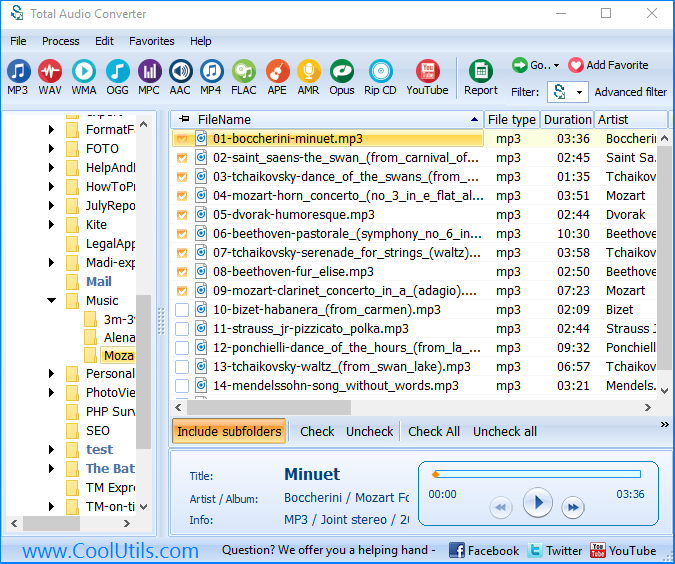
The left panel shows a Windows-style file tree. Navigate to the folder that holds your FLAC files. Tick individual files, a whole folder, or use the keyboard shortcut Ctrl+A to select everything in the current view. The middle panel previews ID3/Vorbis tags so you can verify that the right tracks are queued.
The output-format toolbar lists every supported format. Clicking APE opens the conversion wizard with APE-specific options. The other formats (MP3, OGG, WAV, AAC, OPUS, FLAC, etc.) work the same way — the same batch and tag handling regardless of target format.
APE offers five compression levels:
For a music library you actually play, stick with Normal or High. For a backup that lives on disk untouched, Extra High pays back the extra encode time.
Pick an output folder. The default is "next to source" — each APE lands in the same folder as its FLAC source. To mirror your library somewhere else (an external drive, a NAS), pick a base output folder and enable "Preserve folder structure". Tag handling is automatic: Vorbis Comments map to APEv2 tags, and embedded cover art carries over.
Click Start. Total Audio Converter processes every queued file. A progress bar shows the current file, the remaining count, and the elapsed time. You can pause or stop at any moment. When the batch finishes, a log file lists every conversion and any warnings (rare — usually a malformed source file).
The same converter runs from the command line. This lets you script library-wide conversions, schedule them with Windows Task Scheduler, or wire them into a server-side workflow.
TotalAudioConverter.exe "C:\Music\FLAC\*.flac" "C:\Music\APE\" -c APE -log c:\Logs\flac2ape.log
The first argument is the source mask, the second is the output folder. The -c APE flag selects the target format. The -log flag writes a conversion log so you can verify results without watching the console.
Save the command in a .bat file:
@echo off
"C:\Program Files\CoolUtils\TotalAudioConverter\TotalAudioConverter.exe" "D:\Music\FLAC\*.flac" "D:\Music\APE\" -c APE -log D:\Logs\flac2ape.log
Schedule it with Task Scheduler to convert newly-ripped FLAC files every night, or trigger it from a watch-folder service when files arrive.
Our online Audio Converter handles single files in the browser. For a library, Total Audio Converter loads thousands of FLAC files into a single queue and processes them unattended. Convert a 500-album library in one run.
Many converters strip tags or copy only a subset. Total Audio Converter maps every Vorbis Comment field to APEv2, including custom fields, replay gain, and embedded album art. Your library metadata survives the conversion.
Files never leave your machine. Online converters require uploading every track to a third-party server — impractical for a library, and a privacy concern even for a single file. Total Audio Converter does all the work locally.
The same install converts MP3, WAV, OGG, AAC, AC3, OPUS, FLAC, WMA, ALAC, AIFF, M4A, MPC, MP4, AMR, GSM, and more — in any direction. Today FLAC to APE, tomorrow FLAC to MP3 for a phone, the next day APE to WAV for editing.
If your FLAC library started as audio CDs, Total Audio Converter can rip new CDs straight to APE (or any format). Built-in CDDB lookup pulls track names and album info automatically.
Personal license from $24.90, perpetual. No subscription, no monthly fee, no feature gating. Buy once, use forever, on as many of your own machines as the license tier covers.
| Feature | Online Converters | Total Audio Converter |
|---|---|---|
| Batch processing | One file at a time, often size-limited | Unlimited files per batch |
| File privacy | Files uploaded to third-party server | Files never leave your machine |
| File size limit | Typically 100–500 MB per file | No limit |
| Tag preservation | Often stripped or partial | Full Vorbis ↔ APEv2 mapping plus cover art |
| Folder structure | Single file uploads only | Whole-library structure preserved |
| Compression options | Fixed | Five APE compression levels |
| Speed | Limited by upload bandwidth | Limited by local CPU only |
| Automation | Manual only | Command line, .bat, Task Scheduler |
| Requires internet | Yes | No |
(30 days, no email or credit card)
(from $24.90, perpetual)
Windows 7/8/10/11 • Command line included
Download free trial and convert your files in minutes.
No credit card or email required.