Logo
Home Products Support Contact About Us
arrow1 File Converters
arrow1 TIFF and PDF apps
arrow1 Forensic
arrow1 Freeware

Convert BMP to TIFF in Batch on Windows


BMP files accumulate whenever you work with legacy Windows applications, scanner software, or older CAD and paint tools that output uncompressed bitmaps by default. The format is fine for local editing but impractical for print workflows, document archiving, or any process that expects TIFF. Print shops, document management systems, and medical imaging software all expect TIFF — not BMP. Total Image Converter converts BMP to TIFF in batch, preserving color depth and letting you choose the compression method for the output file.

BMP vs. TIFF: What Is the Difference

FeatureBMPTIFF
CompressionNone (uncompressed by default)LZW, ZIP, JPEG, CCITT, or None
Color depth1, 4, 8, 16, 24, 32 bpp1 to 64 bpp, including 16-bit per channel
Multi-page supportNoYes — multiple images in one file
Print useNot standard in print workflowsWidely accepted by print and publishing tools
File sizeLarge (no compression)Smaller with LZW or ZIP; same with None

BMP has no compression and no multi-page support. It is adequate for Windows-internal use but not suited for print prepress, archiving, or cross-platform delivery. TIFF supports lossless compression, multi-page files, and is the standard format for print production and document archiving systems.

How to Convert BMP to TIFF in Batch

  1. Download and install Total Image Converter. The 30-day trial is fully functional — no email or credit card required.
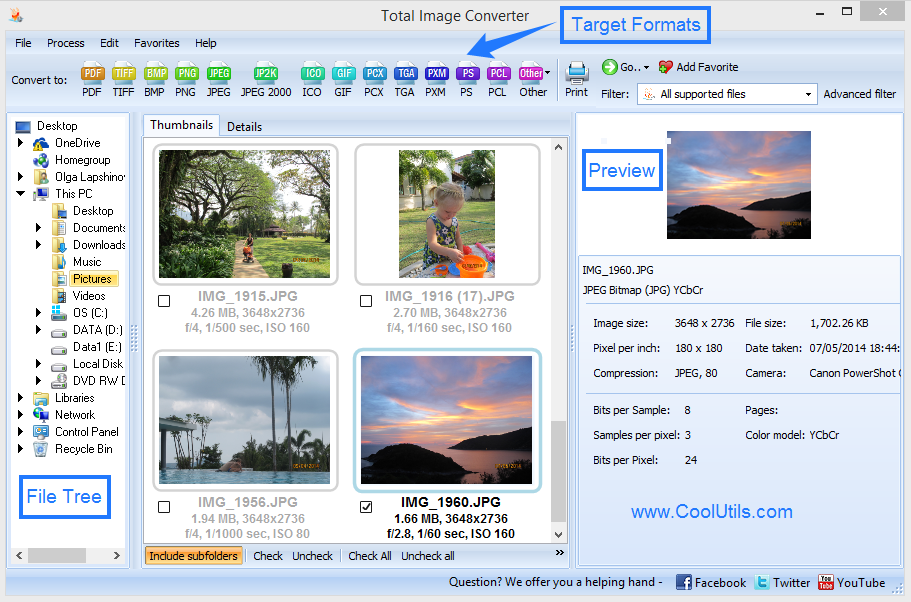
  2. Open the program. In the left panel, navigate to the folder containing your BMP files. Thumbnails appear in the right panel.
  3. Select the files you want to convert: click one file, Shift-click for a range, or press Ctrl+A to select every BMP in the folder.
  4. Click the TIFF button in the format toolbar at the top of the window.
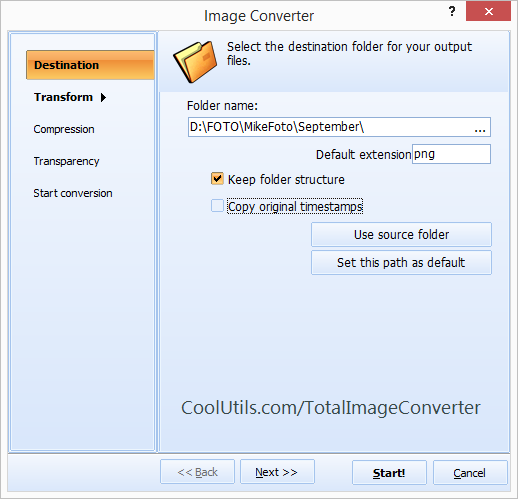
  5. In the conversion options dialog, choose the TIFF compression method: LZW for smaller files, ZIP for maximum compression, or None to keep the output uncompressed. You can also set color depth, DPI, and multi-page options here.
  6. Choose the output folder and click Start. All selected BMP files are converted to TIFF and saved.

Command-Line BMP to TIFF

Total Image Converter includes a command-line executable for server use, scripted workflows, and automated batch jobs. Convert all BMP files in a folder to TIFF:

TotalImageConverter.exe C:\Scans\*.bmp C:\Output -c tiff

To convert with LZW compression explicitly set:

TotalImageConverter.exe C:\Scans\*.bmp C:\Output -c tiff -TIFFCompression lzw

Save either command in a .bat file and run it from Task Scheduler to automate nightly or post-scan conversion without any manual steps.

Why Use Total Image Converter

Batch conversion without a file count limit

Select an entire folder or use Ctrl+A to process hundreds or thousands of BMP files in one run. The conversion runs in the background — you do not need to click through each file individually.

TIFF compression options: LZW, ZIP, or None

Not all TIFF files are equal. Print prepress often requires uncompressed TIFF. Archiving benefits from LZW, which reduces file size by 40–60% for typical scanned documents without any quality loss. ZIP compression achieves even higher ratios for some content. You choose the method per conversion job.

Color depth preserved exactly

A 24-bit BMP produces a 24-bit TIFF. A 1-bit or 8-bit BMP stays at that bit depth unless you explicitly change it. No silent conversion to a different color space or unwanted dithering.

Resize and crop in the same pass

Set a target resolution or crop margins in the options dialog. The program applies both the format conversion and the geometry change in one step, without creating intermediate files.

Works offline, files stay local

Everything runs on your Windows machine. No files are uploaded to any server. This matters when converting medical records, scanned contracts, or any documents that must not leave the local network.

Personal license from $49.90

One-time purchase. Free updates and technical support included. Works on Windows 7, 8, 10, and 11, both 32-bit and 64-bit.

Online Converter vs. Desktop Converter

FeatureOnline ConverterTotal Image Converter
Batch processingOne file at a timeEntire folder in one run
File size limitUsually 10–50 MBNo limit
TIFF compression controlNot availableLZW, ZIP, CCITT, None
PrivacyFiles uploaded to a serverAll local, never uploaded
AutomationNot possibleCommand line, .bat scripts, Task Scheduler
Resize / crop / DPI settingsRarelyYes, in the same pass
Works offlineNoYes

When Do You Need BMP to TIFF Conversion

  • Print prepress. Print shops and RIP software accept TIFF as the standard delivery format for raster images. BMP is not recognized by most print workflow tools. Converting scanned artwork or legacy BMP graphics to TIFF makes them ready for imposition and plating.
  • Document archiving. Long-term document storage systems — such as those used in government records, legal firms, and insurance companies — require TIFF because of its multi-page support, lossless compression, and established archival standards (TIFF/IT, TIFF/EP). BMP has no equivalent archival profile.
  • Medical imaging workflows. Some PACS (Picture Archiving and Communication Systems) and medical document management tools accept TIFF for scanned patient records and consent forms. BMP files from legacy scanning equipment must be converted before ingestion.
  • Publishing and editorial. Editorial workflows in InDesign and QuarkXPress expect placed images in TIFF or EPS. Converting BMP illustrations or screenshots to TIFF makes them directly usable in page layout without format-compatibility issues.
  • Legacy application output. Older Windows software — measurement systems, industrial control panels, CNC tools — exports screenshots and reports as BMP. Converting these to TIFF makes them compatible with modern document management and archiving pipelines.

quote

Total Image Converter Customer Reviews 2026

Rate It
Rated 4.7/5 based on customer reviews
5 Star

"Our prepress department receives BMP files from a client who runs legacy measurement software that cannot export anything else. We convert the entire delivery folder to TIFF with LZW compression before it goes into the RIP. Total Image Converter handles the batch in under two minutes and the output drops straight into our imposition workflow without any complaints from the software."

5 Star Thomas Brennan Print Production Specialist

"We digitize records from older Windows scanning stations that produce BMP output. Before ingestion into our TIFF-based archive, every file has to be converted. The command-line version of Total Image Converter runs as a scheduled task every night, converting whatever landed in the intake folder. Multipage TIFF output groups related pages into single files exactly as our indexing system expects."

5 Star Christine Vogel Document Archivist

"Our older radiology workstations export annotated screenshots as BMP. The document management system we use for patient records only accepts TIFF. Total Image Converter converts the exports reliably — color depth is preserved and the files pass validation without any issues. Batch processing is fast enough that staff can run it manually at the end of a shift. A watched-folder mode would make the workflow fully automatic, but the current solution does the job."

4 Star Kevin Marsh Medical Imaging Technician

FAQ ▼

Total Image Converter supports LZW, ZIP, CCITT Group 3, CCITT Group 4, JPEG, and None (uncompressed). LZW is the most common choice for general-purpose archiving. CCITT Group 4 is used for black-and-white scanned documents. Select the method in the conversion options dialog before starting the batch.
No, not by default. A 24-bit BMP produces a 24-bit TIFF. An 8-bit BMP stays at 8 bits. You can change the bit depth in the color options if you need a specific output — for example, converting to 1-bit TIFF for black-and-white document archiving.
Yes. In the conversion options, enable the multipage TIFF option. Total Image Converter merges all selected BMP files into a single TIFF file, with each BMP becoming one page. This is useful for document archiving and fax workflows.
Use: TotalImageConverter.exe C:\Folder\*.bmp C:\Output -c tiff. To specify LZW compression: TotalImageConverter.exe C:\Folder\*.bmp C:\Output -c tiff -TIFFCompression lzw. Both commands work in .bat files and can be scheduled with Windows Task Scheduler.
There is no file count limit. Select an entire folder or use Ctrl+A to select all files. Processing speed depends on file size and hardware. A folder of 500 typical BMP scans (A4, 300 DPI, 24-bit) converts in a few minutes on a standard desktop PC.
BMP is an uncompressed Windows bitmap format with no multi-page support. TIFF supports multiple lossless and lossy compression methods, stores multiple images in a single file (multi-page), and is the standard format for print production and document archiving. TIFF is also the format accepted by most professional imaging and publishing tools.
Windows 7, 8, 10, and 11, both 32-bit and 64-bit.


Start working now!

Download free trial and convert your files in minutes.
No credit card or email required.

⬇ Download Free Trial Windows 7/8/10/11 • 41 MB

Support
Image Converter Preview1
Image Converter Preview2

Latest News

Newsletter Subscribe

No worries, we don't spam.


© 2026. All rights reserved. CoolUtils File Converters

Cards