Logo
Home Products Support Contact About Us
arrow1 File Converters
arrow1 TIFF and PDF apps
arrow1 Forensic
arrow1 Freeware

Convert CSV to PDF — Batch CSV to PDF Converter for Windows


Need to turn raw CSV data into polished PDF reports? Total CSV Converter converts CSV files to PDF with proper tables, page layout, headers, and footers — and does it in batch, processing hundreds of files in one run. Unlike printing from Excel or using online tools, our converter:
  • Converts CSV files to paginated PDF documents with formatted tables
  • Processes an entire folder of CSV files in a single batch
  • Auto-detects or lets you set delimiters (comma, semicolon, tab, custom)
  • Adds headers, footers, page numbers, and custom text to every page
  • Supports page size, orientation, and margin settings
  • Works 100% offline — no files uploaded anywhere
  • Includes a 30-day free trial with no limitations

Download Total CSV Converter and start creating PDF reports from CSV data today.


Download Now!

(includes 30 day FREE trial)

Buy License

(only $49.90)

CSV vs PDF: What Is the Difference?

CSV (Comma-Separated Values) is a plain-text format where each line represents a row and values are separated by a delimiter. CSV files carry no formatting, no page layout, and no visual structure. They are the standard export format for databases, spreadsheets, and business applications — designed for data exchange, not presentation or printing.

PDF (Portable Document Format) is a fixed-layout format that looks identical on every screen and printer. PDFs have proper page dimensions, margins, fonts, and can include headers, footers, and page numbers. A PDF is the standard format for sharing finished reports, invoices, and printable documents.

When you convert CSV to PDF, the raw data is rendered into a paginated table with column headers, cell borders, and consistent formatting. The result is a professional-looking document that you can print, email, or archive — no spreadsheet software required to view it.
How to Convert CSV to PDF

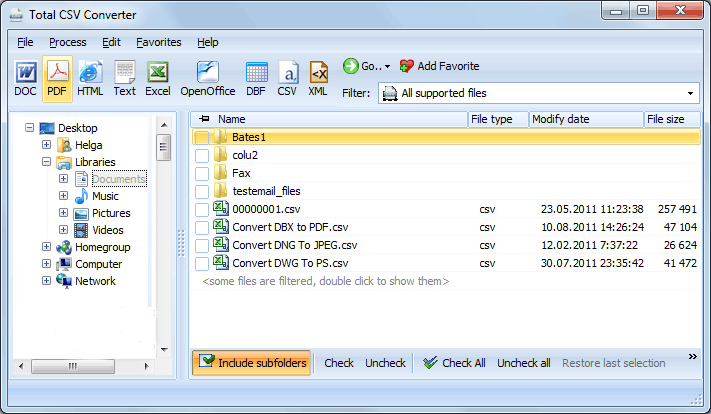
  • Step 1. Launch Total CSV Converter. The left panel shows a folder tree for quick navigation.
  • Step 2. Browse to the folder that contains your CSV files. The file list in the center displays all supported files.
  • Step 3. Check the files you want to convert. Use Check All to select every file in the folder for batch conversion.
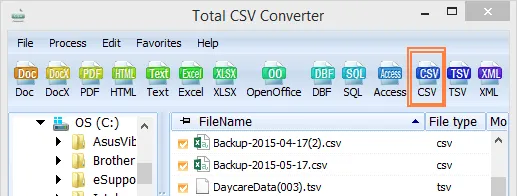
  • Step 4. Click PDF in the format toolbar at the top of the window.
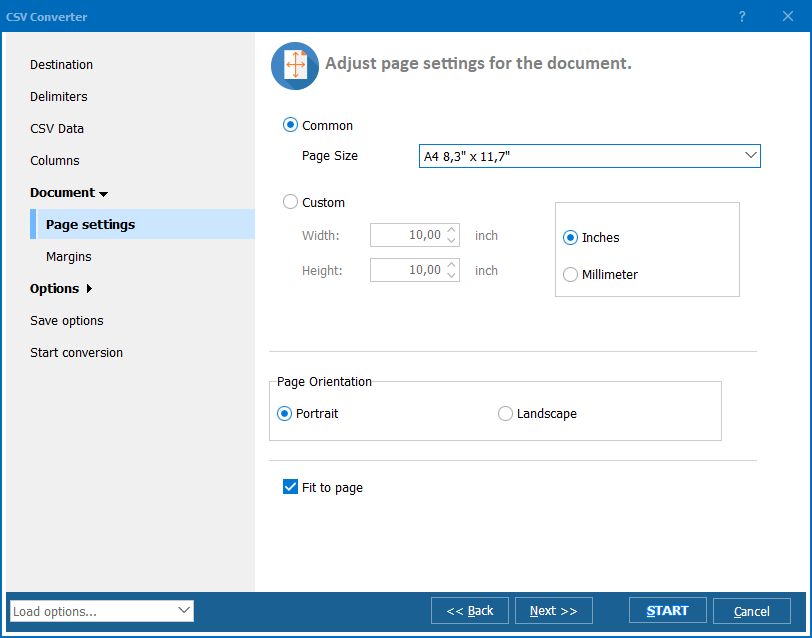
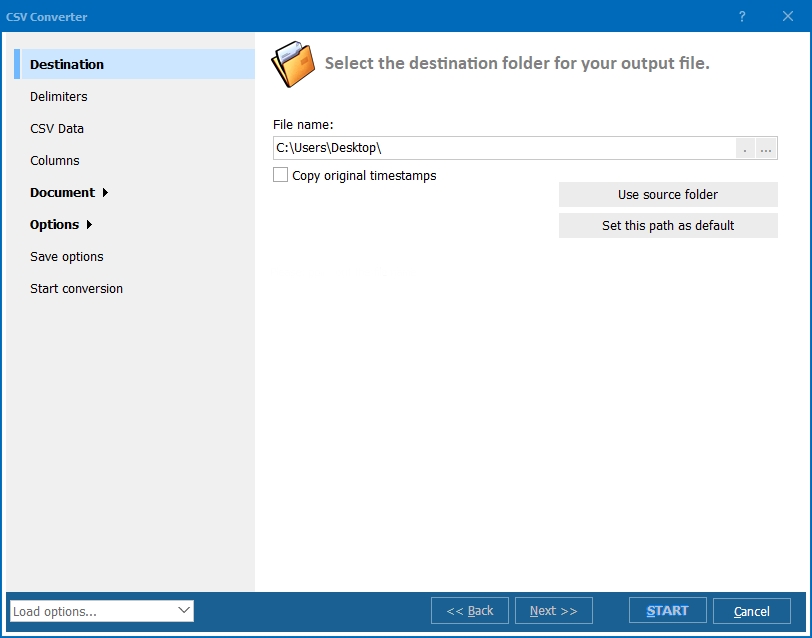
  • Step 5. In the conversion wizard, set the delimiter, choose columns, configure page size, orientation, margins, and add headers/footers. Select a destination folder for the output files.
  • Step 6. Press Start. The converter processes all selected files and saves PDF output to your chosen folder.

Total CSV Converter - CSV to PDF batch conversion interface

Each CSV file becomes a separate PDF document. Original CSV files remain untouched. You can also merge multiple CSV files into a single PDF — useful for combining monthly data exports into one consolidated report.

Command-Line Conversion

Total CSV Converter includes a command-line interface for converting CSV files without the GUI. Example:

CSVConverter.exe C:\Data\report.csv C:\Output\report.pdf -c PDF -SepChar ; -PageSize A4

You can wrap this command in a .bat file or a scheduled task to automate recurring conversions. This is ideal for generating nightly PDF reports from database exports — no manual intervention required.

Why Use Total CSV Converter?

Green PlusProfessional PDF layout. Total CSV Converter renders CSV data into paginated tables with column headers, borders, and consistent formatting. The output looks like a proper report — not a raw data dump.

Green PlusBatch processing. Select hundreds of CSV files and convert them all to PDF in a single run. Each file becomes a separate PDF, or merge them into one. No need to open files in Excel and print to PDF one by one.

Green PlusHeaders, footers, and page numbers. Add page numbers, dates, company name, or any custom text to every page of the output PDF. Control font, size, and position (left/center/right).

Green PlusPage layout control. Set page size (A4, Letter, Legal, custom), orientation (portrait/landscape), and margins. Wide data sets can use landscape mode to fit more columns per page.

Green PlusSmart delimiter detection. The converter auto-detects commas, semicolons, tabs, and pipes. You can also set the delimiter manually for non-standard files — ensuring every value lands in the correct column.

Green Plus10+ output formats. Besides PDF, convert CSV files to XLS, XLSX, HTML, TXT, DBF, XML, JSON, and more — all from the same program.

Online Converters vs Desktop Converter

FeatureOnline ToolsTotal CSV Converter
File size limit5–50 MB typicalNo limit
Batch conversionOne file at a timeUnlimited
PrivacyFiles uploaded to cloud100% offline
Page layoutNo controlSize, orientation, margins
Headers/footersNoCustom text, page numbers, dates
AutomationManual onlyBuilt-in command line
PricingSubscription or per-fileOne-time $49.90

download CSV to PDF converter

Windows 7/8/10/11 • 30-day free trial

When Do You Need CSV to PDF Conversion?

Here are the most common scenarios where converting CSV to PDF is necessary:
  1. Generating printable reports. Database exports arrive as CSV but need to be printed or sent as formatted documents. PDF gives you a paginated, professional-looking report with headers, footers, and page numbers.
  2. Sharing data with clients. Clients expect polished documents, not raw data files. Converting CSV to PDF creates a clean, readable report that opens on any device without spreadsheet software.
  3. Archiving data exports. CSV files are fragile — delimiters can be misinterpreted, encodings can change. PDF freezes the data in a fixed layout that will look the same years from now.
  4. Compliance and auditing. Regulators often require reports in PDF format. Converting CSV exports to PDF satisfies compliance requirements and creates an immutable record of the data.
  5. Automated report generation. A scheduled task converts nightly CSV exports to PDF reports and drops them in a shared folder or sends them by email — no manual formatting needed.


Download Now!

(includes 30 day FREE trial)

Buy License

(only $49.90)


quote

Total CSV Converter Customer Reviews 2026

Rate It
Rated 4.7/5 based on customer reviews
5 Star

"Every week I export shipping logs as CSV and convert them to PDF reports for management. Total CSV Converter handles thousands of rows without breaking the layout. Headers, page numbers, and formatting are all automatic."

5 Star James Patterson Operations Manager

"Our invoicing system exports CSV files that I need to archive as PDF. The batch mode converts an entire month of invoices in under a minute. The PDFs look clean and are fully searchable."

5 Star Maria Gonzalez Accountant

"Reliable converter for turning raw CSV data into presentable PDFs. I use the command line version in a nightly script. Page orientation and font size options are useful. Would love custom column width control."

4 Star Kevin Brooks Data Analyst

FAQ ▼

Total CSV Converter renders CSV data as a paginated table with column headers, cell borders, and consistent formatting. You can also add headers, footers, page numbers, and choose page size and orientation.
Yes. Total CSV Converter supports comma, semicolon, tab, pipe, and custom delimiters. It can also auto-detect the delimiter used in each file, ensuring every value lands in the correct column.
Yes. The conversion wizard lets you add page numbers, dates, file names, or any custom text to the header and footer of every page. You can control font, size, and alignment (left/center/right).
Yes. Total CSV Converter supports batch conversion. Select all CSV files in a folder (or use Check All), choose PDF as the output format, and press Start. There is no limit on the number of files.
Yes. You can set the page size (A4, Letter, Legal, or custom dimensions), choose portrait or landscape orientation, and adjust margins. Landscape mode is useful for wide data sets with many columns.
No. Total CSV Converter is a standalone Windows application. It reads CSV files and creates PDF documents using its own engine. No Excel, Acrobat, or any other software is required.
Yes. Total CSV Converter includes a built-in command-line interface. You can convert CSV files to PDF from batch scripts, scheduled tasks, or automated pipelines without opening the GUI. A dedicated server license is available for unattended use.


Start working now!

Download free trial and convert your files in minutes.
No credit card or email required.

⬇ Download Free Trial Windows 7/8/10/11 • 49 MB

Friday Sale
Total CSV Converter Preview1
Total CSV Converter Preview2
Total CSV Converter Preview3

Latest News

Newsletter Subscribe

No worries, we don't spam.


© 2026. All rights reserved. CoolUtils File Converters

Cards