Converting emails to different formats helps to extend the area of use for the information stored in the mailbox. You can convert email to HTML if there is a need to share your emails online or make them viewable offline on different computers and operating systems.
Some of the biggest advantages of the HTML format are:
- Small size
- Saving to a local folder
- Supported by all browsers
- Editing on any computer
Quick answer: To save email as HTML, run Total Mail Converter, choose the folder with your EML, MSG or MIM files in the left tree, select the messages or click Check All, click the HTML button to open the wizard, set the destination, file-name template, fields and appearance, then click Start. Thousands of emails become HTML files in a few minutes, processed locally without Outlook and without any upload.
Convert Email to HTML without Outlook
Using our comprehensive CoolUtils converter, you can easily create HTML files from emails in different formats (EML, MSG, MIM). This requires just a few clicks, but you need to export your messages first. Discover ways to extract EML data from Gmail, Thunderbird, and other services in the second part of this article. Here is how to save email as HTML using our simple but powerful tool:
Step 1. Select the Files
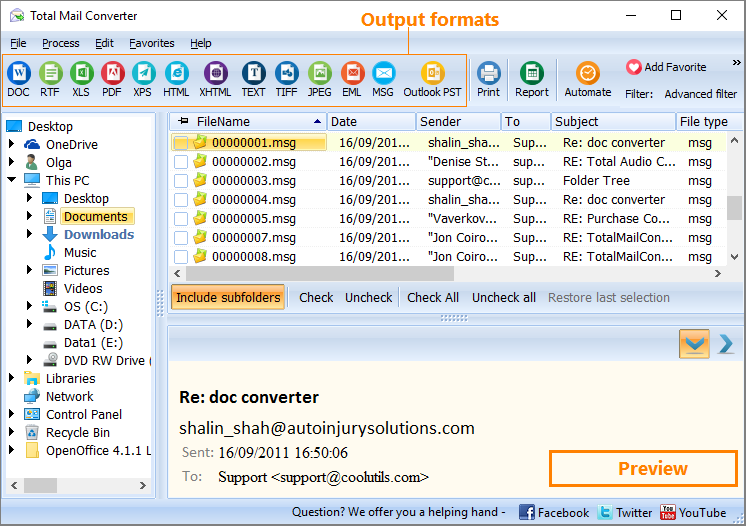
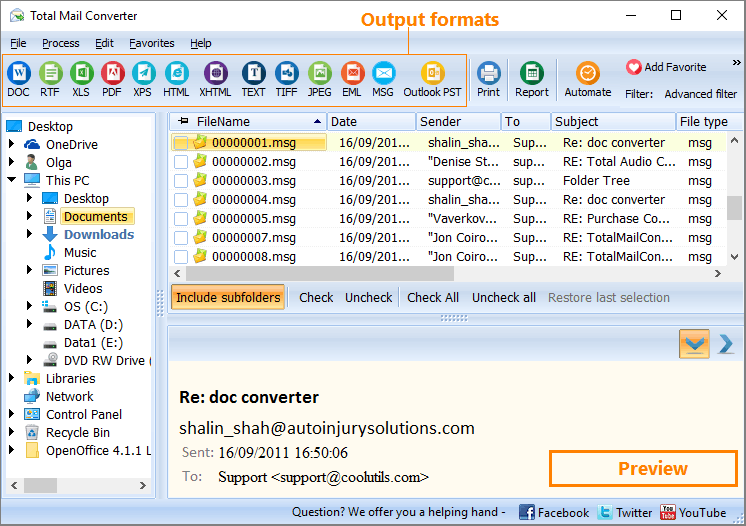
Run the email to HTML converter. Choose the folder containing your emails in the folder tree on the left panel. Its contents will be displayed in the middle panel. Click on any item to preview it in the right panel.
Select specific emails or click on the "Check All" button to convert the entire range. You may also include subfolders or restore the last selection if necessary.
Step 2. Set Your Preferences
The icons at the top show different output formats. Click on the HTML button to open the wizard and specify the parameters.
The settings include:
- Destination (change if necessary)
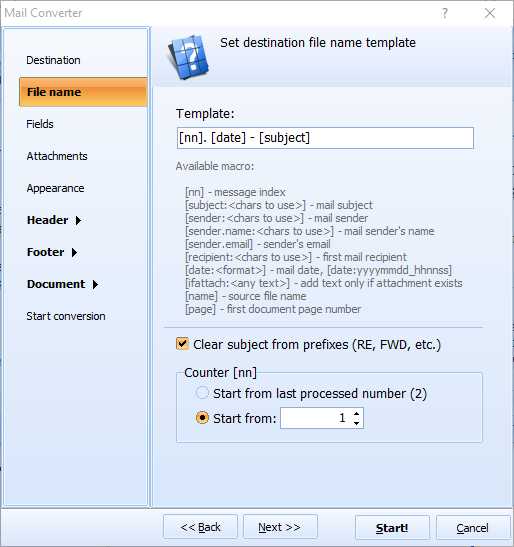
- File name (a customizable template)
- Message fields (include/exclude any fields, including Sender IP and BCC)
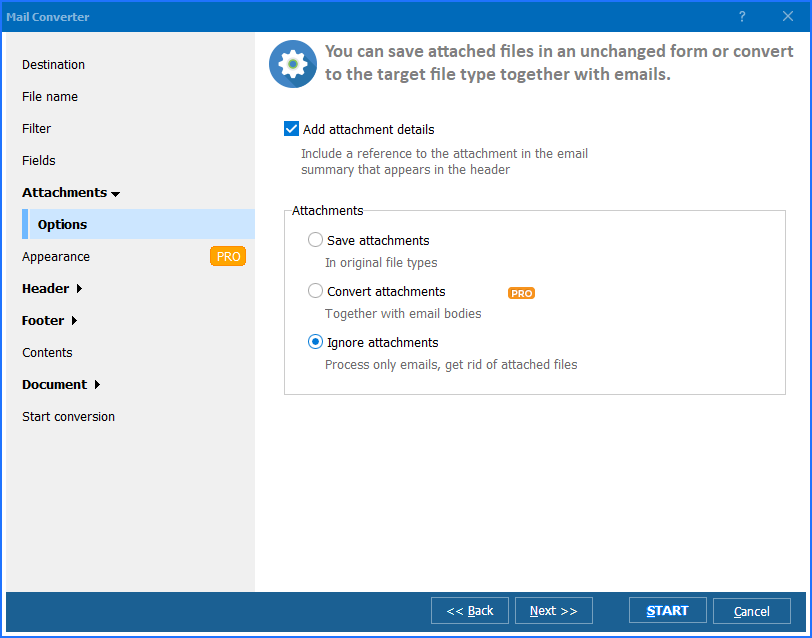
- Attachment (add attachment details, save items in original formats, ignore them or convert in the Pro version)
- Appearance (internal scheme or CSS file)
- Filtering by keywords (convert emails with specific words in "sender," "recipient," body, or subject)
- Converting all emails with or without attachments within a date range
- Images (include or exclude built-in images)
![email converter renaming]()
If you need to download email as HTML in a batch, use our name templates based on mail field values. For example, you may include the date, subject, sender, or any combination of these fields in the file name. These templates can also be modified - just add or remove any of the macros.
Step 3. Launch Conversion
After setting the parameters, click the start button in the wizard. The conversion will start immediately. The program will save your emails in the specified location as separate HTML documents. Upon completion, you will see a notification window that will allow you to save the log.
![how to convert email]()
Even transforming thousands of files should only take a few minutes. Batch conversion is a great time saver! You can also use the command line instead of the graphic interface. Note that adjusting all preferences every time is not necessary, as you can stick to the default settings.
Check the following sections to learn how to export EML from popular mail clients. Learn how to convert Gmail to HTML or extract messages from Thunderbird, Apple Mail, or Outlook:
How to export emails from different services
The following mail clients let you save messages in EML format. You can export messages on Windows and Mac and then convert mail to HTML. The procedure for every program is unique:
Outlook
All versions of Outlook starting from Outlook 2010 can open files with this extension. However, only Outlook Express (now obsolete) and Outlook for Mac allow direct export to EML. This process is quite straightforward. After opening the app on Mac, you need to:
- Click on the email you want to download.
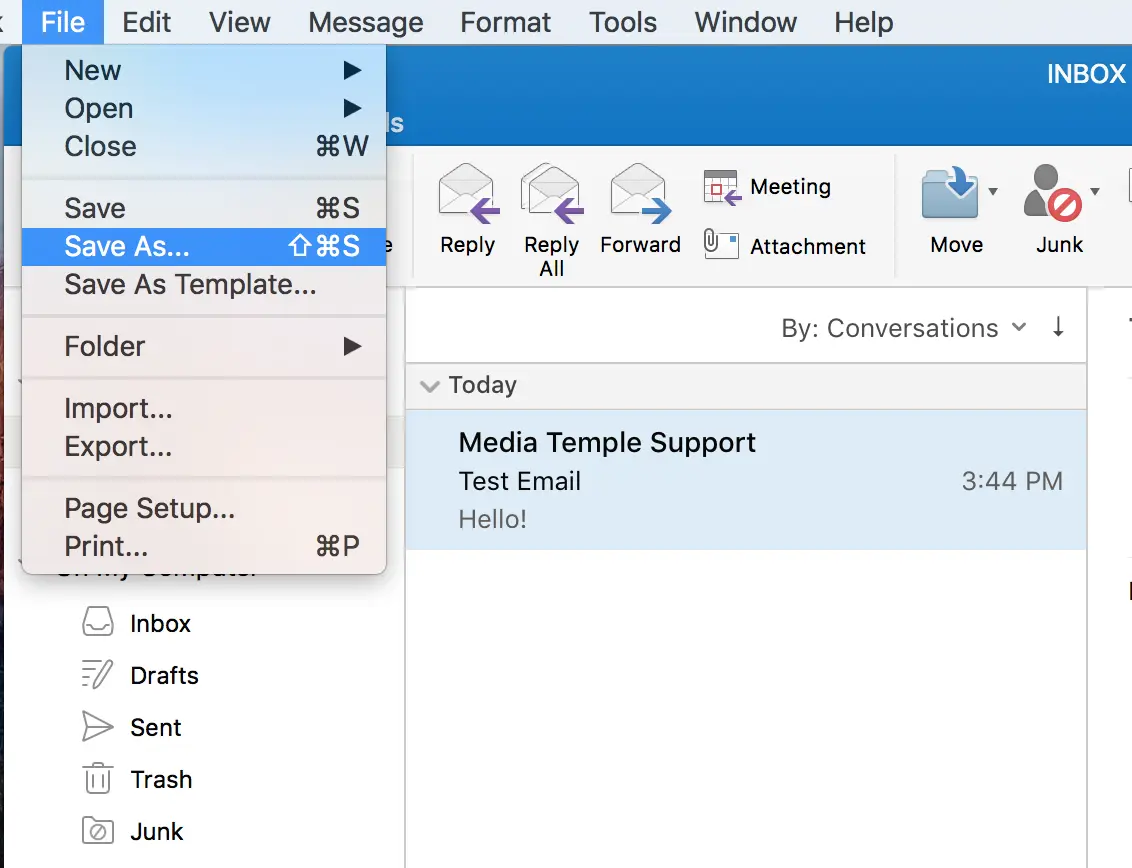
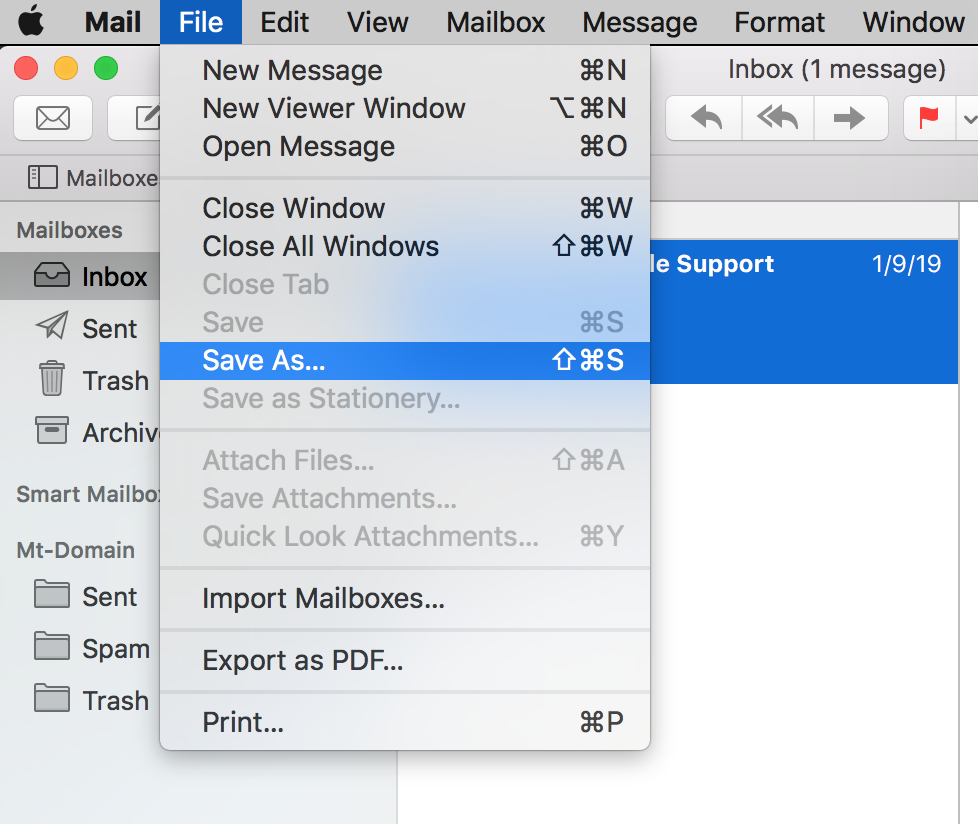
- Click on the "File" button at the top to open a drop-down menu. Choose "Save As:"
![]()
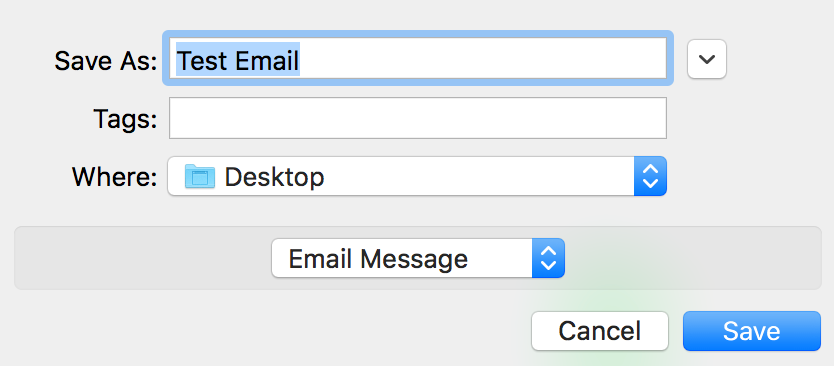
3. Choose Email Message as the format. Then click "Save."
![Choose Email Message]()
Apple Mail
On Mac, you can save messages as EML easily. All you need to do is:
- Open your Apple Mail.
- Click on "File" to find the "Save As:" feature.
![Open Apple Mail.]()
3. Change the file name if necessary.
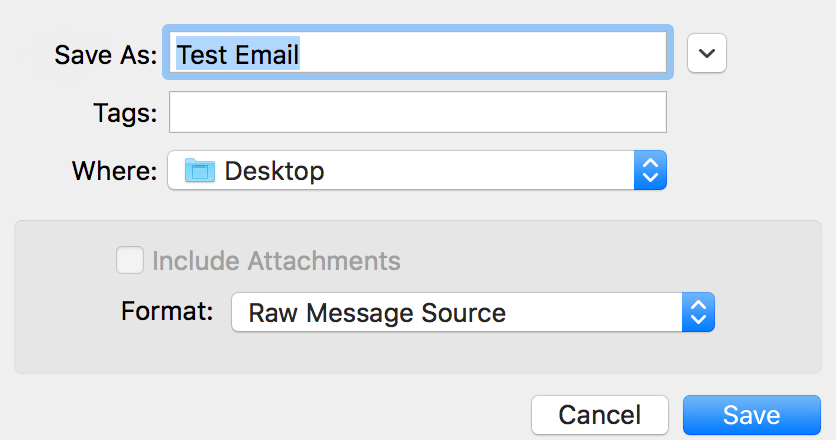
4. Select "Raw message source."
![Save Apple]()
5. Click "Save."
Thunderbird
This mail client lets you save data as EML in two ways. The simplest method does not require any additional software. All you need to do is use the native saving option.
- Open Thunderbird and select the emails you wish to save. To highlight the contents of an entire folder, use the Ctrl + A combination.
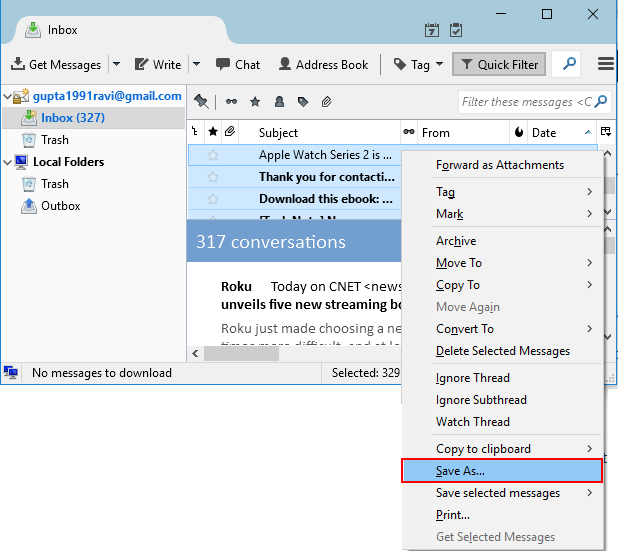
- Right-click on the selection and choose "Save As:" from the menu. You will be prompted to pick a folder.
![]()
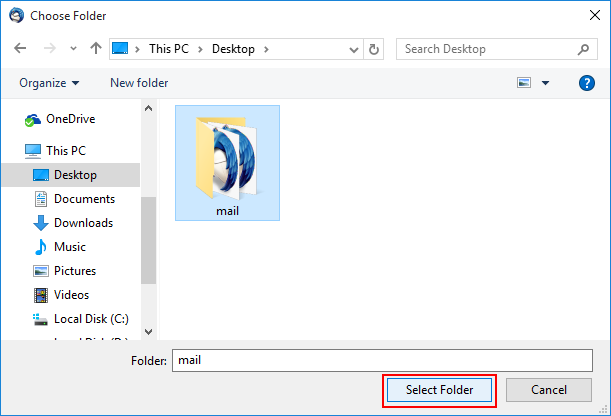
3. Browse to the destination and click on the "Select Folder" button to confirm your choice. The file will be saved as EML automatically.
![]()
Alternatively, in Step 2, you may choose "Save selected messages" and "EML." Then, complete Step 3.
Gmail
In Gmail, you can only save messages to EML one by one. This is not as easy as in Thunderbird. After logging into your account, do the following:
- Open the message you want to export.
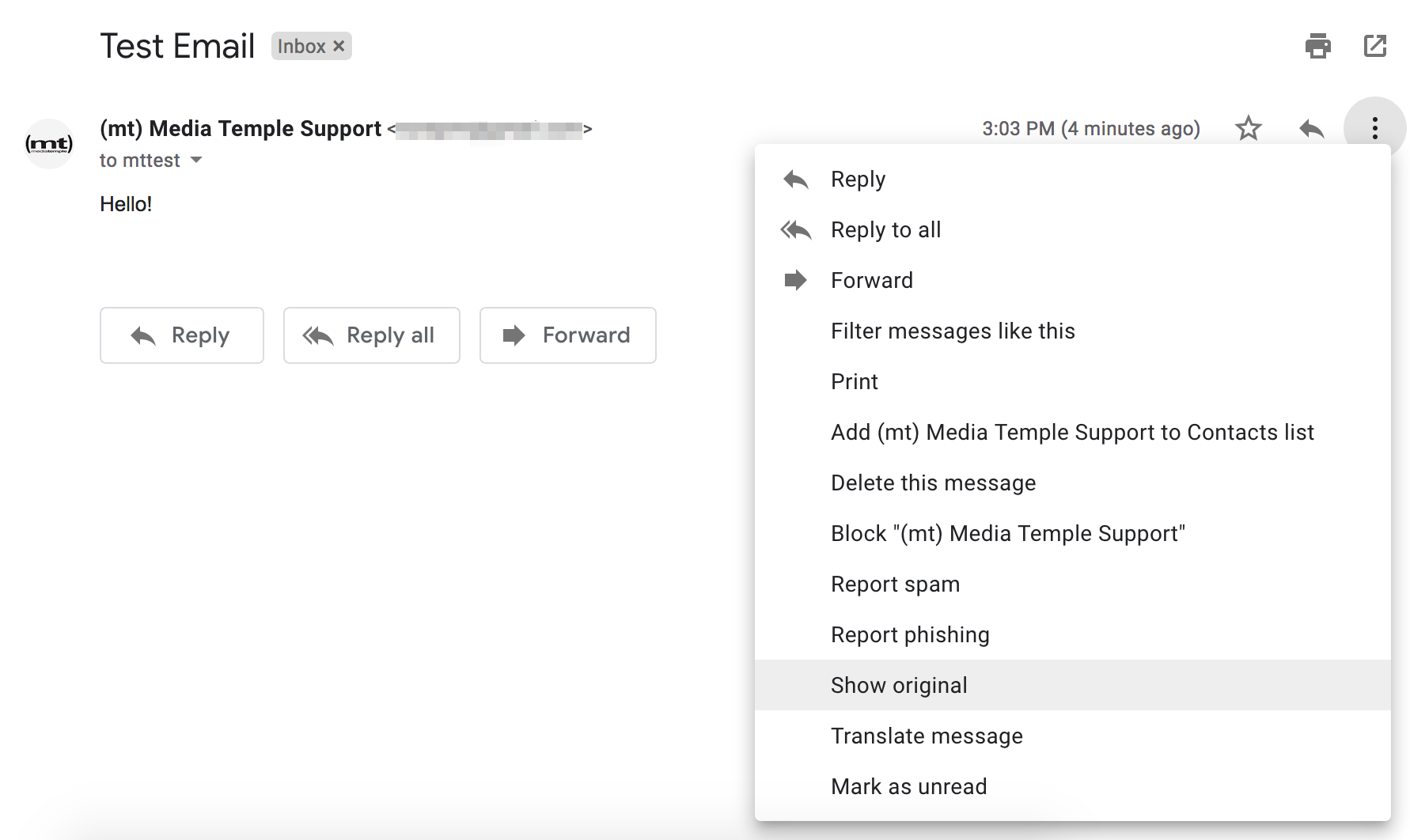
- Click on the three vertical dots in the left upper corner ("More").
![]()
3. Choose the "Show original" option. The message will be opened in a new window.
4. Click on the "Download Original" link on the left.
![]()
The message will be saved as an EML file to your default location automatically. Alternatively, right-click on the link, choose "Save link as," browse to the required destination, and click "Save" to confirm. Now, you can export email to HTML!
Conclusion
Save email as HTML to access and share your data easily. This lightweight format is recognized by all browsers and operating systems, while conversion is lightning-fast. Use our guide to transform any number of emails from Outlook, Gmail, Thunderbird, Apple Mail, and other popular mail clients. Our comprehensive tool provides rich customization and flexibility to meet all of your needs. Export your files and convert them in just a few clicks!


 +1 (855) 418-2323

 File Converters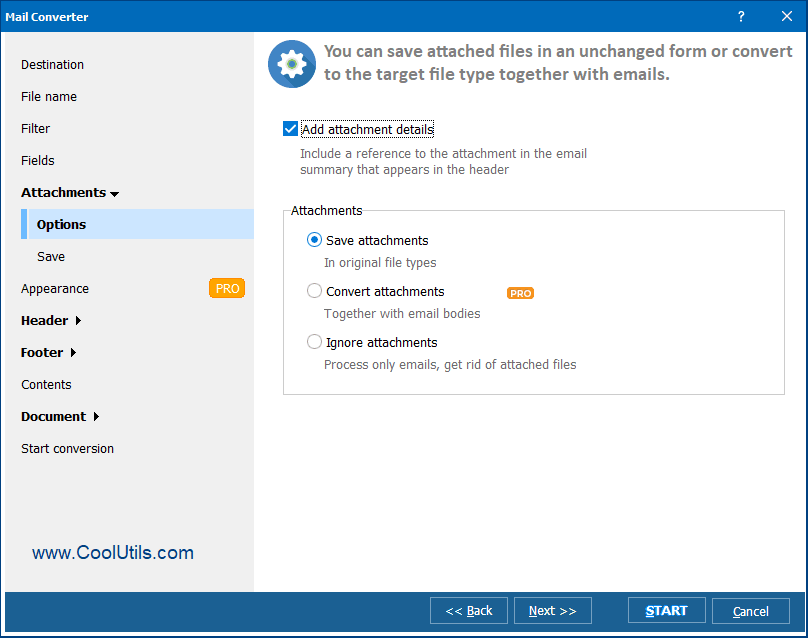
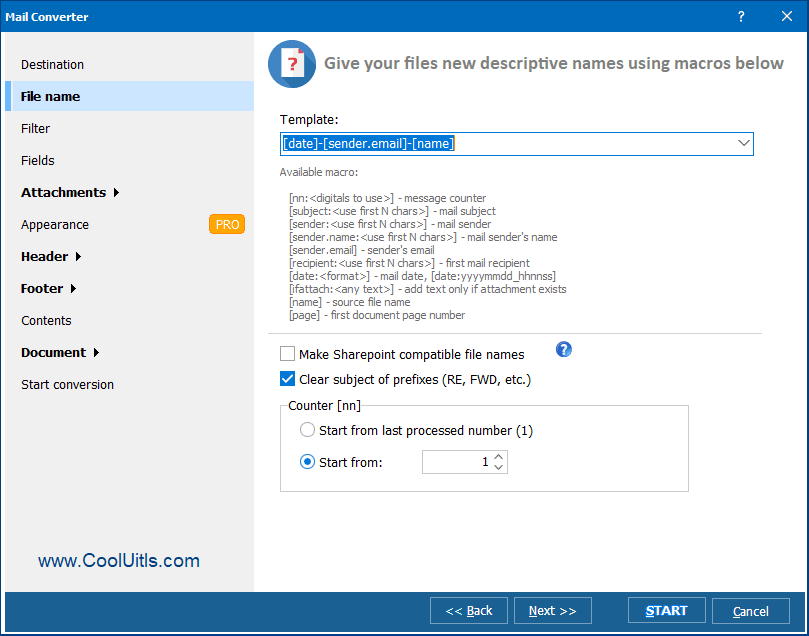 If you need to download email as HTML in a batch, use our name templates based on mail field values. For example, you may include the date, subject, sender, or any combination of these fields in the file name. These templates can also be modified - just add or remove any of the macros.
 3. Choose Email Message as the format. Then click "Save."
 Alternatively, in Step 2, you may choose "Save selected messages" and "EML." Then, complete Step 3.