Are you looking for a free and effective way to convert an email to PDF? CoolUtils offers a seamless solution to convert email messages to PDF online and offline at no cost, streamlining your email management. Ensure your important communications are secure, accessible, and easily shareable with our efficient online tool!
Quick answer: To save an email as PDF, download a copy of the message in .eml or .msg format, then either upload it to the CoolUtils Online Mail Converter and choose Convert to PDF, or open the folder in Total Mail Converter, select the emails, pick PDF, and click Start. The desktop app converts a whole folder in one batch, offline.
Convert Email to PDF for Free
At CoolUtils, we completely understand the importance of accessibility and efficiency. That's why we offer this unique online solution to quickly
convert email to PDF free of charge.
For an easy one-time conversion, visit our Online Mail Converter.
This easy-to-use tool is perfect for those who occasionally need to convert a single email to PDF for their own records.
You can use the tool whenever you need and as often as you like. It's fast, user-friendly, and supports common email formats such as MSG and EML.
How to Save an Email as a PDF File
Saving an email as a PDF is a very straightforward process with the CoolUtils Online Mail Converter.
Here's a step-by-step guide on how to turn an email into a PDF:
- Download Your Email and Choose File: Begin the process by saving a copy of the message from your email provider (like Outlook, Thunderbird, or Apple Mail) or a cloud-based email platform (like Gmail) in either the .eml or .msg format.
![Select EMail]()
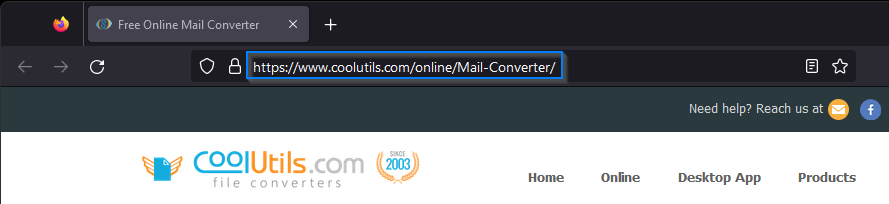
- Access the Online Converter: Visit the CoolUtils Online Mail Converter page to start the process.
![Online EMail]()
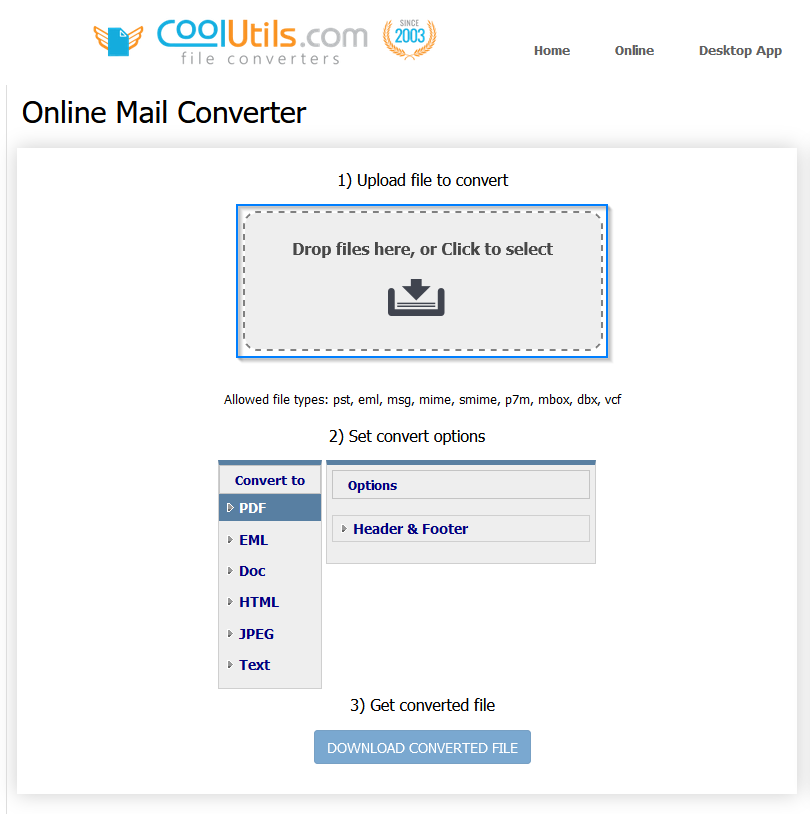
- Choose File and Upload Your Email: Drag and drop your email file into the "Drop files here" section, or click the gray box to navigate and select the file from your device or computer.
![Online EMail Converter]()
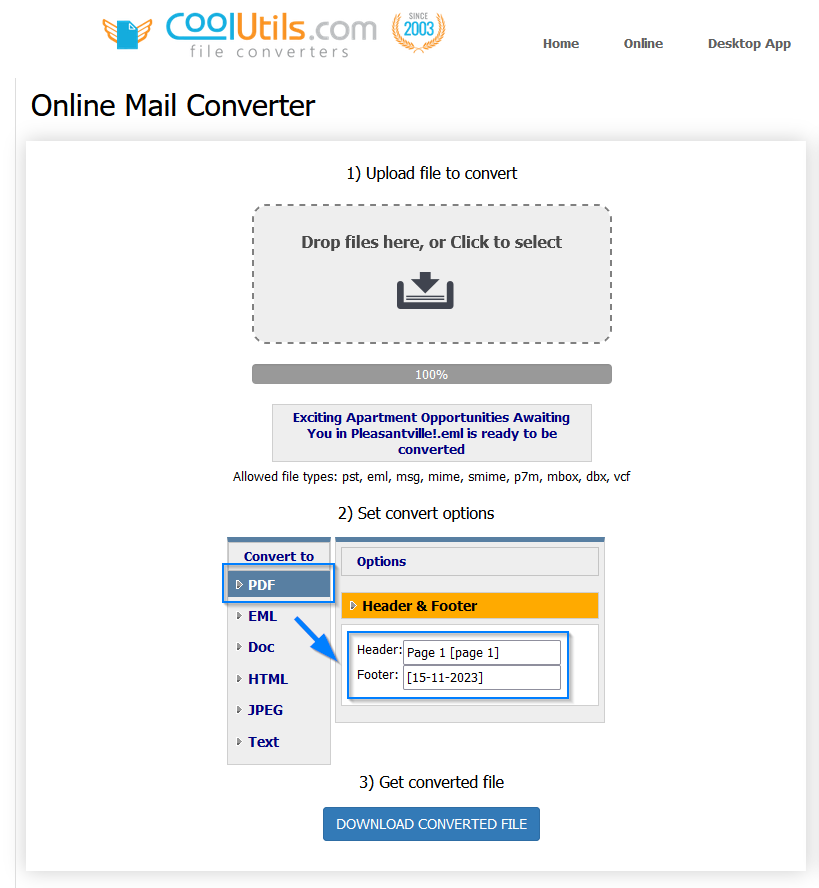
- Convert Email to PDF: Once your email file is uploaded, select "Convert to PDF" in the conversion options. Here, you can also customize the email's header and footer to suit your needs, like adding page numbers.
![Select EMail options]()
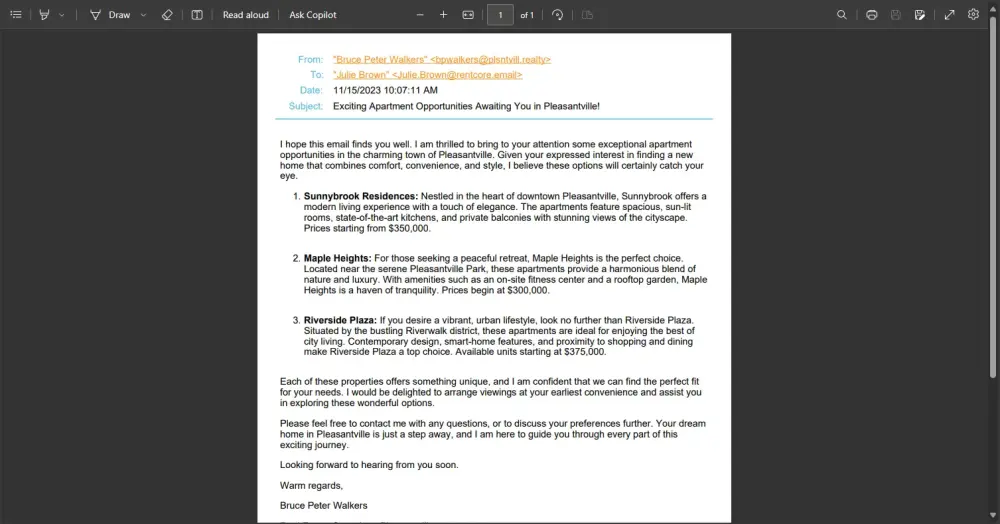
- Save Your PDF: After conversion, click on "Download Converted File" to save the PDF document to your device. You can then open it with your preferred viewer, such as the Adobe Chrome extension.
![Online EMail Result]() It's worth noting that the online converter has a limitation of one file per conversion request. For those who require batch conversion,
our desktop software Total Mail Converter is the way to go.
It's worth noting that the online converter has a limitation of one file per conversion request. For those who require batch conversion,
our desktop software Total Mail Converter is the way to go.
Email to PDF Converter Software
For those who frequently find themselves needing to convert emails to PDF or require a batch conversion of multiple files, the CoolUtils desktop software is loaded with more advanced features.
Total Mail Converter is fully compatible with Microsoft Windows Vista, 7, 8, 10, and 11. The application can be installed and used offline and will save multiple emails to the Adobe Acrobat PDF format. More than just a basic conversion platform, the Total Mail converter is a comprehensive tool designed for professional and regular use.
Convert Multiple Emails to PDF Files
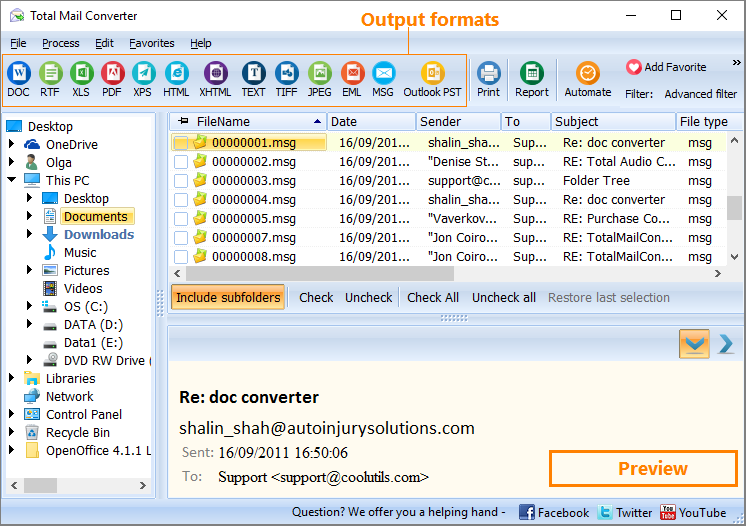
Our Total Mail Converter desktop software can do email convert to PDF in batches with ease. Batch conversion allows numerous emails to be converted to PDF simultaneously.
Follow these basic steps for batch conversion:
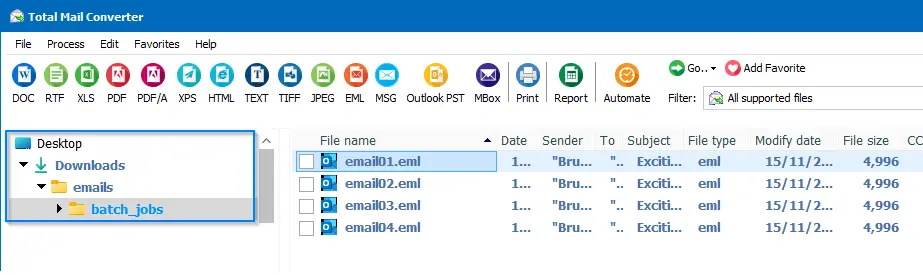
- Select the Email Folder: Begin by choosing the folder containing the emails you wish to convert.
![Total Mail Converter select Folder]()
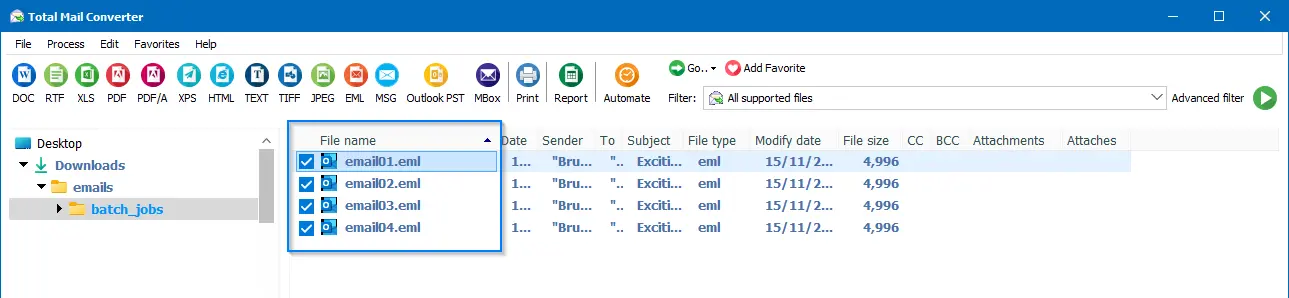
- Choose Your Emails: Select the specific files you want to convert within the folder.
![Total Mail Converter select Files]()
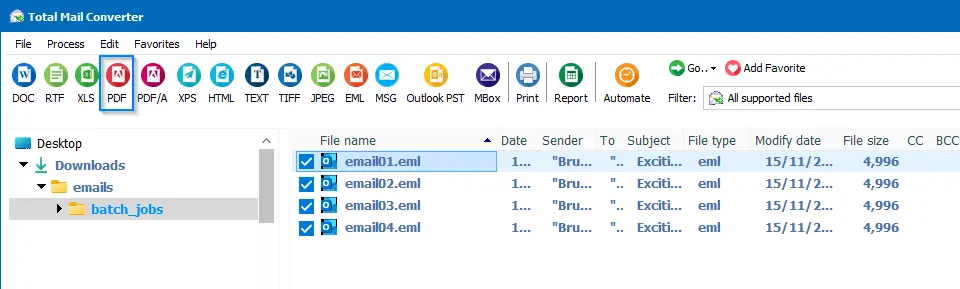
- Set the Conversion Format: Choose PDF as your desired output format for the conversion.
![Total Mail Converter select Format]()
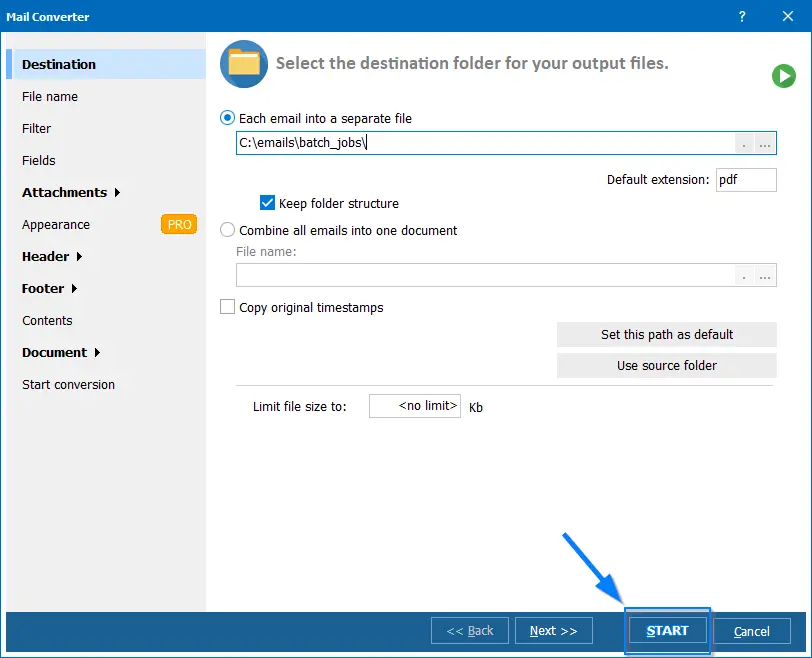
- Start the Process: Once you've set your preferences, simply click "Start Conversion" to initiate the process.
![Total Mail Converter Start Process]()
Convert Any Email Formats (EML Files, MSG, and Outlook Emails) in Batch!
The Total Mail Converter software isn't limited to basic email to PDF conversion. It's a flexible tool designed to handle an array of email formats. Whether you need to convert Outlook email to PDF or work with messages from other systems, it has you covered!
| Supported Formats |
Extensions |
| Email Messages |
.msg (commonly used by Microsoft Outlook emails)
.eml (standard email format)
.emlx (used by Apple Mail)
|
| Mime Encoded Files |
.mim (MIME format)
.smime (Secure/Multipurpose Internet Mail Extensions)
.tnef (Transport Neutral Encapsulation Format)
.p7m (encrypted email messages)
|
| vCard Contact Files |
.vcf (standard format for storing contact information) |
| iCalendar Files |
.ics
.ical
.ifb
.icalendar (formats for calendar data)
|
FAQ
How to Convert Email to PDF?
To convert email to a PDF using the online CoolUtils Email to PDF converter, follow these steps:
- Access the Converter: Go to the CoolUtils Online Mail Converter.
- Upload Your Email: Drag and drop your .eml or .msg file, or use the upload option.
- Convert Email: Choose PDF as your conversion format and customize settings if needed.
- Download: Once converted, save your Adobe PDF file.
How to Save Outlook Email as a PDF?
If you are wondering how to convert Outlook email to PDF, we have the solution for you. To save emails from Outlook as an Adobe Acrobat PDF using CoolUtils Email to PDF conversion software:
- Open the Software: Launch Total Mail Converter on your computer.
- Select Email: Navigate to the Outlook email (.msg file) you wish to convert.
- Choose Conversion Settings: Select PDF as the output format and adjust settings.
- Convert and Save: Start the conversion and save the document to your desired location.
How to Save a Gmail Email as a PDF?
To convert Gmail email to PDF with CoolUtils Email to PDF file conversion:
- Download the Email: Save your Gmail email as an .eml file.
- Open Total Mail Converter: Run the software on your device.
- Upload and Convert: Upload the .eml file and choose PDF as your conversion format.
- Download: Save the converted PDF file to your device.
How to Convert an Email Message to PDF?
Total Mail Converter can automatically convert email to PDF. To convert an email message to the Adobe Acrobat PDF format using CoolUtils Email to PDF converter:
- Start the Converter: Open Total Mail Converter on your computer.
- Select the Email File: Choose the email message file you want to convert.
- Set Output Format: Select PDF as the conversion format.
- Convert and Save: Execute the conversion and save your new PDF files.
Why Convert Email to PDF?
So, why should you use our email to PDF converter free download? Converting emails to Adobe Acrobat Portable Document Format can be advantageous in several scenarios:
- Archiving: PDFs are ideal for archiving emails due to their wide compatibility, password protection, and durability.
- Legal and Compliance Needs: These files provide a secure format for legal professionals or the human resources department.
- Sharing: PDFs are universally accessible, which makes them easy to share across different platforms and devices.
- Printing: PDFs ensure consistent formatting when printing emails for official or personal use.
- Hard Copy Backup: Email stored in the cloud or on an IMAP server can be inaccessible without internet access. A PDF file is an offline backup of your emails.
Email to PDF Converter Free Download
Ready to simplify email to PDF conversion? Start with CoolUtils Total Mail Converter. It's a reliable, secure, and fast solution for converting emails to PDF format with ease.
To elevate your email management today, download Total Mail Converter for free and enjoy a 30-day trial!


 +1 (855) 418-2323

 File Converters
 It's worth noting that the online converter has a limitation of one file per conversion request. For those who require batch conversion,
our desktop software
It's worth noting that the online converter has a limitation of one file per conversion request. For those who require batch conversion,
our desktop software