Need help? Reach us at 

 +1 (855) 418-2323
Need help? Reach us at
+1 (855) 418-2323

 File Converters TIFF and PDF apps Forensic Freeware
Download Total XML Converter and start extracting XML data into CSV today.
(includes 30 day FREE trial)
(only $59.90)
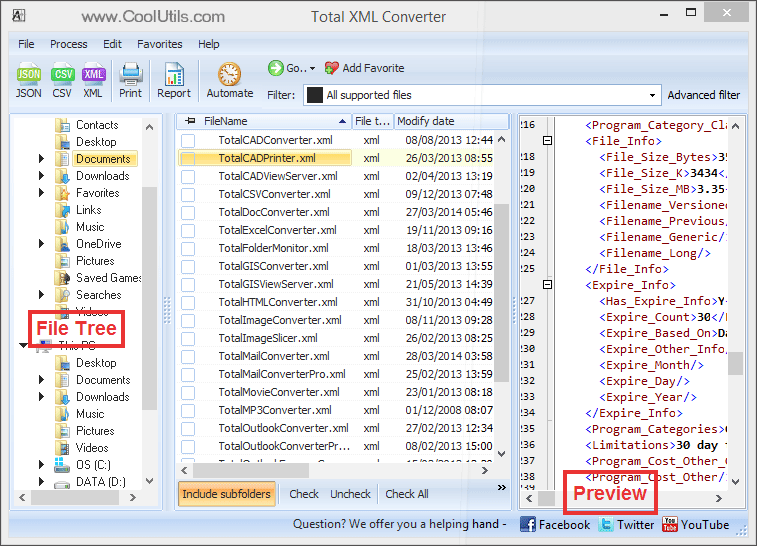
Quick answer: To convert XML to CSV, install Total XML Converter, browse to the folder with your XML files, check the ones you want, click the CSV button in the format toolbar, choose the delimiter (comma, semicolon, or tab) and encoding, then press Start. Each XML record becomes a CSV row in one batch run, offline, with no upload and no file-size limit.
XML (eXtensible Markup Language) stores data in a hierarchical tree of elements and attributes. It is self-describing, supports nested structures, and is widely used for data interchange between systems. However, XML is verbose, not directly importable into spreadsheets, and requires specialized tools to read.
CSV (Comma-Separated Values) is the simplest tabular data format. Each line represents a row, and columns are separated by commas (or semicolons, tabs). CSV files open instantly in Excel, Google Sheets, LibreOffice, and virtually every database import tool. They are compact, fast to parse, and universally supported.
When you convert XML to CSV, the converter reads the XML tree, identifies repeating elements (records), and maps their child elements to flat columns. The result is a clean table where each XML record becomes a CSV row and each data field becomes a column.
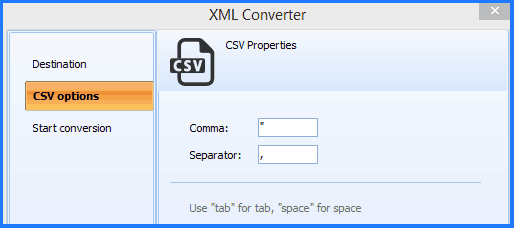
Each XML file becomes a separate CSV file with headers derived from XML element names. Nested elements are flattened into columns automatically. Original XML files remain untouched.
Total XML Converter includes a command-line interface for converting XML files without the GUI. Example:
XMLConverter.exe C:\Data\products.xml C:\Output\products.csv -c CSV -Delimiter comma
You can wrap this command in a .bat file or a scheduled task to automate recurring data exports. This is ideal for nightly ETL pipelines that extract XML data from APIs and load CSV into databases.
 Smart XML flattening. Total XML Converter automatically detects repeating elements in XML and maps them to table rows. Child elements become column headers. You get a clean, import-ready CSV without writing XSLT or XPath queries.
Batch processing. Select hundreds of XML files and convert them all to CSV in a single run. Each file becomes a separate CSV file. No need to open and re-save files one by one.
Flexible delimiters. Choose comma, semicolon, tab, or any custom character as the field separator. This ensures compatibility with your target application — European Excel uses semicolons, databases often expect tabs.
Encoding control. Output CSV in UTF-8, UTF-16, ANSI, or other encodings. UTF-8 with BOM is the safest choice for files that contain international characters and need to open correctly in Excel.
Handles large files. XML feeds with thousands of records and megabytes of data are processed quickly without memory issues. The converter streams data efficiently even on modest hardware.
20+ output formats. Besides CSV, convert XML files to XLSX, PDF, DOC, HTML, JSON, TXT, and more — all from the same program.
| Feature | Online Tools | Total XML Converter |
|---|---|---|
| File size limit | 5–50 MB typical | No limit |
| Batch conversion | One file at a time | Unlimited |
| Privacy | Files uploaded to cloud | 100% offline |
| Delimiter choice | Comma only | Comma / semicolon / tab / custom |
| Nested XML | Often fails | Auto-flattened to columns |
| Encoding | Fixed | UTF-8, ANSI, UTF-16, etc. |
| Automation | Manual only | Built-in command line |
| Pricing | Subscription or per-file | One-time $59.90 |

(includes 30 day FREE trial)
(only $59.90)
Download free trial and convert your files in minutes.
No credit card or email required.

Related Topics
Total XML Converter