Need help? Reach us at 

 +1 (855) 418-2323
Need help? Reach us at
+1 (855) 418-2323

 File Converters TIFF and PDF apps Forensic Freeware
JPEG files are everywhere — product photos, scanned documents, camera shots, screenshots. When you need to convert dozens or hundreds of them to PNG, TIFF, BMP, PDF, or another format, doing it one by one in an image editor is not a real option. And when another application exports images in a format your workflow does not accept, you need a quick path to JPEG. Total Image Converter handles both directions: convert FROM JPEG to any major format, or TO JPEG from RAW, PNG, TIFF, BMP, GIF, and many others — in batch, in seconds.
JPEG (Joint Photographic Experts Group) was defined in 1992 and remains the dominant format for photographic images. It uses Discrete Cosine Transform (DCT) compression, a lossy algorithm that discards fine detail imperceptible to the human eye. The result is files 5–15 times smaller than uncompressed equivalents, at the cost of some quality with each re-save.
JPEG stores color in 8 bits per channel (24-bit RGB total). It does not support an alpha channel, so transparency is not possible. Progressive JPEG encoding allows the image to load in stages — useful for web delivery. JPEG is supported natively by every browser, operating system, and image application, making it the default format for web photos, camera output, and email attachments.
The format has two common file extensions: .jpg and .jpeg. They are identical; the shorter form was required on older Windows systems that enforced a 3-character extension limit.
| Format | Best for | Compression | Alpha channel | Typical use |
|---|---|---|---|---|
| JPEG | Photos, web images | Lossy | No | Web, camera, email |
| PNG | Graphics, UI, screenshots | Lossless | Yes | Web graphics, logos, UI assets |
| TIFF | Print, archiving, scanning | Lossless options | Yes | Print production, medical imaging |
| BMP | Windows apps, legacy software | None | Limited | Windows bitmaps, older tools |
| WebP | Modern web delivery | Lossy & lossless | Yes | Web browsers (Chrome, Firefox, Edge) |
JPEG is the right choice when file size matters more than pixel-perfect quality and transparency is not needed. For anything that requires a hard edge, text overlay, or transparency, PNG is the better target format. For print production or archiving, TIFF preserves every detail losslessly.
Total Image Converter includes a command-line interface for scripting, scheduled tasks, and server workflows. To convert all JPEG files in a folder to PNG:
TotalImageConverter.exe C:\Photos\*.jpg C:\Output -c pngTo convert PNG files to JPEG with 85% quality:
TotalImageConverter.exe C:\Graphics\*.png C:\Output -c jpeg -jpegquality 85Use these commands in a .bat file or a Windows Task Scheduler job to automate recurring conversions. The command-line version supports all the same options as the GUI: resize, crop, watermark, color adjustments, and rotation.
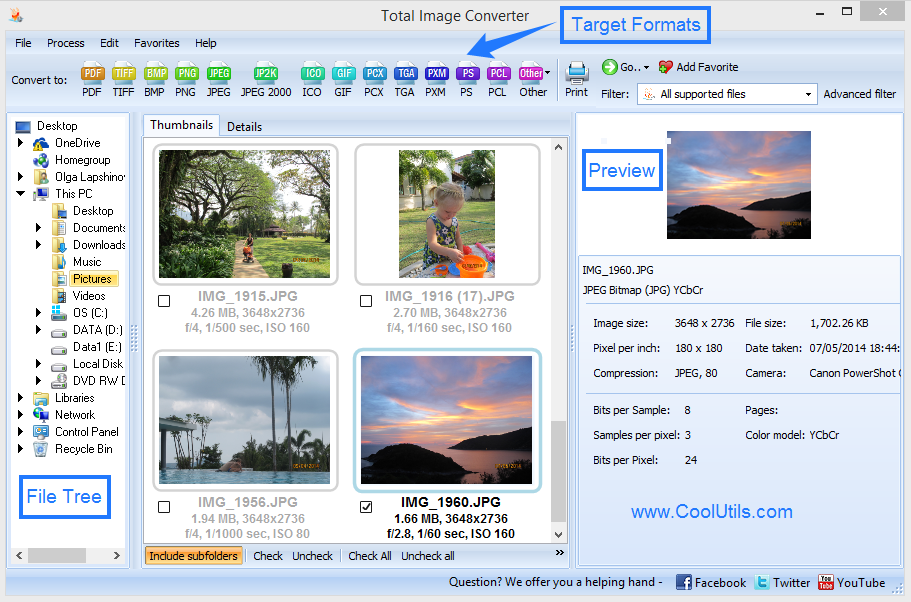
Select a folder with 500 JPEG files, click PNG, and press Start. Total Image Converter processes every file in one run. You do not open files one by one, and you do not wait for one export to finish before starting the next. On a modern machine, 500 JPEG files convert to PNG in under two minutes.
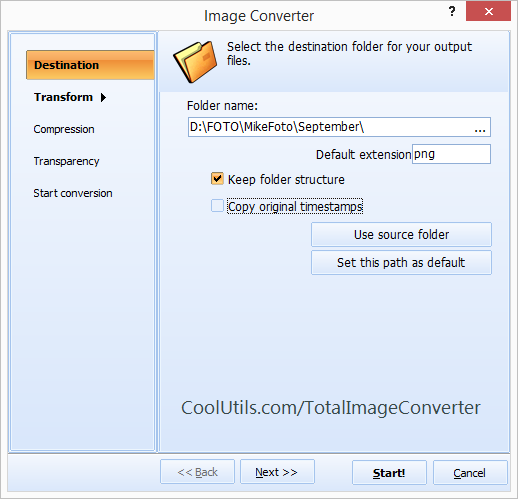
When converting to JPEG, you set the quality from 1 to 100. Higher values produce larger files with finer detail. Lower values shrink file size aggressively — useful for web thumbnails or email attachments where byte count matters. The same control applies when resaving JPEG files at reduced quality for delivery or compression purposes.
Most converters handle one direction. Total Image Converter works both ways. Convert JPEG to PNG, TIFF, BMP, GIF, PDF, TGA, WebP, and more. Convert PNG, TIFF, BMP, RAW, PSD, WebP, and dozens of other formats to JPEG. Switch direction by selecting source files and clicking the target format — the workflow is identical either way.
The conversion dialog includes tabs for resize (by pixels or percentage), crop (by pixel coordinates), color adjustments (brightness, contrast, saturation), rotation, and watermark. Apply any combination of these in the same operation as the format conversion. No need to run a separate image editor before or after.
Every file is processed locally on your Windows PC. Nothing is uploaded to a cloud server. There are no per-file size limits and no account required. A 50 MB RAW file converts to JPEG the same way a 50 KB thumbnail does. You can process as many files as fit on your drive.
One-time payment. Free updates and technical support included. Works on Windows 7, 8, 10, and 11. A 30-day fully functional trial is available — no email or credit card required to download.
| Feature | Online Converter | Total Image Converter |
|---|---|---|
| Batch processing | One file at a time | Entire folder in one run |
| File size limit | Usually 5–50 MB | No limit |
| JPEG quality control | Fixed or basic slider | Precise 1–100 setting |
| Privacy | Files uploaded to a server | All local, never uploaded |
| Automation | Not possible | Command line, .bat scripts |
| Resize / crop / watermark | Rarely, per tool | Yes, in the same pass |
| Works offline | No | Yes |
"I deliver edited shoots as TIFF, but clients always need JPEG for web and print submissions. Total Image Converter batch-converts 300+ TIFF files to JPEG in a couple of minutes. I set quality to 88 once and saved that as a preset. Every delivery is consistent now without touching an image editor."
 Elena Vasquez Freelance Photographer
"Our CMS requires JPEG for all uploaded product photos, but the design team works in PNG. I set up a .bat file that calls TotalImageConverter on the PNG export folder every morning and drops JPEG files ready for upload. The quality control option is exactly what I needed — consistent output across hundreds of files, no surprises."
James Pritchard Web Developer
"We run campaigns across multiple channels and each requires different image formats and sizes. Total Image Converter handles the JPEG conversions for our print supplier and social media exports in one pass. The resize-and-convert feature saves a separate step in the workflow. Would like a folder watch mode for fully automated processing."
 Natalia Brandt Marketing Manager
TotalImageConverter.exe C:\Photos\*.jpg C:\Output -c png to convert to PNG. For JPEG output with a quality setting: TotalImageConverter.exe C:\Source\*.tif C:\Output -c jpeg -jpegquality 85. These commands work in .bat files and Windows Task Scheduler jobs.
Download free trial and convert your files in minutes.
No credit card or email required.

Related Topics
Convert ICNS to JPEG with ease and smile

