Logo
Home Products Support Contact About Us
arrow1 File Converters
arrow1 TIFF and PDF apps
arrow1 Forensic
arrow1 Freeware

Convert WebP to JPEG in Batch


You saved an image from the web and it landed as a WebP file that your photo editor, your office suite, or that older piece of software simply refuses to open. WebP is efficient, but plenty of programs still do not read it. Converting to JPEG restores compatibility everywhere. Total Image Converter converts a whole folder of WebP files to JPEG in one batch, so every image opens in the tools you already use.

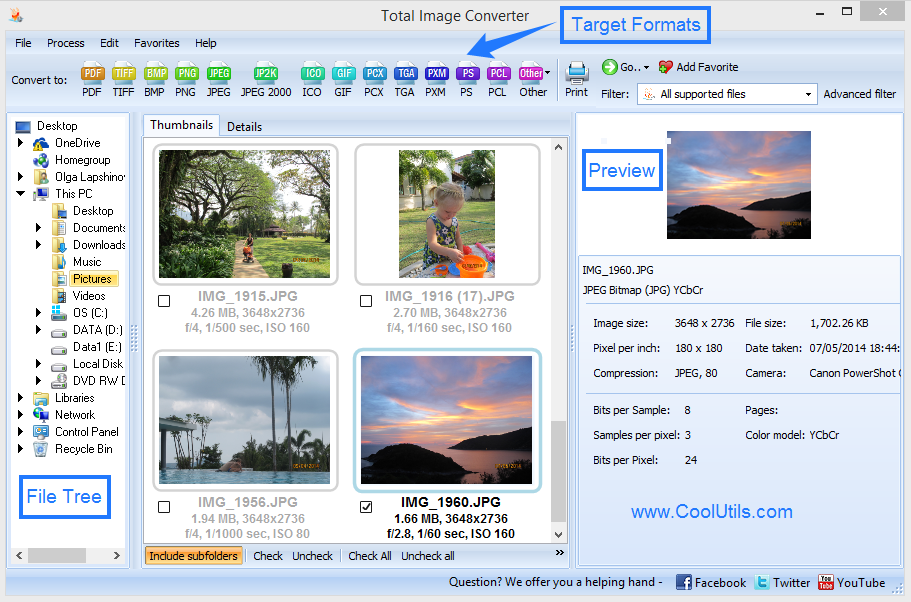
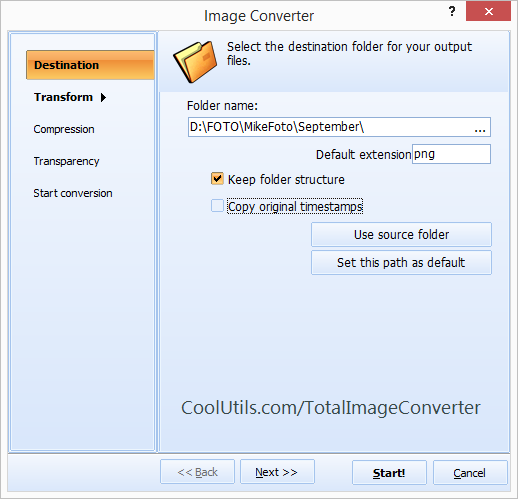
Quick answer: To convert WebP to JPEG, install Total Image Converter, open the folder with your WebP files, check the images you want, click the JPEG button, set the quality, then press Start. The entire folder converts offline in one run with no upload and no size limit, so every WebP image opens in older editors and software.

How do I convert WebP to JPEG?

Open the folder of WebP files in Total Image Converter. The built-in viewer shows a thumbnail of each image, so you pick the ones you need at a glance. Check the files, or check the whole list, click the JPEG button, and set the quality level. Press Start and the program writes a standard JPEG for every WebP original into the output folder you choose. A folder full of downloaded WebP images becomes universally readable in a single pass.

Why convert WebP to JPEG at all?

WebP is a newer format, and many older editors, content systems, and third-party programs still cannot open it. JPEG is the format nearly everything reads, from decades-old design software to email clients and photo kiosks. Converting your WebP files to JPEG removes the compatibility wall, so you can edit, print, upload, and share the images without hunting for a plugin or a special viewer.

  • Convert a whole folder of WebP files to JPEG in one batch
  • Set the JPEG quality to balance sharpness against file size
  • Crop, rotate, and resize the images before they are saved
  • Add a watermark, logo, or date to each picture
  • Preview every WebP file as a thumbnail before converting
  • Work fully offline, with no upload and no file-count limit

Can I edit the images while I convert them?

Yes. Before you press Start, you can crop, rotate, and resize each image, and stamp a watermark onto every result. This is handy when the downloaded WebP files are the wrong orientation or too large for your layout. If you would rather keep an animated source as a moving image, Total Image Converter also handles WebP to GIF from the same file list.

For the quickest run, keep the defaults: each WebP file becomes a separate JPEG at high quality, named after the original. Adjust the parameters only when you want smaller files or a fixed size.

A command-line version ships with the program, so you can script WebP to JPEG conversion in a .bat file or a scheduled task and let a server handle each new batch automatically.

Total Image Converter runs on Windows 7, 8, 10, and 11. The 30-day trial is fully functional with no email or credit card, and a personal license starts at $49.90. It also serves as a general JPEG converter for PNG, BMP, TIFF, and RAW.


quote

Total Image Converter Customer Reviews 2026

Rate It
Rated 4.7/5 based on customer reviews
5 Star

"Stock sites now hand me WebP files, but the older layout tool my client insists on cannot place them. I batch-convert a whole download folder to JPEG, resize to the column width at the same time, and every asset drops straight into the design. It saved a project that was stuck on a compatibility wall."

5 Star Colin Reyes Web Designer, Reyes Digital

"Our product photos come from suppliers as WebP, and our older catalog software only ingests JPEG. Converting a hundred images in one batch, with quality I control, keeps the listings sharp without any manual re-saving. The thumbnail view lets me spot a mislabeled file before it reaches the store."

5 Star Yuki Tanaka eCommerce Coordinator, Sakura Home Store

"Colleagues save images from the web as WebP and then cannot paste them into our reports. I keep Total Image Converter on the shared PC and convert the folder to JPEG for everyone in seconds. A right-click shortcut would be a nice touch, but the batch run already fixed a daily headache."

4 Star Beatrice Fontaine Office Administrator, Fontaine Associates

Convert WebP to JPEG — FAQ ▼

How do I convert WebP to JPEG?

Install Total Image Converter, open the folder with your WebP files, check the images, click the JPEG button, set the quality, then press Start. Each WebP file is saved as a standard JPEG in the output folder you pick.

Can I convert WebP to JPEG in batch?

Yes. Total Image Converter is built for batch work. Put your WebP files in one folder, check them all, and the program converts every image to JPEG in a single run without repeating the steps for each file.

Why will my WebP files not open in my editor?

WebP is a newer format, and many older editors, content systems, and third-party programs still cannot read it. Converting the files to JPEG with Total Image Converter makes them open in nearly any tool, since JPEG is supported almost everywhere.

Does converting WebP to JPEG keep the quality?

Yes. You choose the JPEG quality level, so you can keep it high for a sharp result or lower it to shrink the file. Total Image Converter can also crop, rotate, and resize each image while it converts.

Is converting WebP to JPEG free?

Total Image Converter offers a fully functional 30-day free trial with no email or credit card required. A personal license starts at $49.90 and unlocks unlimited batch conversion after the trial.

Can I convert WebP to JPEG from the command line?

Yes. Total Image Converter includes a command-line version for automation and server use. You can script WebP to JPEG conversion in a .bat file or a scheduled task so each new batch is processed automatically.

Can I convert animated WebP files too?

Yes. To keep an animated WebP as a moving image, use the WebP to GIF option in Total Image Converter. For a still picture, convert to JPEG and the program saves a standard image that opens in any viewer.


Start working now!

Download free trial and convert your files in minutes.
No credit card or email required.

⬇ Download Free Trial Windows 7/8/10/11 • 80 MB

Support
Image Converter Preview1
Image Converter Preview2

Latest News

Newsletter Subscribe

No worries, we don't spam.


© 2026. All rights reserved. CoolUtils File Converters

Cards