Logo
Home Products Support Contact About Us
arrow1 File Converters
arrow1 TIFF and PDF apps
arrow1 Forensic
arrow1 Freeware

Convert DWF to PDF — View and Share CAD Designs Without Special Software


Clients and reviewers who receive DWF files cannot open them without Autodesk Design Review or Navisworks — software most non-CAD users do not have. Total CAD Converter turns DWF drawings into standard PDF files that open on any computer, phone, or tablet. The converter:
  • Converts single DWF files or entire folders of DWF drawings in one batch
  • Produces standard PDF output viewable in any PDF reader on any operating system
  • Preserves drawing scale, annotations, line weights, and sheet layout
  • Keeps all files on your local machine — no cloud uploads, no data exposure
  • Includes a command-line interface for automated and server-side conversion
  • Offers a 30-day free trial with full functionality, no registration or credit card required

Download Total CAD Converter and start converting DWF files to PDF today.


Download Now!

(includes 30 day FREE trial)

Buy License

(only $99.00)

DWF vs PDF: What Is the Difference?

DWF (Design Web Format) is a file format developed by Autodesk for sharing and reviewing CAD data. A DWF file is a compressed, stripped-down version of a DWG drawing — it contains 2D and 3D geometry, annotations, markups, and sheet layouts, but removes the editing data that AutoCAD uses internally. This makes DWF files smaller than their DWG originals. The format was designed for design review workflows: architects and engineers publish DWF files so project managers, contractors, and clients can view drawings without owning AutoCAD. However, opening a DWF file requires Autodesk Design Review, Autodesk Navisworks, or another DWF-capable viewer — none of which are standard software on most machines.

PDF (Portable Document Format) is the universal document standard. PDF viewers are pre-installed on Windows, macOS, iOS, and Android. Every web browser can render PDF files natively. The format preserves visual layout exactly as intended — fonts, vector graphics, line weights, and page dimensions remain consistent across devices. PDF supports annotations, digital signatures, password encryption, and text search. It is the accepted format for regulatory submissions, construction archives, print shops, and client communication.

Converting DWF to PDF eliminates the viewer dependency. A PDF file opens on any device without additional software. Print shops accept PDF directly. Regulatory bodies and archive systems require PDF. Clients can annotate and sign PDF documents using free tools. The conversion preserves the visual content of the DWF drawing while wrapping it in a format that everyone can read.
How to Convert DWF to PDF

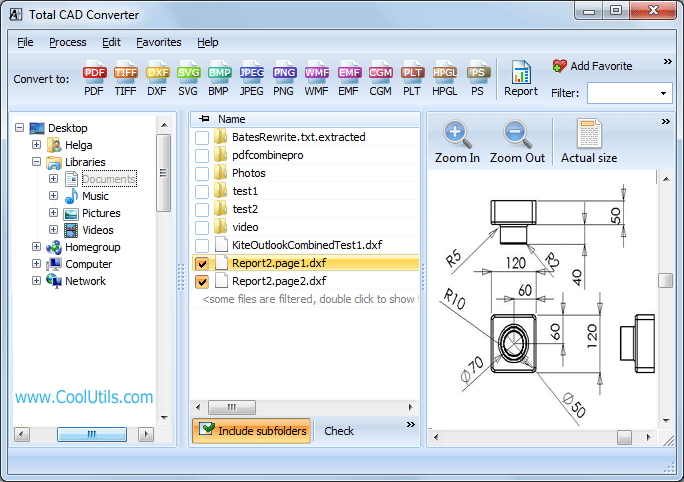
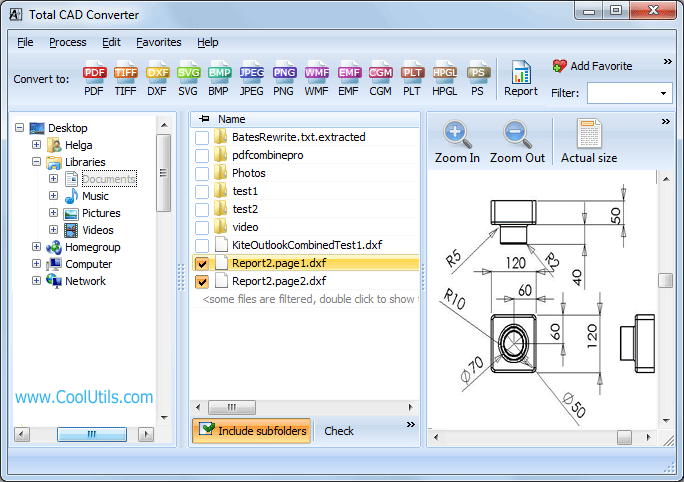
  • Step 1. Launch Total CAD Converter. The left panel displays a Windows folder tree for navigating to your files.
  • Step 2. Browse to the folder containing your DWF files. The central file list shows all recognized CAD drawings in that folder, including DWF files.
  • Step 3. Check the DWF files you want to convert. Use Check All to select every file in the folder for batch conversion.
  • Step 4. Click PDF in the format toolbar at the top of the window.
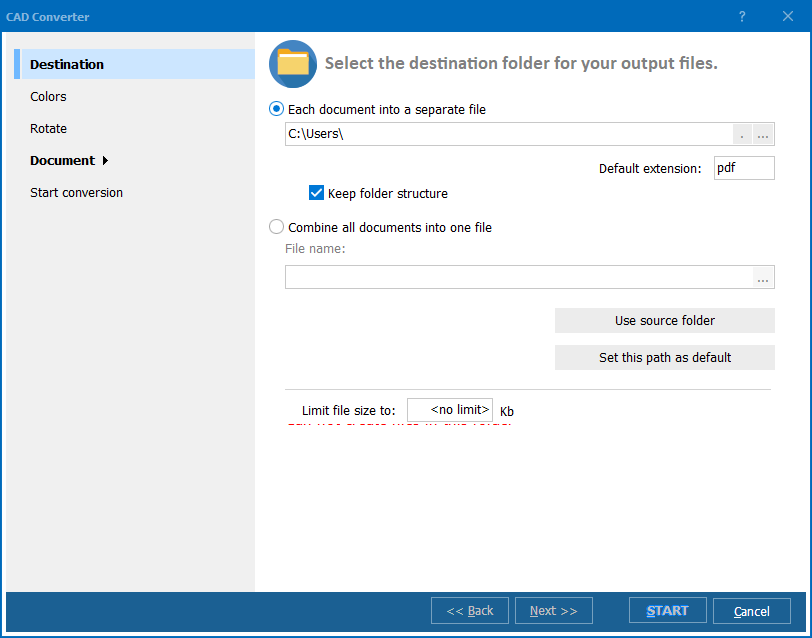
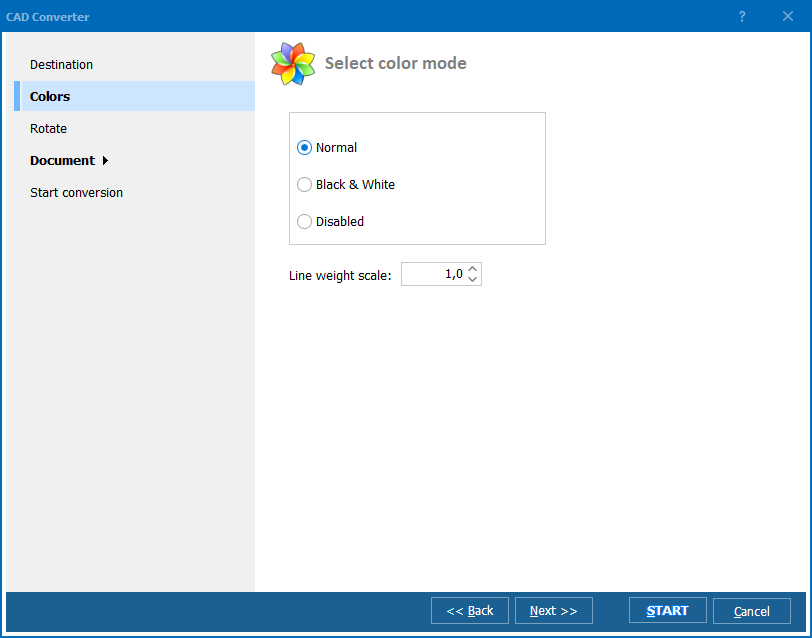
  • Step 5. In the settings dialog, choose a destination folder and configure PDF options: page size, orientation, color mode, and compression. You can also set PDF metadata (title, author) and password protection.
  • Step 6. Press Start. The converter processes all selected DWF files and writes PDF output to your chosen folder. Original DWF files remain unchanged.

Total CAD Converter - DWF to PDF interface

Batch jobs with dozens or hundreds of DWF files complete in minutes. The converter remembers your last settings, so repeat conversions require only selecting files and pressing Start.

Command-Line Conversion

Total CAD Converter includes a command-line executable for scripted and server-side workflows. Example:

CADConverter.exe C:\Drawings\*.dwf C:\Output\ -cPDF

This converts every DWF file in the Drawings folder to PDF and saves the output to C:\Output\. Wrap the command in a .bat file or schedule it with Windows Task Scheduler to convert incoming DWF files automatically — overnight, on a fixed schedule, or whenever new files arrive in a watched folder. The command-line version runs without any GUI and fits into existing document pipelines.

Why Use Total CAD Converter?

Green PlusNo AutoCAD or Autodesk software required. Total CAD Converter reads DWF files using its own rendering engine. You do not need AutoCAD, Autodesk Design Review, or Navisworks on the conversion machine. Install the converter, point it at your DWF files, and get PDF output.

Green PlusBatch processing. Select a folder with 300 DWF files and convert them all to PDF in a single run. Each drawing gets its own PDF file, named to match the source. No manual file-by-file handling.

Green PlusPDF security options. Add password protection, restrict printing, or disable copy-paste on the generated PDF files. Useful when distributing drawings to external parties who should view but not modify the content.

Green PlusPage size and layout control. Set output page size (A4, A3, A1, Letter, or custom dimensions), orientation, margins, and scale factor before conversion. The PDF output matches your target print format without post-processing.

Green Plus100% offline processing. All conversion runs locally on your PC. Architectural plans, proprietary designs, and confidential project drawings never leave your machine or touch a third-party server.

Green Plus15+ output formats. Beyond PDF, convert DWF to TIFF, JPEG, PNG, BMP, SVG, WMF, CGM, DXF, PLT/HPGL, and more — all from the same interface.

Online Converters vs Desktop Converter

FeatureOnline ToolsTotal CAD Converter
File size limit10–50 MBNo limit
Batch conversionOne file at a timeUnlimited
PrivacyDrawings uploaded to cloud100% offline
AutoCAD / Autodesk requiredVariesNo
PDF securityRarely availablePassword, print/copy restrictions
Page size controlLimitedA4, A3, A1, Letter, custom
AutomationNot availableBuilt-in command line
PricingSubscription / per-fileOne-time $99.00

download DWF to PDF converter

Windows 7/8/10/11 • 30-day free trial

When Do You Need DWF to PDF Conversion?

There are several common scenarios where converting DWF design files to PDF is the right choice:
  1. Sharing drawings with clients and stakeholders. Clients reviewing floor plans, elevations, or site layouts do not have Autodesk Design Review installed. Sending PDF files instead of DWF lets them open, view, and print drawings using software they already have — Adobe Reader, browser-based viewers, or built-in OS preview.
  2. Regulatory and permit submissions. Building departments, zoning boards, and permitting authorities accept PDF. Many explicitly reject proprietary CAD formats. Converting DWF plans to PDF before submission avoids rejection and resubmission delays.
  3. Construction document archiving. Long-term project archives need a format that will remain readable for decades. PDF/A is an ISO archival standard. DWF depends on Autodesk viewer software that may not exist in 20 years. Converting DWF to PDF future-proofs your drawing records.
  4. Distributing review sets to field teams. Site supervisors and inspectors carry tablets and phones, not CAD workstations. PDF files open natively on iOS and Android. Converting DWF review sets to PDF lets field teams access drawings without installing specialized apps or carrying laptops.
  5. Print shop output. Commercial print shops and reprographics centers accept PDF as their standard input format. Submitting DWF files requires the shop to have Autodesk software and introduces a conversion step outside your control. Delivering PDF ensures the printed output matches what you see on screen.


Download Now!

(includes 30 day FREE trial)

Buy License

(only $99.00)


quote

Total CAD Converter Customer Reviews 2026

Rate It
Rated 4.7/5 based on customer reviews
5 Star

"We publish DWF sets from Revit for every project milestone and send them to owners, subcontractors, and city reviewers. None of them have Autodesk Design Review. Total CAD Converter lets me batch-convert 40-50 DWF sheets to PDF in one pass before each distribution. The PDF output keeps all the annotations and markups intact, and stakeholders can open the files on their phones or laptops without installing anything. Saves me at least an hour per submittal round."

5 Star Greg Harmon Construction Project Manager

"Architects submit plans in every format imaginable. DWF files used to be a problem because our records system only accepts PDF. I installed Total CAD Converter on my workstation and now convert incoming DWF submittals to PDF before archiving. The page sizes come through correctly, the line weights are preserved, and the command-line option lets our IT team set up an automated intake folder. Solid tool for a government office that needs consistency."

4 Star Linda Castillo Building Inspector, County Planning Department

"I distribute DWF review sets to 15-20 reviewers per project phase. Half of them are external consultants who refuse to install Autodesk viewers. Converting the entire review package to PDF with Total CAD Converter takes a few minutes and removes every compatibility complaint. I set up a .bat script using the command-line interface so the conversion runs automatically when I drop files into the publish folder. Reliable and straightforward."

5 Star Daniel Keane BIM Coordinator, AEC Consultancy

DWF to PDF Conversion: FAQ ▼

No. Total CAD Converter reads DWF files using its own rendering engine. You do not need AutoCAD, Autodesk Design Review, Navisworks, or any other Autodesk software installed. The converter works standalone on any Windows 7/8/10/11 PC.
Yes. Browse to the folder in the left panel, click Check All to select every DWF file, choose PDF as the output format, and press Start. The converter processes all selected files in one batch. Each DWF file produces a separate PDF named to match the source. There is no limit on the number of files per batch.
Total CAD Converter processes 2D DWF and DWFx files. 3D geometry in a DWF file is rendered as a 2D projection in the resulting PDF. If the DWF contains multiple sheets, each sheet is converted to a separate PDF page or file depending on your settings.
Yes. In the settings dialog you can choose standard page sizes (A4, A3, A1, Letter, Legal) or enter custom dimensions. You can also set orientation (portrait or landscape), margins, and scale factor. The converter adjusts the drawing to fit the selected page size.
Use the command: CADConverter.exe C:\Drawings\*.dwf C:\Output\ -cPDF. This converts all DWF files in the specified folder to PDF. You can wrap the command in a .bat file or schedule it with Windows Task Scheduler for automated overnight or on-demand conversion.
Total CAD Converter supports DWF files created by all versions of AutoCAD and Autodesk Revit, including the DWFx variant (XPS-based DWF). Files published from AutoCAD 2000 through the current release are handled correctly.
No. Total CAD Converter processes DWF files of any size locally on your PC. There are no upload limits, no subscription tiers, and no per-file charges. Large multi-sheet DWF packages with annotations and markup convert the same way as single-sheet 2D plans.


Start working now!

Download free trial and convert your files in minutes.
No credit card or email required.

⬇ Download Free Trial Windows 7/8/10/11 • 201 MB

Support
Total CAD Converter Preview1
Total CAD Converter Preview2
Total CAD Converter Preview3

Latest News

Newsletter Subscribe

No worries, we don't spam.


© 2026. All rights reserved. CoolUtils File Converters

Cards