Logo
Home Products Support Contact About Us
arrow1 File Converters
arrow1 TIFF and PDF apps
arrow1 Forensic
arrow1 Freeware

Convert XWM to MP3


XWM files come from Bethesda games — Skyrim, Fallout 4, Starfield — and almost nothing outside those engines can play them. Standard media players do not recognize the format. If you extracted XWM audio from a game archive and need to use it in a video, a mod, or any other project, you have to convert it first.

Total Audio Converter reads XWM files and converts them to MP3, WAV, FLAC, or any other common format. It works in batch — drop in a full folder of extracted game audio and convert everything in one run.

Download Now!

(includes 30 day FREE trial)

Buy License

(only $49.90)

Key Features

  • Batch conversion. Convert an entire folder of XWM files in one operation. No need to process files one at a time.
  • Multiple output formats. Export to MP3, WAV, FLAC, OGG, AAC, M4A, and more. One tool covers all common targets.
  • Adjustable MP3 bitrate. Set output bitrate from 64 to 320 kbps. Match quality to your use case — streaming, archiving, or video editing.
  • Command-line interface. Script batch conversions without the GUI. Useful for modders automating audio extraction pipelines.
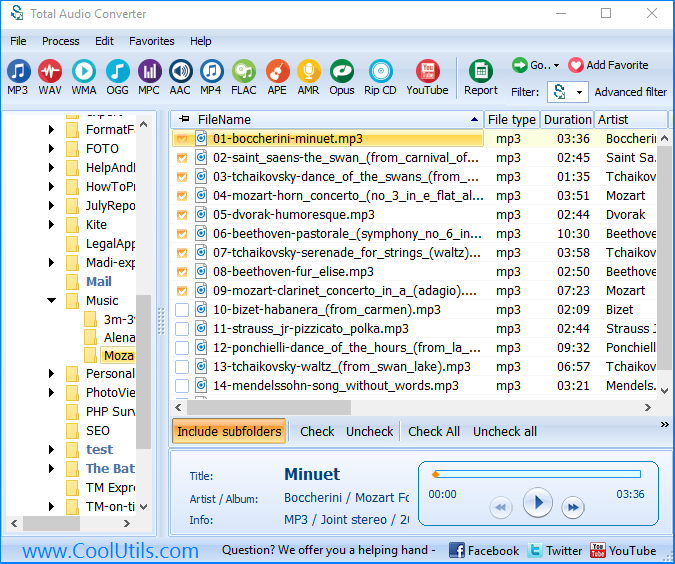
  • Built-in audio player. Preview files before converting to confirm you have the right audio track.
  • No internet required. Conversion runs entirely on your machine. Game audio files stay local.

What Is XWM Format?

XWM (Extended Wave Media) is a compressed audio format used in Bethesda game engines — Creation Engine titles including The Elder Scrolls V: Skyrim, Fallout 4, Fallout 76, and Starfield. XWM is based on the XMA2 codec, a compressed audio codec originally developed by Microsoft for the Xbox 360. It delivers small file sizes suited to game data archives without sacrificing audio quality for in-game use.

XWM files are not standalone. They are typically stored inside .bsa (Bethesda Softworks Archive) or .ba2 archive files that package game assets together. Modders and audio editors extract XWM files using tools like BSA Browser, BAE (Bethesda Archive Extractor), or the Creation Kit before they can work with the audio.

The core problem is that XMA2 is a console-era codec with almost no support outside Microsoft's own ecosystem. VLC, Windows Media Player, Audacity, and most DAWs cannot open XWM files. Even tools that handle XMA2 (such as Xbox-specific SDKs) do not handle the XWM container format used in PC game archives. Converting XWM to MP3 or WAV is the standard step before using game audio anywhere outside the engine.

FeatureXWMMP3
DeveloperMicrosoft / BethesdaFraunhofer IIS / ISO
CodecXMA2MPEG-1 Layer III
Primary useGame engine audioGeneral audio distribution
Player supportGame engine onlyUniversal
Editable in DAWNoYes
Streaming / podcast platformsNot supportedUniversally supported
Typical bitrate128–192 kbps64–320 kbps

How to Convert XWM to MP3

  1. Download and install Total Audio Converter. The 30-day trial is fully functional — no email or credit card required.
  2. Open the program. The left panel shows your folder tree. Navigate to the folder where you extracted your XWM files from the game archive.
  3. Check the boxes next to the files you want to convert. Use Ctrl+A to select all XWM files in the folder at once.
  4. Click MP3 in the format toolbar at the top of the window.
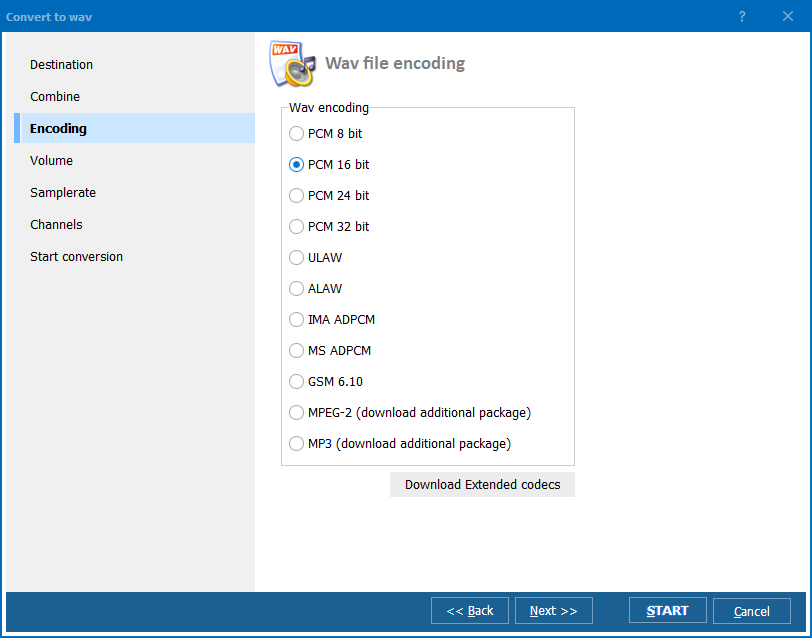
  5. In the conversion settings dialog, choose the output bitrate (192 or 320 kbps is recommended for game audio) and set your destination folder. Click Start.
  6. The converter processes each file and saves MP3 files to the output folder. A progress bar shows per-file status. The converted files are ready to use in any audio editor, video project, or media player.

Command-Line Conversion

Total Audio Converter includes a command-line version for scripted and automated workflows. Example command:

TotalAudioConverter.exe C:\GameAudio\XWM\ C:\GameAudio\MP3\ -c MP3 -b 192

This converts all XWM files in the source folder to MP3 at 192 kbps and saves them to the output folder. You can wrap this in a .bat script to process multiple game archive extractions in sequence — useful when working with a full Skyrim or Fallout mod project that involves hundreds of audio files across multiple subdirectories. Run it from Windows Task Scheduler or trigger it as a post-extraction step in your modding pipeline.

Why Use Total Audio Converter?

Handles the XWM format that most tools ignore

XWM is not a format most audio converters bother to support. It sits at the intersection of a proprietary game engine format and an Xbox-era codec. Total Audio Converter includes native XWM decoding, so you do not need a separate extraction step, a codec pack, or a command-line decoder like xWMAEncode before you can convert. Load the XWM file directly.

Processes entire extraction folders in one run

A single Bethesda game archive can contain hundreds or thousands of XWM files covering music, ambient sounds, NPC dialogue, and environmental audio. Processing them individually is not realistic. Total Audio Converter converts entire folders in a single operation, maintaining output file names that match the originals so you can track which audio belongs where.

You choose the output quality

XWM files are typically encoded at 128–192 kbps. When converting to MP3, you set the output bitrate. For archiving purposes, 320 kbps captures as much of the source audio as possible. For video projects where file size matters, 128 or 192 kbps is sufficient. The converter does not impose a fixed setting.

Works offline — no upload required

Game audio files can involve copyright-sensitive material. Processing them through an online converter means uploading them to a third-party server. Total Audio Converter runs locally. Your files never leave your machine, which is the appropriate approach when working with content from commercial game titles.

Converts to WAV and other formats too

Not every workflow ends with MP3. Modders often need uncompressed WAV for re-importing into the Creation Kit or for editing in Audacity. Video editors may need FLAC for lossless archiving. Total Audio Converter covers all those targets from the same XWM source file — select a different format in the toolbar and convert again.

Online Converters vs Desktop Converter

FeatureOnline convertersTotal Audio Converter
XWM format support Rarely supported Native support
File size limitTypically 50–200 MBNo limit
Batch conversion Usually one file at a time Unlimited batch
Files uploaded to server Yes No — local only
Command-line / automation No Yes
Works offline No Yes
Conversion speed for large batchesSlow (upload + server queue)Fast (local CPU)

When Do You Need XWM to MP3 Conversion?

  • Using game audio in a YouTube video. You recorded gameplay footage and want to include a specific piece of Skyrim or Fallout music as background audio in an edit. The XWM file extracted from the game archive will not import into Premiere Pro, DaVinci Resolve, or any standard NLE. Convert to MP3 first.
  • Skyrim or Fallout mod development. You are replacing or remixing in-game audio for a mod. The Creation Kit expects WAV or MP3 input for custom audio records. Converting your reference XWM files to MP3 gives you editable source material to work from in Audacity or any other audio editor.
  • Archiving game soundtracks. Bethesda games contain hours of original music and ambient audio not available on commercial soundtrack releases. Extracting and converting the XWM files preserves that audio in a portable, playable format for personal use and long-term storage.
  • Indie game development and asset research. Developers studying how AAA studios structure audio assets extract XWM files for reference. To analyze or compare tracks in audio software, conversion to MP3 or WAV is required.
  • Streaming or podcast production. Content creators covering Bethesda games sometimes need short audio clips for intros, transitions, or reaction content. Those clips start as XWM files and need to be in MP3 before they can be processed in any standard audio workflow.
Download Now!

(includes 30 day FREE trial)

Buy License

(only $49.90)


quote

Total Audio Converter Customer Reviews 2026

Rate It
Rated 4.7/5 based on customer reviews
5 Star

"I've been making Skyrim mods for years and XWM has always been the annoying bottleneck. Most converters either don't recognize the format or produce garbled output. Total Audio Converter handled my entire extracted audio folder — over 400 files — without a single failure. The batch mode saved me hours. Now I use the command-line version as part of my mod build script."

5 Star Derek Hollis Skyrim Mod Developer

"I cover Bethesda games on my channel and needed clean MP3 clips from Fallout 4 for video intros and transition sounds. Every online converter I tried either didn't support XWM or timed out on my files. Total Audio Converter worked on the first try, produced clean 192 kbps MP3s, and handled 60 files in one batch. Exactly what I needed."

5 Star Priya Mehta YouTube Content Creator

"I was researching how Bethesda structures ambient audio layers in Skyrim as reference for my own project. Extracting the XWM files was easy enough, but getting them into Audacity for analysis was impossible until I found Total Audio Converter. Converted everything to WAV in minutes. The UI is functional rather than flashy, but it does the job without fuss."

4 Star Marcus Feld Indie Game Developer

FAQ ▼

XWM (Extended Wave Media) is a compressed audio format used in Bethesda game engines such as Skyrim, Fallout 4, and Starfield. It uses the XMA2 codec developed by Microsoft for the Xbox 360. Almost no consumer media player supports XMA2 decoding outside of Microsoft's gaming ecosystem. You need to convert XWM to MP3, WAV, or another common format before using the audio in any standard player or editor.
Yes. In Total Audio Converter, navigate to the folder containing your XWM files, press Ctrl+A to select all, choose MP3 from the format toolbar, and click Start. The converter processes each file in sequence and saves the results to the output folder you specify. There is no limit on the number of files.
Total Audio Converter can convert XWM to WAV, FLAC, OGG, AAC, M4A, WMA, AIFF, and several other formats. WAV is commonly needed when re-importing audio into the Bethesda Creation Kit for mod work. FLAC is useful for lossless archiving of game soundtracks.
XWM files from Bethesda games are typically encoded at 128–192 kbps. For general use and streaming, 192 kbps is a good balance. For archiving where you want to preserve as much of the source quality as possible, use 320 kbps. Going above the bitrate of the source file will not recover detail that was already discarded during XWM encoding.
Yes. The command-line version accepts source folder, output folder, target format, and bitrate as parameters. Example: TotalAudioConverter.exe C:\GameAudio\XWM\ C:\GameAudio\MP3\ -c MP3 -b 192. You can embed this in a .bat script and run it automatically after extracting audio from a game archive.
Yes. Total Audio Converter supports Windows 7, 8, 10, and 11. No additional codec packs are required for XWM conversion. The installer includes everything needed to decode and re-encode the audio.
Converting audio from a game you have purchased for personal use — such as archiving a soundtrack or using audio in a personal mod — is generally treated as fair use in many jurisdictions. Distributing extracted and converted game audio publicly, using it commercially, or including it in content that monetizes the original creators' work may infringe copyright. If in doubt, review the terms of service of the specific game title and consult the game's fan content policy.


Start working now!

Download free trial and convert your files in minutes.
No credit card or email required.

⬇ Download Free Trial Windows 7/8/10/11 • 78 MB

Support
Audio Converter Preview1
Audio Converter Preview2
Audio Converter Preview3

Latest News

Newsletter Subscribe

No worries, we don't spam.


© 2026. All rights reserved. CoolUtils File Converters

Cards