

 +1 (855) 418-2323

 File Converters
Quick answer: DWF is Autodesk’s compressed, read-only vector format for sharing CAD drawings. On Windows, Autodesk Design Review opens DWF free, with markup and measurement tools. On Mac, Linux or mobile, the free Autodesk Viewer works in a browser after signing in. AutoCAD also opens DWF. To convert many DWF files to PDF at once, CoolUtils Total CAD Converter offers a 30-day trial.
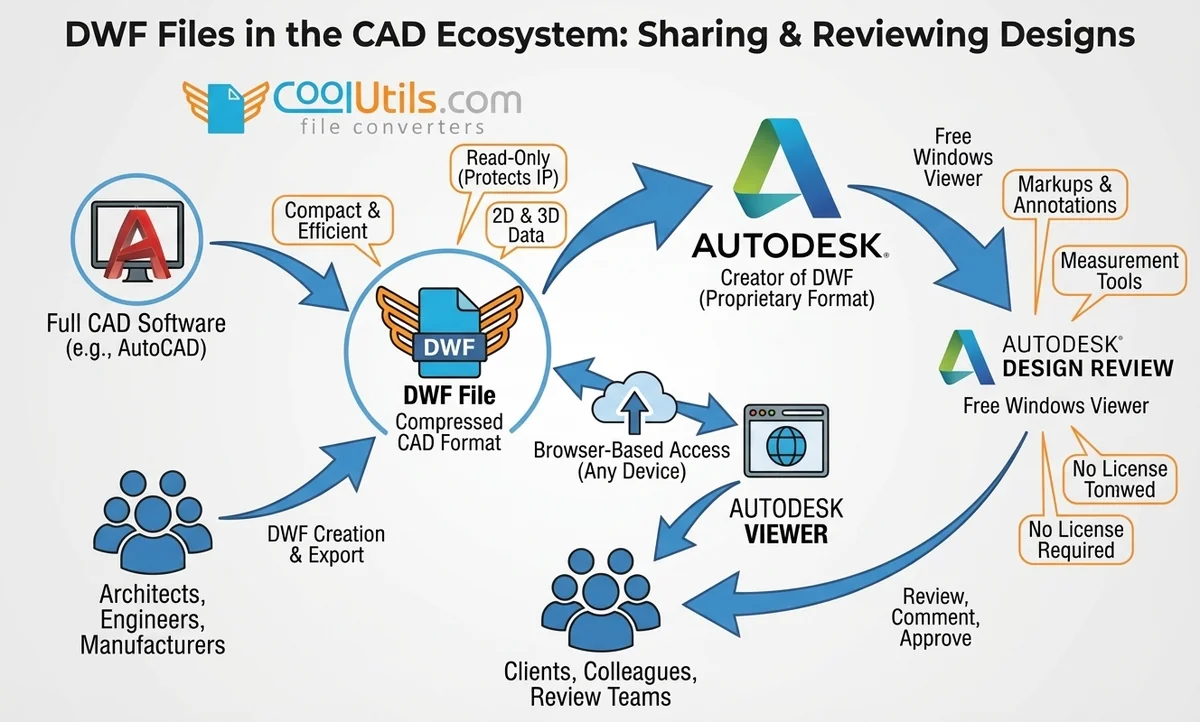
A DWF file is a compressed CAD format that Autodesk created for sharing engineering and architectural designs without requiring full CAD software. Most users encounter DWF files when a colleague or client sends a drawing for review, only to find that standard software cannot open it. This situation is common in architecture, manufacturing, and civil engineering, where DWF files travel between teams and clients who do not own Autodesk licenses.
Autodesk Design Review opens DWF files at no cost on Windows and includes markup and measurement tools. For users without a Windows machine, Autodesk Viewer offers browser-based access from any device. This guide covers every method for opening, viewing, and converting DWF files, with step-by-step instructions for each approach.
What Are DWF Files
DWF (Design Web Format) is a compressed vector file format that Autodesk developed for sharing 2D and 3D CAD design data without exposing the editable source file. Autodesk introduced DWF as the standard for secure drawing distribution in the AEC (Architecture, Engineering, Construction) industry. The format supports annotations, measurements, and password protection.
Key characteristics of DWF files:
- File extension: .dwf; current version: DWF 6.0, developed by Autodesk
- File size: Compressed, smaller than native AutoCAD DWG files
- Data type: Vector-based 2D and 3D geometry
- Security: Password protection for controlled distribution
- Source applications: AutoCAD, Autodesk Revit, and other Autodesk products
History of the DWF File Format
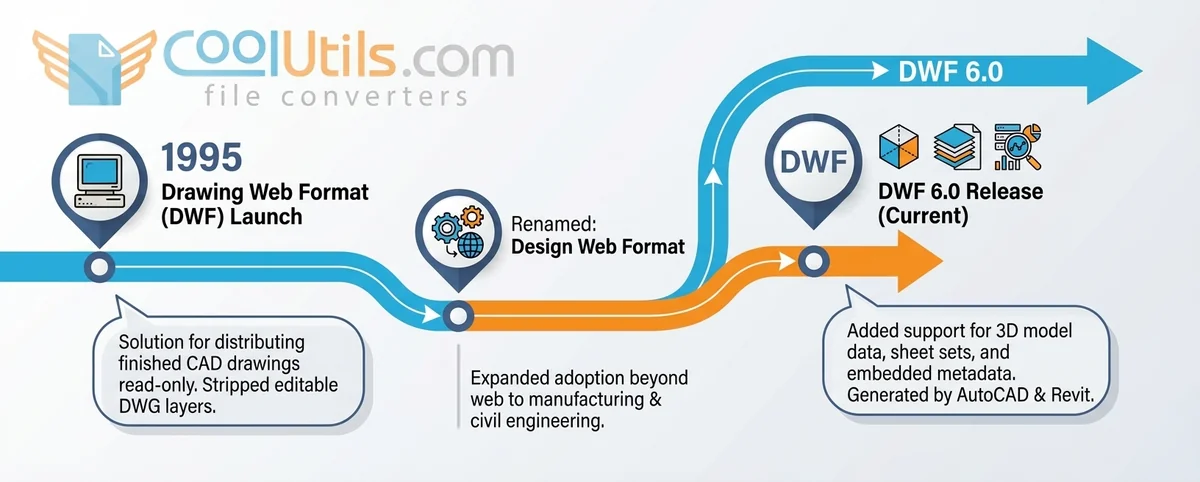
Autodesk launched DWF in 1995 under the original name “Drawing Web Format” to solve a concrete problem in CAD workflows. AutoCAD users needed to distribute finished drawings to clients without giving recipients access to editable DWG source files. AutoCAD exports DWF files as read-only packages of vector data, stripping out the editable layer structure of the native DWG format. This separation between viewing and editing became the defining characteristic of the DWF standard.
Autodesk later renamed the format to “Design Web Format” as adoption expanded from web distribution into manufacturing, civil engineering, and building information workflows. DWF 6.0 added support for 3D model data, sheet sets, and embedded metadata. AutoCAD and Autodesk Revit are the primary applications that generate DWF output today.
DWF vs. DWG vs. DXF: the Differences
DWF, DWG, and DXF serve three separate purposes in a CAD workflow. Selecting the wrong format creates problems at every downstream step.
| Format | Purpose | Editable | File Size | Best For |
|---|---|---|---|---|
| DWF | Viewing and sharing | No | Small (compressed) | Distributing designs for review |
| DWG | Creating and editing | Yes | Large (native data) | Active design work in AutoCAD |
| DXF | Data interoperability | Yes | Medium | Exchanging files across different CAD programs |
AutoCAD uses .dwg as its native format for all active drawing work. AutoCAD exports to .dwf when a design is ready for controlled distribution — the recipient can view and annotate but cannot alter the underlying geometry. DXF (Drawing Exchange Format) transfers geometry between CAD applications that cannot read native .dwg files.
Are DWFs Raster or Vector Files?
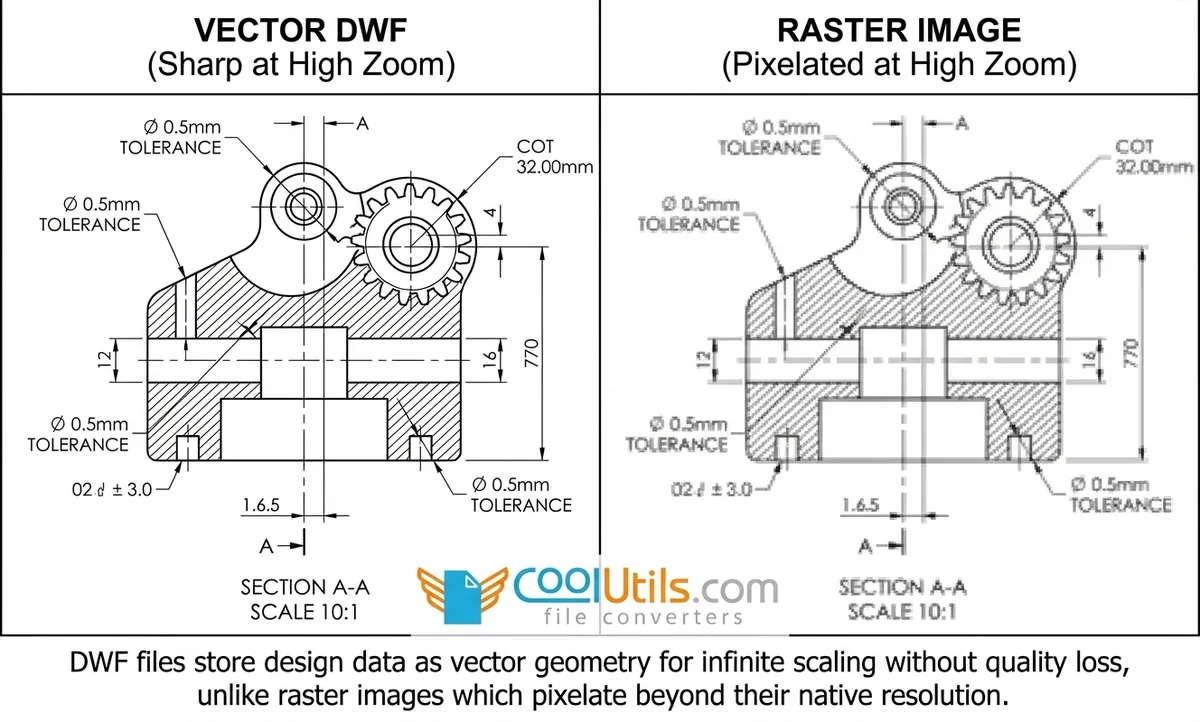
DWF files store design data as vector geometry, not pixel-based raster images. Vector data uses mathematical formulas to define lines, curves, and shapes. A raster image, such as a JPEG or PNG, stores fixed pixel values that degrade when scaled beyond native resolution.
For technical drawings, this distinction matters. An engineer zooming in to verify a 0.5 mm tolerance reads a sharp, precise vector line. The same dimension stored as a raster image becomes unreadable at high magnification. DWF’s vector structure preserves every detail at any display size. DWF 6.0 also stores 3D model data in vector form, so spatial geometry scales correctly across all viewpoints.
Top Methods for Opening DWF Files
Four reliable methods exist for opening DWF files. The correct choice depends on operating system, available software, and whether markup tools are required.
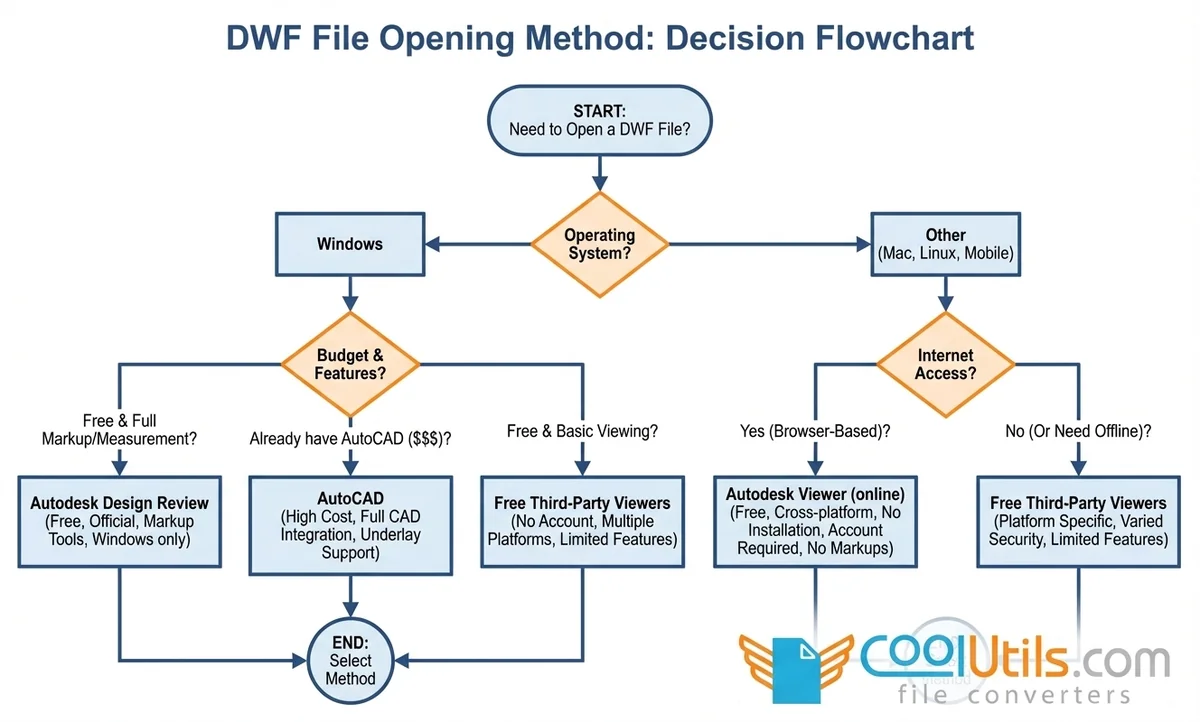
| Method | Cost | Pros | Cons | Best For |
|---|---|---|---|---|
| Autodesk Design Review | Free | Official tool; markup and measurement included | Windows only; requires installation | Windows users needing full review features |
| AutoCAD | $245/month | Full CAD integration; DWF underlay and snap support | High cost; excessive for view-only tasks | Users with an existing AutoCAD license |
| Autodesk Viewer (online) | Free | Cross-platform; no installation; browser-based | Account required; no markup tools; internet needed | Mac, Linux, and mobile users |
| Free third-party viewers | Free | No account needed; multiple platforms | Limited features; no official support; varied security | Occasional access when Autodesk tools are unavailable |
Using Autodesk Design Review (Free Official Tool)
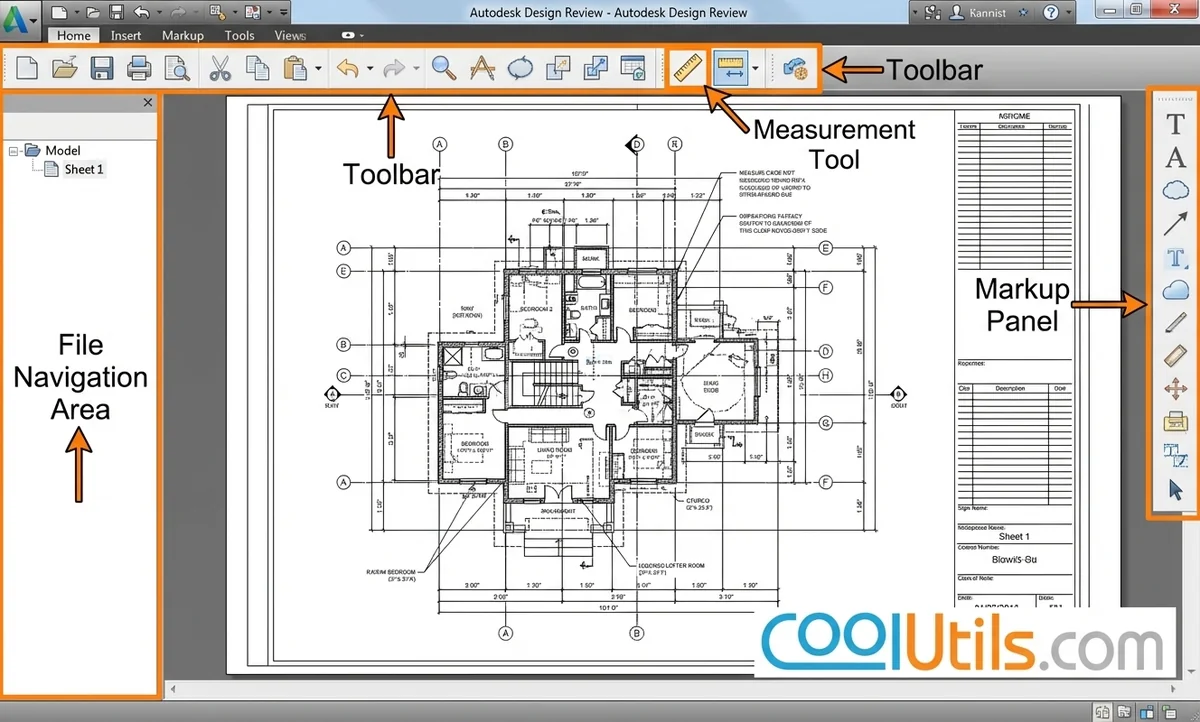
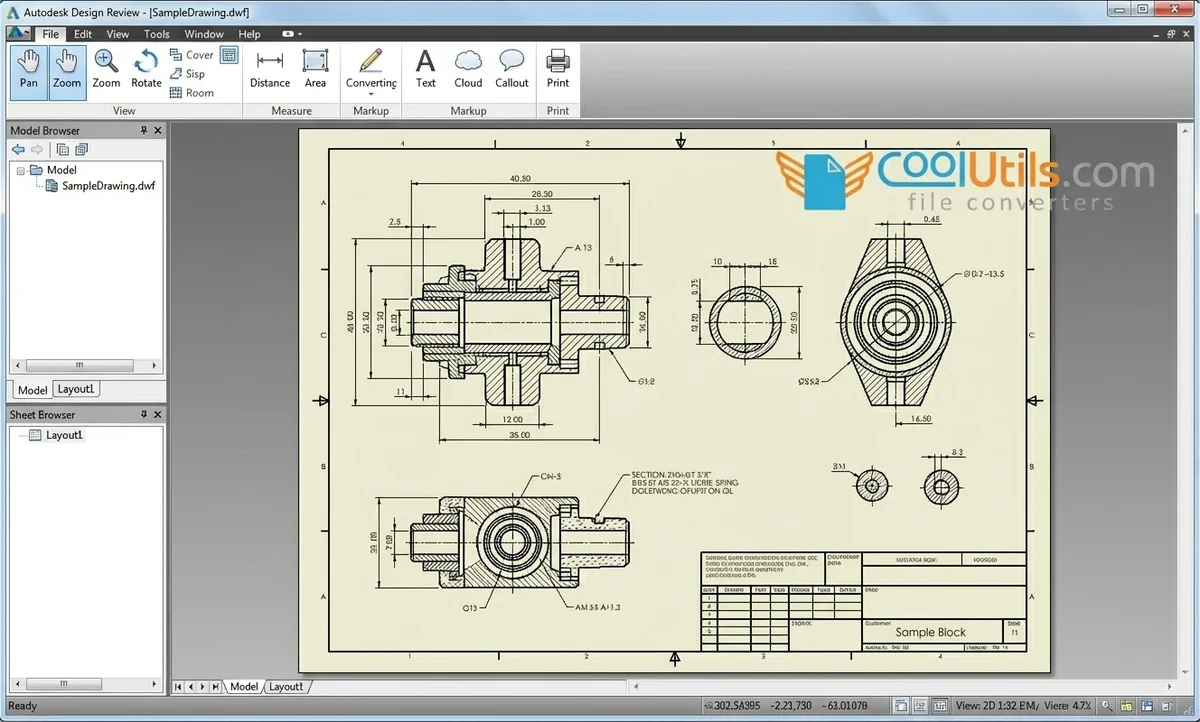
Autodesk Design Review is a free Windows application that Autodesk developed as the official DWF viewer. The software opens DWF files, provides markup and annotation tools, enables direct measurement of geometry on the drawing, and includes a print-to-PDF function. Autodesk provides Design Review without feature restrictions or time limits.
Steps to open a DWF file with Autodesk Design Review:
- Visit the Autodesk Design Review download page on autodesk.com.
- Download and run the installer (Windows 7 through Windows 11 are supported).
- Open Autodesk Design Review after installation completes.
- Click File > Open, navigate to your .dwf file, and click Open.
- Use the toolbar to pan, zoom, add markups, or take measurements.
Pros:
- Completely free with no trial period or feature restrictions
- Full markup and annotation support for team review workflows
- Built-in measurement tools for verifying dimensions in the viewer
- Print-to-PDF function for converting DWF files to shareable documents
Cons:
- Windows only — no Mac or Linux version available
- Cannot edit the underlying DWG geometry
- Requires local installation and storage space
Opening DWF Files with AutoCAD
AutoCAD is a professional CAD application that Autodesk developed for creating, editing, and managing 2D and 3D engineering drawings. AutoCAD uses .dwg as its native format. AutoCAD opens DWF files via the DWFATTACH command, which imports the DWF as a read-only underlay beneath active drawing layers.
Steps to open a DWF file in AutoCAD:
- Open AutoCAD and start a new or existing drawing.
- Type
DWFATTACHin the command line and press Enter. - Browse to the .dwf file and click Open.
- Set the insertion point, scale, and rotation, then click OK.
Pros:
- Full integration with active AutoCAD drawing workflows
- Snap-to-geometry and layer controls unavailable in free viewers
- Supports DWF underlays alongside native DWG geometry
Cons:
- Costs $245 per month (April 2026) on an annual subscription
- Excessive capability for users who only need to view files
- Requires a full Autodesk software installation
Utilizing Online DWF Viewers for Quick Access
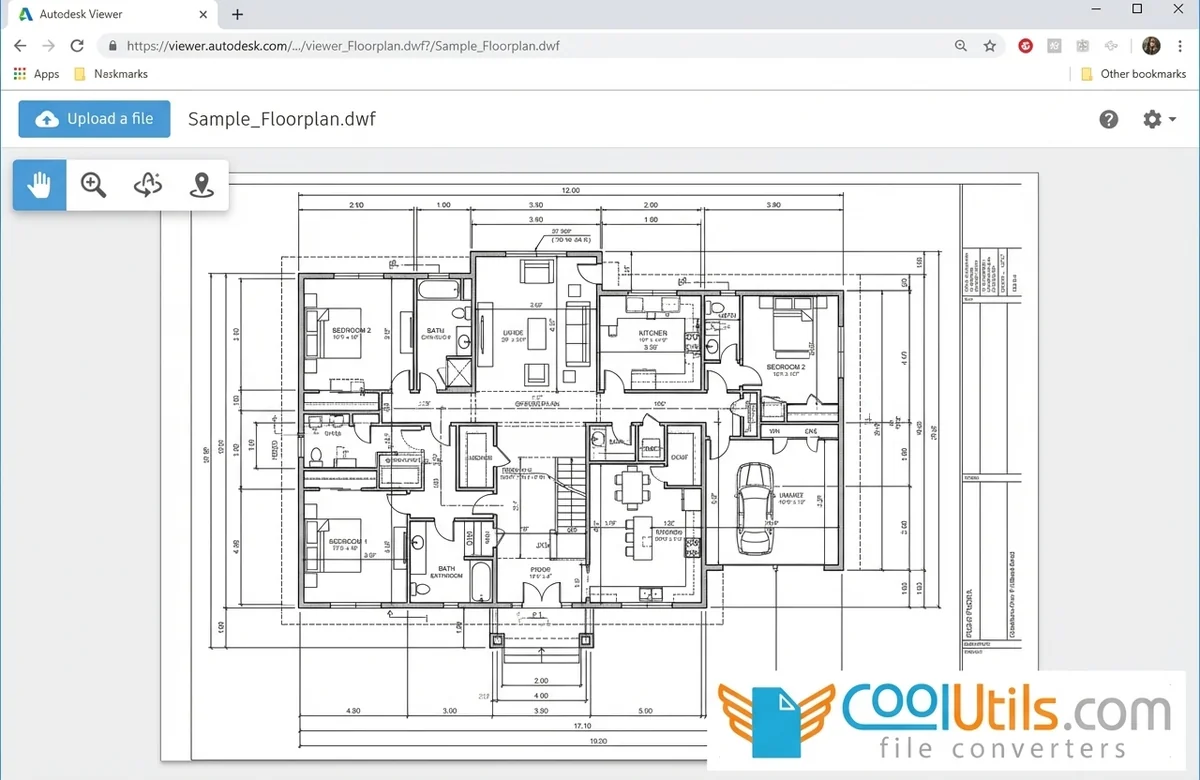
Autodesk Viewer is a free web service that Autodesk maintains at viewer.autodesk.com. The service opens DWF files in any modern browser on Windows, Mac, iOS, and Android without software installation.
Steps to open a DWF file with Autodesk Viewer:
- Go to viewer.autodesk.com in any browser.
- Sign in with a free Autodesk account (registration required).
- Click Upload a File and select the .dwf file from local storage.
- Use the viewer controls to pan, zoom, and inspect the drawing.
Pros:
- Works on any operating system with a modern browser
- No download or installation needed
- Free with a standard Autodesk account
Cons:
- Requires a verified Autodesk account before any file can be opened
- Requires an active internet connection for all sessions
- Does not support markup tools or measurement functions
Using Alternative CAD Software for DWF Access
Free third-party viewers offer basic DWF access when Autodesk tools are unavailable. These tools come from independent developers and carry limited feature sets compared to Autodesk Design Review.
Free third-party programs that open DWF files:
- LibreCAD (Free, open-source): Partial DWF read support on Windows, Mac, and Linux; basic 2D viewing only, no 3D DWF support
- FreeCAD (Free, open-source): Reads some DWF files on Windows, Mac, and Linux; limited DWF 6.0 compatibility
- A360 Viewer (Free, legacy): Autodesk’s previous cloud viewer, partially superseded by Autodesk Viewer; basic viewing, no markup
Third-party viewers lack official Autodesk support and carry varied security standards. Download only from the official project website for each tool. Avoid uploading confidential DWF files to unverified online services.
Converting DWF Files to Other Formats
Converting a DWF file to PDF or DWG creates a version accessible without CAD-specific software. PDF conversion produces a static document that any recipient opens with Adobe Acrobat Reader or a browser. DWG conversion restores editable geometry for users who need to modify the original design.
Conversion tools and their approaches:
- Autodesk Design Review (Free, Windows): Converts DWF to PDF via print function; best for single-file conversion
- CoolUtils Total CAD Converter (Paid, 30-day free trial): Converts multiple DWF files to PDF via CLI; best for batch processing
- AutoCAD ($245/month): Converts DWF to editable DWG via DWFATTACH; best for users needing geometry-editable output
Converting DWF to PDF
Autodesk Design Review converts DWF files to PDF using its built-in print function. The conversion preserves vector geometry in the output. Interactive DWF features — layer switching and measurement tools — are not included in the static PDF.
Steps to convert a DWF file to PDF:
- Open the DWF file in Autodesk Design Review.
- Click File > Print.
- Select a PDF printer (Microsoft Print to PDF on Windows 10/11, or Adobe PDF if installed).
- Configure page size, orientation, and plot area, then click Print.
- Choose a save location for the output PDF.
For batch DWF-to-PDF conversion, CoolUtils Total CAD Converter processes multiple files via CLI. Download the 30-day free trial at coolutils.com. No payment card is required. All processing runs on your own device — no file is uploaded to any server.
Converting DWF to DWG
AutoCAD converts DWF files to editable DWG format using the DWFATTACH command. The process extracts vector geometry from the DWF underlay into a new DWG drawing file.
Steps to convert DWF to DWG in AutoCAD:
- Open a new drawing in AutoCAD.
- Type
DWFATTACHand attach the DWF file as an underlay. - Trace over the geometry using standard AutoCAD drawing tools.
- Save the resulting file as .dwg.
?? Data loss warning: Layer structure, block definitions, and parametric constraints from the source DWG may not survive the DWF export and re-import cycle. Treat the recovered DWG as a geometric reference, not a restored original.
Troubleshooting DWF File Opening Problems
DWF files fail to open for three reasons: version incompatibility, file corruption during transfer, and software configuration issues on the host machine.
Common causes of DWF opening failures:
- The DWF file uses DWF 6.0 features but the viewer supports only DWF 5.5 or earlier
- The file was corrupted during email attachment, FTP transfer, or cloud sync
- The .dwf file extension is associated with the wrong application in Windows
- Password protection is active and the password was not shared with the file
Version compatibility: Autodesk Design Review supports all DWF versions from 2.x through 6.0. Third-party viewers have inconsistent DWF 6.0 support. If a third-party viewer fails, test the same file in Autodesk Design Review before concluding the file is corrupted.
Corrupted files: Request a fresh export from the sender. Ask them to re-export directly from AutoCAD or Autodesk Revit rather than resend the existing file. Corruption typically occurs during transfer, not during creation.
Broken file association in Windows: Right-click the .dwf file, select Open with > Choose another app, select Autodesk Design Review, and check “Always use this app to open .dwf files.”
Password-protected DWF files: Autodesk Design Review prompts for a password when a protected DWF is opened. The password must come from the file sender. Password protection is enforced at the format level and cannot be bypassed.
FAQ
What is a DWF file and what is it used for?
A DWF (Design Web Format) file is a compressed vector file that Autodesk created for sharing CAD designs without exposing editable source data. Engineers and architects use DWF files to distribute drawings to clients and reviewers. The format supports annotations and password protection. DWF 6.0 is the current version.
How can I open DWF files without AutoCAD?
Autodesk Design Review opens DWF files for free on Windows without an AutoCAD license. For non-Windows users, Autodesk Viewer at viewer.autodesk.com provides browser-based access with a free Autodesk account. Both tools support DWF 6.0 and receive ongoing updates from Autodesk.
How do I open DWF to PDF?
Open the DWF file in Autodesk Design Review, click File > Print, and select Microsoft Print to PDF. The output is a static PDF document. For batch conversion of multiple DWF files, CoolUtils Total CAD Converter processes files via CLI without manual steps per file.
Can I view DWF files on mobile devices?
Autodesk Viewer at viewer.autodesk.com works on iOS and Android through any modern mobile browser. A free Autodesk account is required. Autodesk Viewer provides basic zoom and pan on mobile. Markup and measurement tools are not available in the mobile browser environment.
Is there a free tool to open DWF files?
Autodesk Design Review is a free Windows application with no feature restrictions and no trial period. For non-Windows users, the Autodesk Viewer provides free browser-based access. Both tools are maintained by Autodesk and support DWF 6.0 files.
Ready to convert DWF files at scale? Download the CoolUtils Total CAD Converter 30-day free trial at coolutils.com and test batch DWF-to-PDF conversion on your actual file library. No payment card is required. All processing runs on your own device — no file leaves your machine.
Convert DWF files online
Free, no installation, no upload limits — convert right in your browser:

