

 +1 (855) 418-2323

 File Converters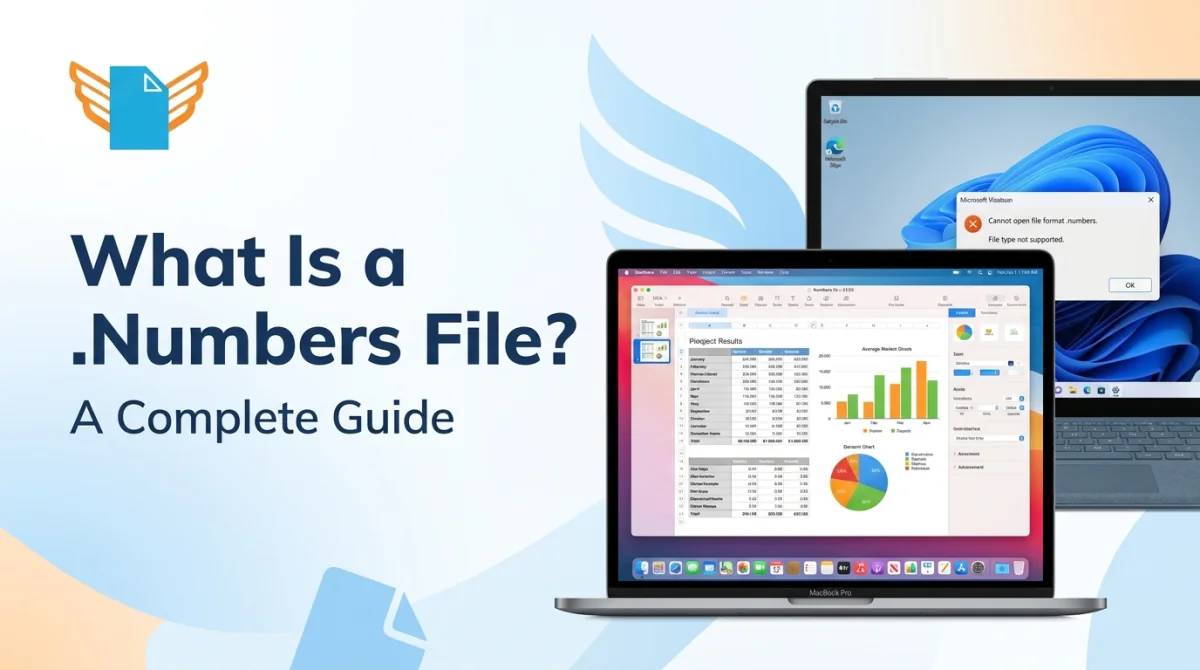
Most people first encounter a .numbers file when a Mac colleague
shares a spreadsheet that refuses to open on Windows. The .numbers
format is Apple’s proprietary spreadsheet standard, the direct
equivalent of Microsoft Excel’s .xlsx file. Apple designed it
exclusively for the iWork ecosystem. This guide covers how to open,
edit, convert, and recover .numbers files on every major platform.
Key Takeaways
-
A .numbers file is Apple’s proprietary spreadsheet format, part
of the iWork
suite introduced in 2007. -
Apple Numbers opens .numbers files natively on macOS, iOS, and
iPadOS, with full web access through iCloud on any device. -
Windows users open .numbers files through the iCloud web app at
iCloud.com. A free Apple ID is all that is needed. -
Numbers files convert to Excel (.xlsx), PDF, and CSV through
Apple Numbers’ built-in export tools or the CoolUtils online
converter.
Understanding
.numbers Files: The Apple Spreadsheet Format
A .numbers file is a spreadsheet document created by Apple Numbers,
part of Apple’s iWork productivity suite. Apple introduced the format
with iWork ’08 in 2007. The format stores tables, charts, formulas, and
embedded media in a single compressed package. Apple Numbers runs
natively on macOS, iOS, iPadOS, and through iCloud.
Apple Numbers serves as an Excel alternative within the Apple
ecosystem. Alongside Numbers, the iWork suite includes Pages and
Keynote, each using its own proprietary format.
.numbers vs Excel: key differences at a glance:
-
Canvas layout: Numbers places tables freely on
the sheet; Excel fills the entire page with a fixed grid -
Platform access: Numbers opens natively on Mac,
iPhone, and iPad; Windows users need iCloud or conversion to
.xlsx -
Pricing: Apple Numbers’ core features are free
on Apple devices; Microsoft Excel requires Microsoft 365 or a one-time
Excel 2024 purchase -
Design focus: Numbers emphasizes visual
templates and media embedding; Excel prioritizes formula depth and data
analysis
The Structure of a .numbers
File

A .numbers file uses a package structure based on compressed XML. The
package bundles multiple XML files, image assets, and metadata into a
single directory that macOS presents as one unified file. This XML-based
architecture differs from Excel’s Open XML (.xlsx) standard, which
explains why most Windows software cannot open .numbers files natively
without conversion.
Numbers file vs
Excel File: Key Differences
Numbers files and Excel files both organize data in rows and columns,
but differ in format architecture, platform support, and design
approach. Microsoft Excel dominates the enterprise spreadsheet market
with universal format compatibility and a deeper formula library.
| Feature | Numbers (.numbers) | Excel (.xlsx) |
|---|---|---|
| Developer | Apple Inc. | Microsoft |
| Native platform | macOS, iOS, iPadOS | Windows, macOS |
| File structure | Compressed XML package | Open XML (OOXML) |
| Design approach | Canvas-based, template-driven | Grid-based, formula-heavy |
| Formula library | 250+ functions (Apple, 2024) | 490+ functions (Microsoft, 2024) |
| Formula languages | Device system language | Dozens of regional languages |
| Cross-platform access | Limited without conversion | Universal |
| Collaboration | iCloud, up to 100 users | Microsoft 365 / OneDrive |
| Cost on Apple devices | Free (core); Apple Creator Studio for premium AI and templates | Microsoft 365 subscription or Excel 2024 (one-time purchase) |
Microsoft Excel cannot open .numbers files directly. Users must
convert to .xlsx through Apple Numbers or iCloud before Excel can read
the spreadsheet. Apple Numbers suits teams operating entirely within the
Apple ecosystem that prioritize visual design. Mixed Windows and Mac
teams typically standardize on Excel for universal compatibility.
How to Open
.numbers Files on Different Platforms
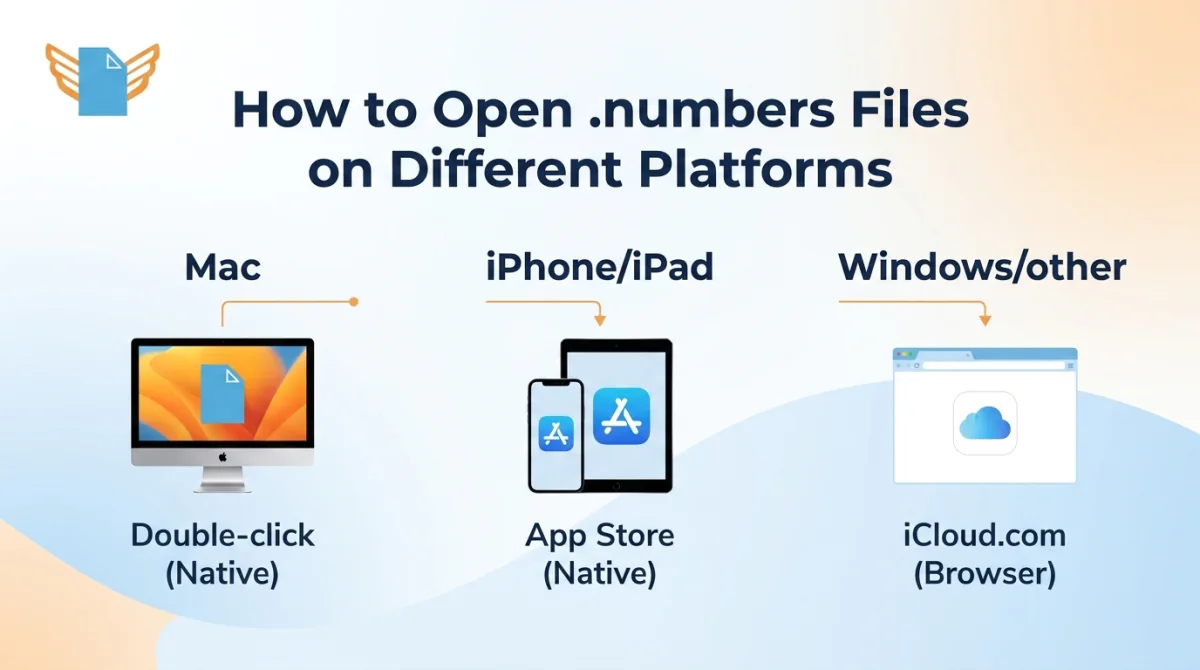
Apple Numbers opens .numbers files natively on macOS, iOS, and
iPadOS. On other platforms, iCloud.com provides full
browser-based access with a free Apple ID. Mac users open .numbers files
with a double-click; Windows and Android users access them through
iCloud.com in any modern browser.
Opening .numbers Files on
Mac
On macOS, Apple
Numbers is available free on all Macs, either pre-installed or
via the Mac App Store.
Steps to open a .numbers file on Mac:
-
Double-click the .numbers file in Finder. Apple Numbers launches
automatically. -
Choose File, then Export To, to convert the file for Windows
colleagues. -
Without Apple Numbers installed, sign in at iCloud.com in any
browser and follow the Windows steps.
Opening .numbers Files on
Windows
Windows has no native support for the .numbers format. The iCloud web
app provides the most accessible solution, requiring only a free Apple
ID to access the full browser-based Numbers editor.
Steps to open a .numbers file on Windows:
-
Visit iCloud.com and sign in with an Apple ID (or create one for
free). -
Click the Numbers icon on the iCloud dashboard.
-
Click the upload icon and select the .numbers file from the local
drive. -
Click the uploaded file to open it in the browser
editor. -
Choose Tools, then Download a Copy, to export the file as Excel
or PDF.
Three methods for accessing .numbers files on
Windows:
| Method | Requirement | Capabilities | Limitation |
|---|---|---|---|
| iCloud web app | Free Apple ID | Full editing, formula entry, and export | Requires internet connection |
| Pre-converted .xlsx copy | Access to a Mac or Apple device | Native editing in any spreadsheet app | Requires prior conversion step |
| WPS Office (third-party) | Free account at wps.com | Opens converted .xlsx on Windows, macOS, iOS, Android | No native .numbers format support |
WPS Office is a free cross-platform office suite by Kingsoft,
available on Windows, macOS, iOS, and Android, that serves as an
alternative to Microsoft Office. The application does not open .numbers
files natively, but opens .xlsx copies exported from Apple Numbers
across all supported platforms.
Opening .numbers Files
on Mobile Devices
Apple Numbers is a free app on
iPhone and iPad (core features free), available from the App
Store. Numbers on iOS and iPadOS opens .numbers files natively with full
editing support. Mobile access suits use cases where a Mac or PC is
unavailable, including client site visits and fieldwork.
Recommended access methods by mobile platform:
-
iPhone and iPad: Open directly in the Numbers
app from iCloud Drive or the Files app -
Android devices: Access via iCloud.com in Chrome
or Firefox mobile browser -
Any device with a browser: Sign in at iCloud.com
with a free Apple ID for web-based editing and export
Creating and Editing
.numbers Files
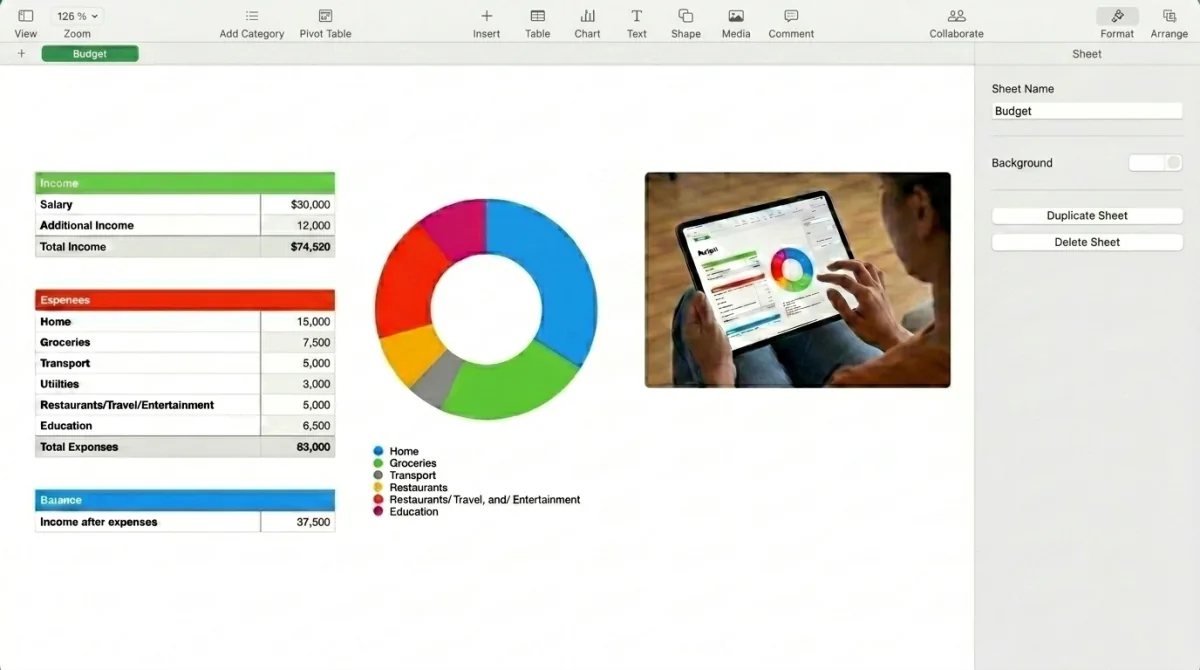
Apple Numbers creates .numbers files from a blank canvas or from one
of its built-in templates. Budget trackers, project timelines, and
invoice layouts are among the most frequently used starting points for
new .numbers documents in professional workflows.
Creating a New .numbers
Document
To create a new .numbers document on Mac:
-
Open Apple Numbers from the Applications folder or Dock.
-
The template chooser opens automatically. Select a category from
the left sidebar. -
Click a template thumbnail, then click Choose to open
it. -
Rename the document by clicking the title bar at the
top. -
Numbers saves the file automatically as a .numbers file to iCloud
Drive or a local folder.
On iPhone and iPad, tap the plus icon in the spreadsheet browser to
access the same template chooser. Numbers for iOS uses the same file
format and template library as the Mac version. Files stay fully
compatible across all Apple devices without any manual conversion.
Key Editing Features in
Numbers
Apple Numbers provides editing tools that combine data processing
with visual design control. Key capabilities include:
-
Dynamic charts: Numbers generates bar, line,
scatter, and interactive charts from table data in one step -
Smart categories: Numbers groups rows by shared
values and calculates automatic subtotals and averages per
group -
Image and media embedding: Numbers places
photos, shapes, and drawings directly on the canvas alongside
tables -
Pivot tables: Numbers builds pivot tables for
multi-dimensional analysis of large datasets -
Conditional highlighting: Numbers applies
color-coded formatting rules to cells that meet specified
criteria
Apple Numbers delivers strong data visualization and excellent media
integration. These capabilities set Apple Numbers apart from Microsoft
Excel’s grid-based approach. Content planners and operations teams use
them to produce polished, client-facing reports directly in .numbers
format.
Using Formulas and
Functions in Numbers
Apple Numbers provides good formula coverage for standard business
and analytical workflows, with 250+ built-in
functions per Apple’s Numbers documentation (2024). To enter a
formula, click a cell and type the equals sign (=). The Function Browser
lists all available functions with usage examples and parameter
descriptions.
Standard formulas work with identical syntax in Numbers and
Excel:
=SUM(B2:B10) – sums a cell range
=IF(A2>100,”Yes”,”No”) – returns a value based on a condition
=AVERAGE(C2:C20) – calculates the mean of a range
=VLOOKUP(D2,A:B,2,0) – looks up a matching value in a table
=COUNTIF(E2:E50,”>0″) – counts cells that meet a criterion
Cell references in Numbers are relative by default, as in Excel.
Users add $ signs or toggle the Preserve Row and Preserve Column
controls to switch to absolute references. Microsoft Excel’s formula
capabilities are very advanced, with 490+ documented functions
(Microsoft, 2024) versus Numbers’ 250+. Teams that rely on complex array
formulas or financial modeling functions benefit from Excel’s deeper
formula library.
Converting
Between .numbers Files and Other Formats
Apple Numbers converts .numbers files to Excel (.xlsx), PDF, CSV, and
TSV through its built-in export tool. PDF output preserves full visual
fidelity but restricts further cell editing. Use PDF export for sharing
final reports, and Excel export for files that recipients need to
edit.
| Source | Target | Method |
|---|---|---|
| .numbers | Excel (.xlsx) | File > Export To > Excel |
| .numbers | File > Export To > PDF | |
| .numbers | CSV | File > Export To > CSV |
| .xlsx (Excel) | .numbers | File > Open (Numbers imports automatically) |
Converting .numbers to Excel
Apple Numbers converts .numbers files to Excel format through two
methods.
Method 1 (Mac users): Open the file in Numbers.
Choose File, select Export To, and pick Excel. Numbers saves a new .xlsx
file. The original .numbers document remains intact.
Method 2 (Windows users via iCloud): Upload the
.numbers file to iCloud.com, open it in the Numbers browser editor,
click the Tools icon, select Download a Copy, and choose Excel.
Before converting, check the following to reduce data
loss:
-
Verify that all formulas use functions available in both Numbers
and Excel -
Confirm that multi-table canvas layouts will fit within Excel’s
single-grid structure -
Review embedded images and chart positions in the output file, as
repositioning after export is common
Converting Excel to .numbers
Apple Numbers imports Excel .xlsx files directly. Drag an .xlsx file
onto the Numbers icon in the Dock, or choose File and Open inside
Numbers. Standard formulas, cell formatting, and most chart types
transfer correctly. Excel VBA macros do not transfer to .numbers
format.
Three conversion tips for a cleaner import:
-
Use standard functions; SUM, IF, AVERAGE, and VLOOKUP transfer
without adjustment -
Remove VBA macros before import, since Numbers uses AppleScript
and JavaScript for Automation (JXA) instead of VBA -
Save an .xlsx backup first; the original file remains unchanged
when Numbers opens it
Troubleshooting
and Recovering .numbers Files
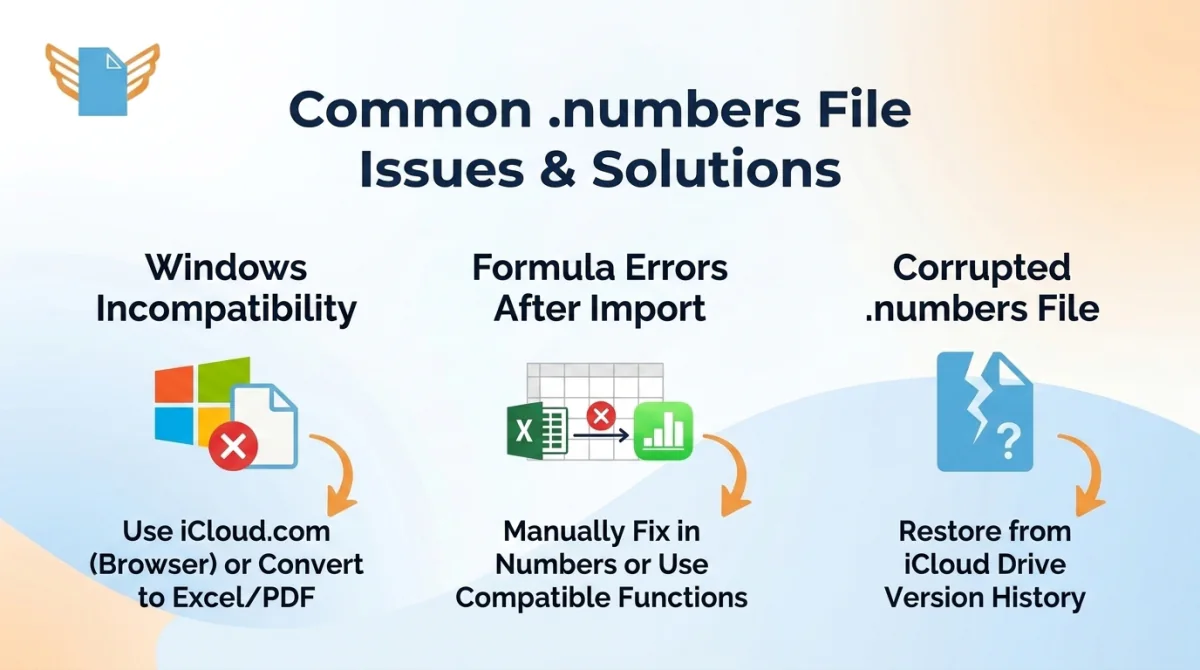
.numbers files encounter platform-specific compatibility issues more
often than formats with universal support. Identifying the root cause of
each issue determines the correct resolution path.
Common Issues with .numbers
Files
Frequent problems when working with .numbers files:
-
Windows incompatibility: Standard Windows
applications cannot open .numbers files without iCloud access or prior
conversion to Excel or PDF -
Corrupted .numbers file: An interrupted sync
between Apple devices can produce a file that Numbers cannot open;
restoring from iCloud Drive version history resolves this -
Formula errors after import: Excel functions
without a direct Numbers equivalent display errors after import, and
vice versa -
Macro loss: Excel VBA macros do not transfer to
.numbers format under any conversion method -
Media repositioning: Embedded images and charts
may shift position after export to Excel
Recovering Lost or
Deleted .numbers Files
Three File Recovery Methods address deleted .numbers files: Trash
Recovery, iCloud Recovery, and Time Machine Recovery.
Apply in order of speed:
-
Mac Trash: Right-click the .numbers file in
Trash and choose Put Back. -
iCloud Recently Deleted: Visit iCloud.com, open
iCloud Drive, click Recently Deleted, and click Recover (files
stored 30 days). -
Time Machine: Open the folder in Finder, enter
Time Machine from the menu bar, and restore from a backup.
Recovering from iCloud
iCloud Drive keeps deleted .numbers files for 30 days in its Recently
Deleted folder. To recover, sign in at iCloud.com, open iCloud Drive,
click Recently Deleted, select the file, and click Recover. The file
returns to its original folder immediately.
Recovering Using Time
Machine on Mac
Time
Machine backs up Mac files to an external drive automatically.
To recover a .numbers file, open the Finder folder where it was stored.
Click the Time Machine icon in the menu bar, select Enter Time Machine,
navigate to a backup before the deletion, and click Restore.
Advanced Features of Apple
Numbers
Apple Numbers includes capabilities that extend well beyond standard
spreadsheet functionality for professionals working within the Apple
ecosystem. Smart categories, pivot tables, Apple Pencil integration, and
offline collaboration make Apple Numbers a distinct alternative to
grid-based tools like Microsoft Excel.
Key advanced features:
-
Smart categories: automatic row grouping with
subtotals, averages, and per-group counts -
Pivot tables: multi-dimensional data summaries
with drag-and-drop field configuration -
Apple Pencil integration: freehand drawing and
annotation on iPhone and iPad -
RegEx text functions: pattern-based text
manipulation for data cleaning -
Offline collaboration: shared spreadsheets
remain editable without internet and sync on reconnect
Templates and Design
Capabilities
Apple Numbers provides an extensive template library with dozens of
professionally designed layouts covering finance, project management,
health, and education. Content planners, legal administrators, and
operations leads use these templates to produce formatted documents
without starting from a blank grid.
Notable template categories and practical applications:
-
Personal Budget: Monthly income and expense
tracking with automatic category totals -
Invoice: Client billing layout with line items,
tax calculation, and a running total column -
Project Timeline: Task scheduling table with
progress tracking and milestone dates -
Mortgage Calculator: Loan repayment schedule
with interest and principal breakdown per period -
Data Import Report: Structured layout for
presenting datasets in a visually organized format
Collaboration Features
Apple Numbers supports real-time collaboration through iCloud. Up to
100 users
can view and edit a shared spreadsheet at the same time (per Apple’s
collaboration guide, 2024), on Mac, iPhone, iPad, or in any browser.
Steps to set up collaborative editing:
-
Open the .numbers file and click the Collaborate button in the
toolbar. -
Choose “Only people you invite” or “Anyone with the link” as the
access level. -
Set permissions to “Can make changes” or “View only.”
-
Send the link via Messages, Mail, or copy it for
sharing.
Changes sync in real time, with each collaborator’s cursor visible to
others.
Frequently Asked Questions
Q: What is a .numbers file?
A: A .numbers file is a spreadsheet document created by Apple
Numbers, part of the iWork suite. Apple introduced the format in 2007.
The file packages tables, charts, formulas, and media in a compressed
XML structure native to macOS, iOS, and iPadOS.
Q: How do I open a .numbers file?
A: Apple Numbers opens .numbers files on Mac, iPhone, and iPad. On
Windows, sign in at iCloud.com, open the Numbers web app, and upload the
file. The browser editor supports viewing, editing, and export with a
free Apple ID.
Q: Can I open a .numbers file on a PC?
A: Yes. Sign in at iCloud.com with a free Apple ID, open the Numbers
web app, and upload the file. The browser editor supports editing,
formulas, and export to Excel or PDF. No additional software is
required.
Q: How do I convert a .numbers file to Excel?
A: Open the file in Apple Numbers on Mac, choose File, select Export
To, and pick Excel. On Windows, upload the file to iCloud.com, open it
in Numbers, and use Tools, then Download a Copy, to export as .xlsx.
Q: What is the difference between a numbers file and an Excel
file?
A: A .numbers file uses a compressed XML package native to Apple
devices. An Excel .xlsx file uses the Open XML standard with universal
platform support. Numbers offers stronger visual design tools; Excel
provides a deeper formula library and broader cross-platform
compatibility.
Q: How do I convert a .numbers file to PDF?
A: In Apple Numbers, choose File, Export To, then PDF. The output PDF
preserves formatting but restricts cell editing. CoolUtils also converts
.numbers files to PDF online: upload the file, select PDF as the output
format, and download the result.
Q: How do I recover lost numbers files?
A: Check Mac Trash first. If the file was in iCloud Drive, visit
iCloud.com and check Recently Deleted. Apple stores files there for 30
days. On a Mac with Time Machine configured, enter Time Machine and
restore from a snapshot taken before the deletion.
Q: Is .numbers an Apple file?
A: Yes. Apple developed the .numbers format in 2007 as part of the
iWork suite. The format is proprietary to Apple and integrates across
the Apple ecosystem: iCloud sync, real-time collaboration, and native
editing on Mac, iPhone, and iPad all rely on this format.
Q: What are the key features of Apple Numbers?
A: Apple Numbers provides 250+ built-in functions (Apple, 2024),
pivot tables, smart categories, dozens of templates, real-time iCloud
collaboration for up to 100 users, and Apple Pencil support on iPhone
and iPad. The core application is free on all Apple devices; advanced AI
features require Apple Creator Studio.
Q: Why would someone use Apple Numbers instead of Microsoft
Excel?
A: Apple Numbers’ core features cost nothing on Apple devices, the
app offers a canvas-based layout for visual report design, and it
integrates with iCloud for sync across Mac, iPhone, and iPad. Microsoft
Excel remains the stronger choice for complex financial modeling, VBA
automation, and teams that include Windows users.
Need to convert a .numbers file to PDF, Excel, or another format? Try the
CoolUtils online converter. Upload your file, select the output
format, and download the result in seconds. No subscription
required.
Convert Numbers files online
Free, no installation, no upload limits — convert right in your browser:

