

 +1 (855) 418-2323

 File Converters
A Safari WEBARCHIVE file often arrives as an attachment from someone who saved a useful page on a Mac. When you need to read that page on Windows or pass it to a colleague, converting it to PDF gives you a document that opens in a familiar reader. Total HTML Converter accepts the archive directly, so you can begin with the file you received and check the saved page as you work.
Check which kind of web archive you received
Look at the full filename before choosing your conversion route, because Safari WEBARCHIVE, MHT, MHTML and ordinary HTML use different structures. Windows may hide familiar extensions, so use the file’s properties or enable extension display if you are unsure what the attachment contains. Keeping its original name helps you find a converter that reads the correct format.
Ask the sender which application saved the page and, when the layout matters, request a reference screenshot or an existing PDF. That reference gives you something concrete to compare with the output, especially when the page contains images, a long report or a table that extends beyond the screen.
Open the archive in Total HTML Converter
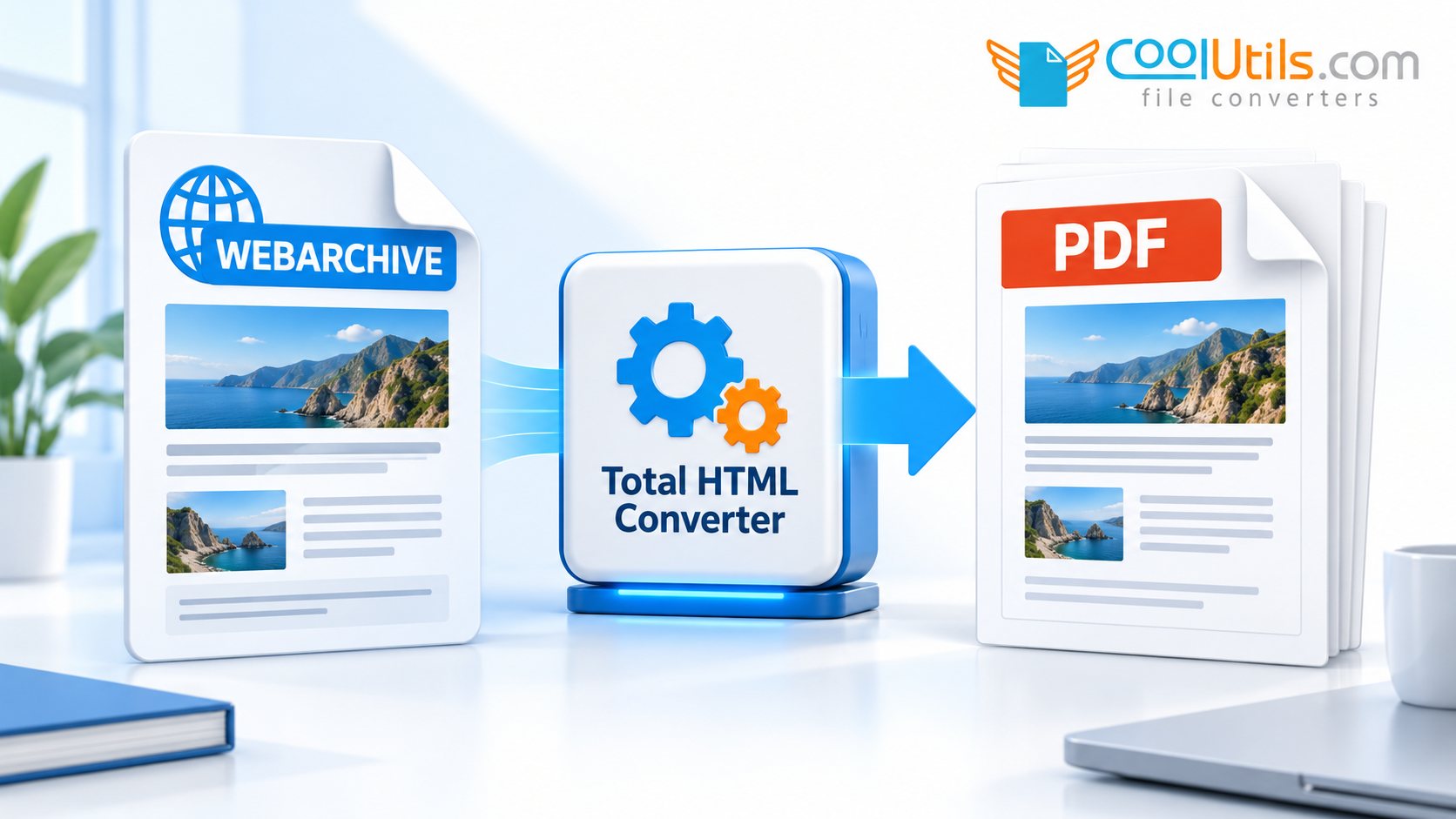
The Total HTML Converter product page lists Safari WEBARCHIVE among its supported inputs. Open the application on Windows, browse to the folder containing the archive and select the file you want to convert. Choose PDF as the output, review the available page settings and save the result into a separate folder so the original archive stays easy to find.
For a collection of archives, begin with a few pages that reflect the range of material you have: a short page, one with several pictures and a longer document. Their outputs will show whether the same settings suit the whole folder. You can then select the remaining files and reuse the settings that worked for those examples.
Make the saved page comfortable to read
Open the PDF and follow the page from its heading through to its final section, paying particular attention to images, captions and the right edge of any table. With the default settings the converter widens the page for a wide table instead of clipping it: in our tests a 14-column table came out on an A4 landscape page and a 30-column table on a custom sheet of about 499 × 250 mm. A table is cut off at the page edge only when you fix a narrower paper size or orientation; in that case choose a larger paper size or landscape, then compare the revised output at a normal reading size.
Background colours can also affect how the page reads. A shaded box may separate an important note from the main text, while a large dark background can make a printed copy difficult to use. The converter prints the backgrounds of the saved page, including a dark page background, so check with the actual page in front of you that labels and other text remain clear.
Work out why a picture is missing
When a picture is absent from the PDF, the most useful first question is whether it appears in the sender’s saved archive. If it is absent there too, ask for another capture or the original resource; the archive may have been saved before the picture loaded, or may still depend on content outside the file.
If the sender can see the picture in the archive, compare its position with the PDF and investigate the conversion of that particular page. A fragment at the page edge suggests a layout problem, while an empty space where the whole picture belongs points to a resource or rendering issue. Keep each test output separately and change one setting at a time so the effect remains clear.
Finish the folder with a simple completeness check
Once the sample pages are readable, convert the rest of the folder and compare the selected inputs with the PDFs that were produced. Identical filenames from different source folders need separate destinations or a naming arrangement that keeps each result traceable. Review any failed files and check a few of the longest documents from the completed batch.
Keep the WEBARCHIVE files alongside the approved PDFs in separate folders. The PDF serves as the reading copy, while the saved archive remains available when someone needs a different page layout or another export. This makes the collection easier to maintain after the immediate sharing task is complete.
Frequently asked questions
Can I convert the file by changing its extension?
The archive needs to be decoded and written as PDF by a compatible application. Keep the original extension when selecting the input.
Will the PDF retain the website’s interactive features?
PDF provides a fixed reading copy of the saved page. Forms, live updates and other website behaviour may require access to the original site.
Use Total HTML Converter to turn a Safari archive into a local PDF, beginning with a representative page whose content you can check.

