

 +1 (855) 418-2323

 File Converters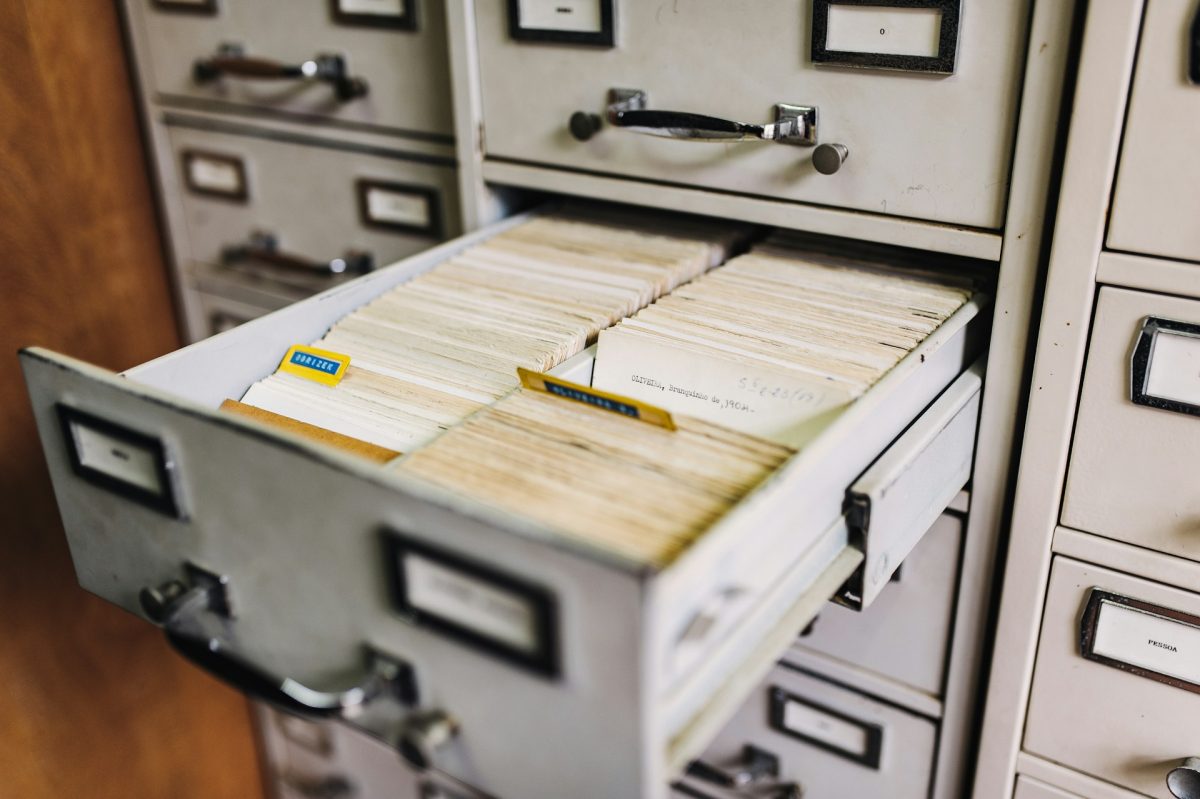
Photo by Maksym Kaharlytskyi on Unsplash.
Save one PDF per email when you need to find, share, or replace individual messages. Combine messages into one PDF when a recipient needs to read a defined collection together. For an email archive covering several projects or years, choose manageable groups before deciding how to package them.
The choice affects filenames, navigation, attachments, and how you check the export. CoolUtils Total Mail Converter handles EML and MSG files, while Total Outlook Converter handles PST archives. Both product families offer separate and combined output; attachment requirements determine whether you need a Pro edition.
Match the output to the next task
| What happens after conversion | A useful starting point | Main tradeoff |
|---|---|---|
| Individual emails will be shared with different people | One PDF per email | More files to name and organize |
| A colleague will read a short exchange from beginning to end | One combined PDF | Message order and navigation need checking |
| An archive contains several unrelated projects | Separate project groups, then choose a format for each | Someone must define the groups |
| The recipient needs editable attachment files | Either PDF arrangement, with original attachments retained | The originals need a clear connection to their messages |
| Some messages may need to be re-exported later | Separate PDFs | Replacing one output is easier, but versions still need tracking |
The number of files is only one consideration. Ten clearly named PDFs may be easier to use than one long document with no useful way to locate a message.
Separate PDFs make individual messages easier to handle
A separate file gives each message its own place in the delivery. You can attach one email to a project record or send a selected message without extracting pages from a larger document.
Filenames matter. A folder full of files named after the subject "Re: Update" will be difficult to use. Choose a convention that distinguishes messages and gives the recipient enough context to recognize them.
For example, you might plan names such as:
2026-09-01_Project-A_001.pdf
2026-09-02_Project-A_002.pdf
2026-09-02_Project-A_003.pdf
These are illustrative names, not a claim about the software's default output. Select an available naming template or prepare a separate index that connects each output to its source message.
Keep a simple rule for revisions. If you export a message again with different settings, put the new result in a clearly identified run folder or replace the earlier delivery through a controlled process. Two files that appear to be the same email but contain different attachment results can confuse a recipient.
Separate PDFs are particularly useful when the collection will be used selectively. They require more care in naming, but the individual message remains easy to identify as a file.
A combined PDF suits a defined reading set
A combined document can be convenient for a short project exchange or a selected folder that a colleague needs to read together. The recipient has fewer files to open and can move through the selected messages in one document.
Decide what belongs in that reading set before conversion. Combining an entire archive merely because it fits into one job can leave the recipient with a document that is hard to navigate.
Order is another explicit choice. A filename's date, its modification date, and the date shown inside an email are different values. Check which field controls the order in your workflow, then inspect the first few messages in the output. A document that opens with the wrong sequence is harder to follow even when every message is present.
For PST input, the CoolUtils PST-to-PDF guide explains selecting messages and choosing separate or combined output. Keep that selection tied to the collection the recipient actually needs.
Decide attachment handling separately
PDF grouping answers how many message documents you want. It does not fully describe the attachment result.
Suppose you combine six messages and two of them contain spreadsheets. You still need to decide whether to save the XLSX files separately, retain them inside the PDF where supported, or convert their content into readable pages.
CoolUtils explains these choices in its email attachment workflow guide. With PST input, Total Outlook Converter can save original attachments separately; use Total Outlook Converter Pro when supported attached documents must be converted as well.
Keep the recipient's task in view. A purchasing colleague reading an order history may want PDF pages. A finance colleague investigating formulas needs access to the workbook. You can provide both when necessary, with names or an index that make their relationship clear.
Plan navigation for a longer document
Combining messages and adding navigation are separate requirements. A table of contents, PDF bookmarks, and a delivery index solve different problems:
- A table of contents is a page or set of pages listing sections and their locations.
- PDF bookmarks provide navigation within a compatible viewer.
- A delivery index is a separate list connecting source messages to their exported files or page ranges.
Check the specific navigation features available in your chosen application. Do not assume that selecting combined output automatically creates the table of contents you have in mind.
A simple index can still make a delivery easier to use. Here is an illustrative example that an editor could prepare after checking the finished export:
| Source message | Exported location | Original attachment |
|---|---|---|
| Project A: initial request | Project-A.pdf, pages 1–2 | None |
| Project A: supplier quote | Project-A.pdf, pages 3–4 | Quote.docx |
| Project A: revised costs | Project-A.pdf, pages 5–6 | Costs.xlsx |
The page ranges are examples, not measured conversion results. If you add pages or change the order, update the index against the final PDF. Do not distribute an index created for an earlier version.
Check coverage in the format you chose
With separate output, verify that each selected message has a corresponding message PDF. Count saved attachments separately so that extra files do not disguise a missing email.
With combined output, one successfully created file tells you little about message coverage. Check the selected set against the document, including its first and last messages. Inspect the boundaries between emails so that a recipient can tell where one message ends and the next begins.
For both formats, check the message identifiers and open any required original attachments. If you have linked separate files, move a copy of the whole package to its intended delivery location and test the links there.
Retain the original email files or PST archive. PDF exports are useful reading copies, but they should not be treated as replacements for the source mailbox when you may need to revisit the original messages.
Choose the product for your source files
For EML and MSG files, start with Total Mail Converter. For messages stored in a PST archive, start with Total Outlook Converter.
Choose separate or combined PDF output for a small representative collection first. Check how that result works for the person receiving it, then use the same arrangement for the larger export.
Download Free Trial of Total Mail Converter or Download Free Trial of Total Outlook Converter.

