

 +1 (855) 418-2323

 File Converters
Quick answer: An EML file is a plain-text file that stores one complete email, including headers, body and MIME-encoded attachments, under the RFC 5322 standard, so Outlook, Thunderbird and Apple Mail all read it. Double-click it to open, or inspect it in a text editor or a free online viewer. CoolUtils Total Mail Converter batch-converts EML to PDF on a 30-day trial.
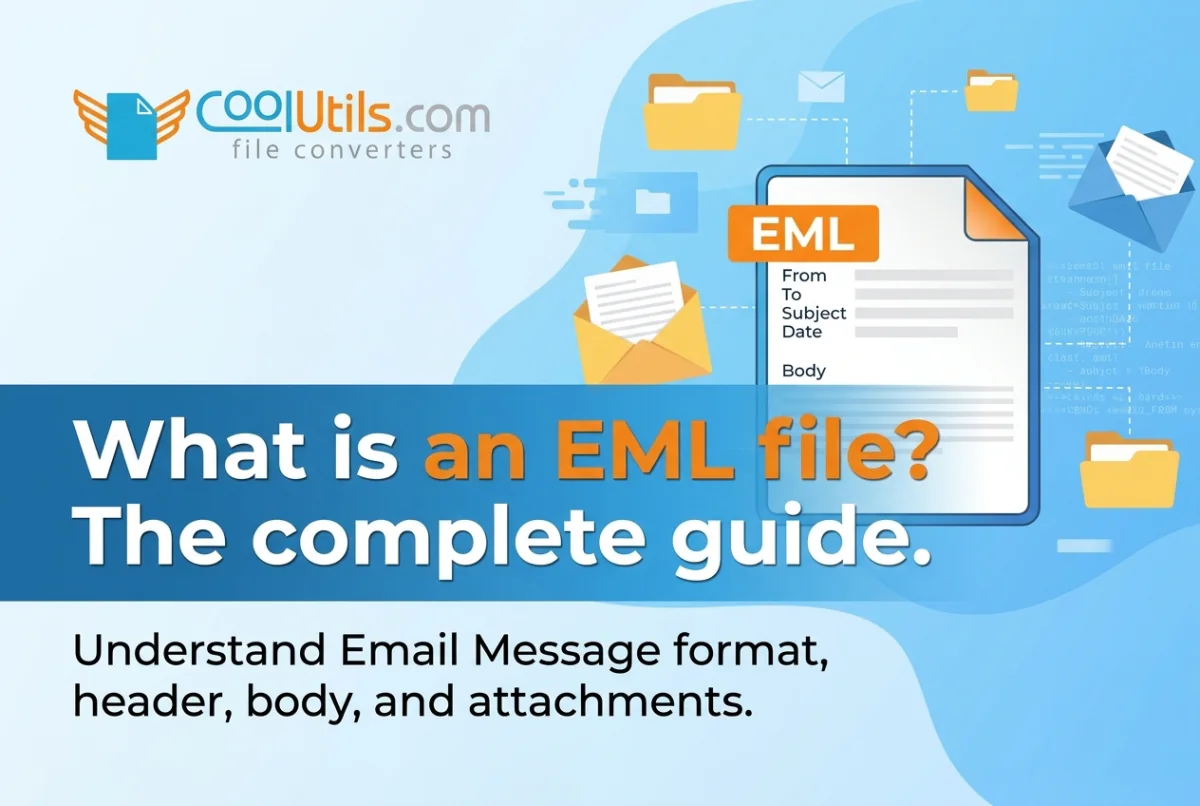
EML stands for Electronic Mail. An EML file is a plain-text format
that stores a single email message, including headers, body content, and
attachments, in one portable file. Email clients such as Microsoft
Outlook, Mozilla Thunderbird, and Apple Mail use EML files to archive,
export, and transfer messages between platforms. The EML format follows
the RFC 5322 standard, which governs how electronic mail messages are
structured across internet-connected systems.
Key characteristics of EML files:
-
Plain-text format readable by any standard text editor
-
RFC 822/5322 compliance, covering header syntax and body
encoding -
Full email data storage: sender, recipient, date, subject, and
body -
MIME-encoded attachments, stored inline or appended as separate
parts -
Cross-client compatibility with Microsoft Outlook, Mozilla
Thunderbird, Apple Mail, and Windows Live Mail
EML files: definition and
purpose
EML files preserve complete email records in a portable,
open-standard format compatible with all major email clients.
The .eml extension identifies email messages exported or saved from
an email client. EML files store every component of a message: routing
headers, plain-text or HTML body content, and MIME-encoded attachments.
Because EML files follow the RFC 5322 open standard, any RFC-compliant
email client reads them without format conversion. Legal teams also use
EML files in e-discovery workflows, where RFC 5322 header metadata
serves as evidentiary records in court proceedings.
The origins of EML files
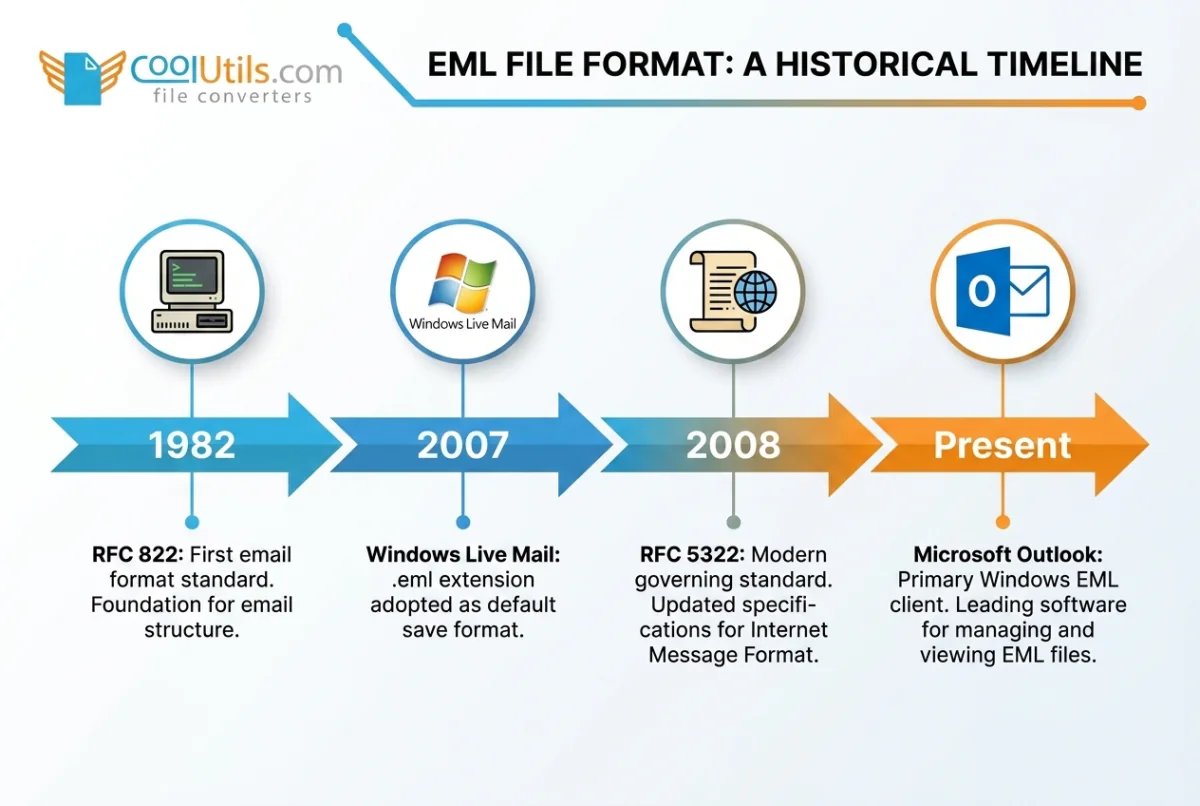
Microsoft’s discontinued Windows Live Mail client established the
.eml extension as the standard save format on Windows. After Windows
Live Mail closed in 2017, users migrated to Microsoft Outlook as their
primary EML-compatible desktop application.
RFC 822, published in 1982, first defined the header syntax that all
EML files follow. The 2008 revision, RFC 5322, expanded coverage to
include modern encoding requirements. IETF, the Internet Engineering
Task Force, maintains RFC 5322
as the authoritative specification for internet message format.
Microsoft Outlook now reads EML files natively on Windows 10 and Windows
11 without additional configuration.
What’s inside
an EML file: structure and components
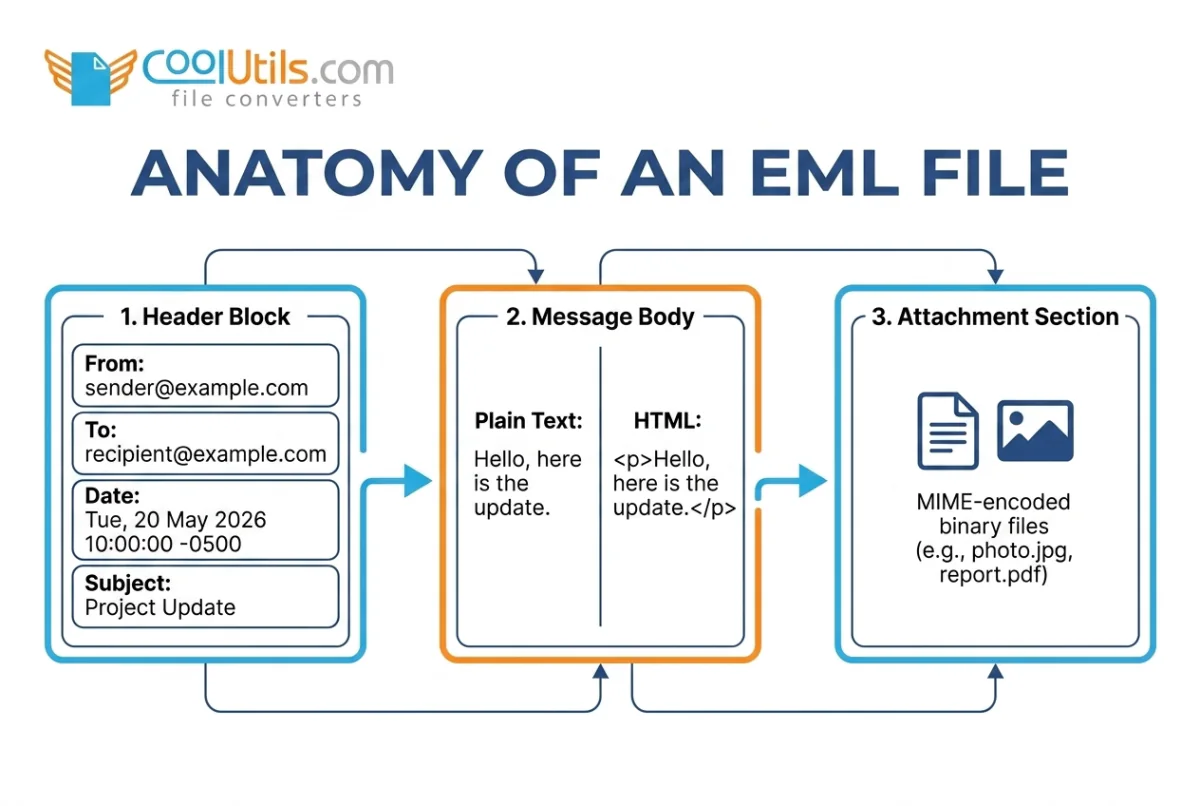
An EML file contains three main sections: the header block, the
message body, and encoded attachments.
Email headers form the top section of every EML file as key-value
pairs. Headers record the sender address, recipient addresses, message
date, subject line, and routing path. The message body follows the
header block in plain-text or HTML format. Email attachments are encoded
using MIME (Multipurpose Internet Mail Extensions), which stores binary
files such as PDFs, images, and spreadsheets inside a plain-text
container.
The table below compares EML with three other common email file
formats:
| Format | Stores | Compatible clients | Open standard | Attachment encoding |
|---|---|---|---|---|
| EML | Single email | Outlook, Thunderbird, Apple Mail | Yes (RFC 5322) | MIME |
| MSG | Single email | Microsoft Outlook only | No (MAPI) | MAPI |
| PST | Multiple emails | Microsoft Outlook only | No (proprietary) | MAPI |
| MBOX | Multiple emails | Thunderbird, Apple Mail | Yes | MIME |
How to open and view EML
files
EML files open through four methods: a desktop email client, a web
browser, a plain-text editor, or a free online viewer.
| Opening method | Email client needed | Attachment support | Best for |
|---|---|---|---|
| Desktop email client | Yes | Full | Standard reading and archiving |
| Web browser (.mht rename) | No | None | Quick HTML preview |
| Plain-text editor | No | None | Header inspection |
| Free online EML viewer | No | Partial | One-off viewing without installation |
Microsoft Outlook, Mozilla Thunderbird, and Apple Mail support EML
files directly with full formatting and attachment display. Users
without an installed email client can view EML files through a browser
or text editor. The right method depends on the goal: formatted email
reading, raw header inspection, or attachment extraction. Each approach
has different requirements for installed software and level of
attachment access.
Opening EML files with
email clients
Mozilla Thunderbird opens EML files natively through drag-and-drop,
with no plugin or configuration required.
Compatible email clients for EML files:
-
Mozilla Thunderbird: drag-and-drop import
directly into the message list -
Microsoft Outlook: double-click opens the EML as
a read-only message preview -
Apple Mail: import via File > Import
Mailboxes on macOS -
Windows Live Mail: native .eml support,
double-click to open (discontinued) -
eM Client: direct EML drag-and-drop support on
Windows
Opening an EML file in Microsoft Outlook requires no special steps on
Windows 10 and 11. Read-only preview mode activates when the user
double-clicks the EML file in Windows Explorer. For long-term Outlook
storage, converting EML to MSG is recommended because Microsoft Outlook
uses MSG as its native internal format.
To open an EML file in Microsoft Outlook:
-
Locate the .eml file in Windows Explorer.
-
Double-click the file. Windows opens Microsoft Outlook and
displays the message. -
Use File > Save As to save the message in MSG format for
long-term Outlook storage.
Opening EML files
without an email client
EML files open without an email client through web browsers, text
editors, and free online viewers when desktop email software is
unavailable.
Free online EML viewers allow instant access to EML file content
without any software installation:
-
EML Viewer Online (emlviewer.net): renders the
message body and headers in a browser tab; attachment extraction is
limited to common file types -
Free Viewer (freeviewer.org/eml): displays
headers, body text, and basic attachments; supports multiple EML file
uploads per session -
Encryptomatic MessageViewer Free: a free Windows
desktop application that opens EML, MSG, and PST files with full
attachment extraction support
Using web browsers to open
EML files
A web browser such as Google Chrome or Mozilla Firefox displays EML
file content after a simple file extension rename. No email account or
additional software is required for this method.
Steps to open an EML file in a web browser:
-
Locate the EML file in Windows Explorer.
-
Rename the file extension from .eml to .mht.
-
Drag the renamed .mht file into an open browser window.
The browser renders the email body in formatted HTML. MIME-encoded
attachments do not extract automatically through this browser method.
Use a dedicated EML viewer or desktop email client when full attachment
access is required.
Using text editors to
view EML content
Notepad on Windows and TextEdit on macOS open any EML file to display
the raw message source. No additional software or email account is
required.
|
From: [email protected] Date: Mon, 17 May 2026 10:00:00 +0000 Subject: Sample EML file MIME-Version: 1.0 Content-Type: text/plain; charset=”utf-8″ This is the plain text message body. |
|---|
Email headers appear at the top of every raw EML file. Headers record
the routing path, sender IP address, and mail server timestamps. The
message body follows in plain text or Base64-encoded HTML content. Text
editor access suits troubleshooting delivery failures and inspecting
header metadata for e-discovery purposes. For e-discovery workflows,
header timestamps establish the original send time and server routing
path.
Converting EML files to
other formats
EML files convert to PDF, MSG, HTML, and other formats using
dedicated desktop conversion tools that preserve headers, body content,
and attachments.
CoolUtils
Total Mail Converter converts EML files to PDF, DOC, HTML, TXT,
and MSG in batch mode. Total Mail Converter processes entire folders of
EML files in a single operation and runs entirely offline on Windows, so
no files leave the local device. The conversion preserves email headers,
body formatting, and MIME-encoded attachments in every output file.
To move EML messages into Outlook as a PST file, follow our guide to converting EML to PST.
| Conversion target | Use case | Preserves attachments |
|---|---|---|
| Long-term archiving, printing | Yes (embedded) | |
| MSG | Outlook-native storage | Yes |
| HTML | Web display, browser viewing | Yes (linked) |
| TXT | Plain-text extraction, forensics | No |
| DOC | Editable document format | No |
Steps to convert EML files to PDF using CoolUtils Total Mail
Converter:
-
Download and install CoolUtils Total Mail Converter on
Windows. -
Open Total Mail Converter and click “Add folder” to select the
source EML folder. -
Choose PDF as the output format in the format selector
panel. -
Select the destination folder for the converted PDF
files. -
Click Convert. Total Mail Converter processes all EML files and
saves each message as a separate PDF.
Best
practices for converting EML without losing data
Email headers and email attachments are the two components most often
lost during EML conversion when an incompatible tool is used.
Common EML conversion pitfalls to avoid:
-
Selecting tools that do not preserve MIME-encoded attachments in
the output file -
Converting EML archives in place rather than writing output to a
separate destination folder -
Using tools that strip email header metadata when exporting to
plain-text formats -
Skipping a test batch before processing a full archive
Before starting any batch job, verify that the selected tool
preserves MIME-encoded attachments and copies header metadata into the
output format. File conversion tools that output to PDF or MSG retain
the most complete email records.
Test the conversion on a sample of five to 10 EML files before
processing a full archive. Run a post-conversion check on attachment
counts to confirm no files were dropped during Base64 re-encoding. CoolUtils Total
Mail Converter supports manual MIME part extraction from
non-standard EML files when attachment preservation is critical.
Common
issues with EML files and how to solve them
EML files fail to open for three main reasons: a missing file
association, no compatible email client installed, or corrupted MIME
encoding in the file itself.
Common EML error messages and solutions:
-
“Windows cannot open this file”: Windows has no
application associated with the .eml extension. Right-click the file,
select “Open with,” and choose Mozilla Thunderbird or Microsoft
Outlook. -
“The messaging interface has returned an unknown
error”: Microsoft Outlook encountered a MAPI conflict. Restart
Outlook, then re-open the EML file. -
“Could not import: file is corrupt or
unreadable”: The EML file contains malformed MIME headers. Open
the file in Notepad to inspect and correct the Content-Type declaration
at the top of the file.
Troubleshooting steps for EML files that will not open:
-
Right-click the EML file and select “Open with.” Choose Mozilla
Thunderbird or Microsoft Outlook from the application list. -
Open the EML file in a text editor and check the Content-Type
header. A missing or malformed Content-Type value causes most rendering
failures in email clients. -
Use CoolUtils Total Mail Converter for attachment extraction when
standard email clients fail. Total Mail Converter supports manual MIME
part extraction from corrupted or non-standard EML files. -
Convert the EML file to MSG format using CoolUtils Total Mail
Converter before importing into Microsoft Outlook when compatibility
problems persist.
Frequently asked questions
How do I convert an EML
file to PDF?
CoolUtils Total Mail Converter converts EML files to PDF in batch
mode on Windows. The converter processes entire folders and preserves
headers, body text, and attachments in the output PDF. Download the
30-day trial at coolutils.com and test the conversion on your own files
before purchasing.
What is EML used for?
An EML file stores a single exported email message for archiving,
transfer, or legal review. IT administrators use EML files to migrate
email archives between clients. Legal teams use EML files in e-discovery
workflows because the format preserves original RFC 5322 header metadata
required for evidentiary purposes.
Can I open EML files in
Gmail?
Gmail does not support direct EML file import. To view an EML file
through Gmail, open the EML file in Mozilla Thunderbird first, then
forward the message to your Gmail address. Gmail receives the forwarded
message as a standard email with attachments intact.
What’s the
difference between EML and MSG files?
EML files follow the open RFC 5322 standard and open in any
RFC-compliant email client. MSG files use Microsoft’s proprietary MAPI
format and open natively only in Microsoft Outlook. EML offers broader
cross-platform compatibility, while MSG preserves Outlook-specific
metadata such as categories and follow-up flags.
How do I save an email as
an EML file?
Mozilla Thunderbird saves any email as an EML file through File >
Save As. Select a destination folder and Thunderbird writes the complete
message, including headers and attachments, to a .eml file. Microsoft
Outlook does not save directly to EML format. Use CoolUtils Total Mail
Converter to export MSG files to EML.
Are EML files secure?
EML files provide no built-in encryption. Security depends on the
storage location and access controls applied to the folder containing
the file. EML files processed with CoolUtils Total Mail Converter stay
on the local Windows device and are never uploaded to any server, which
protects sensitive message content from third-party access.
| Download the 30-day trial of CoolUtils Total Mail Converter and convert your EML files on your own device. No card is required. The full trial runs on Windows 10 and Windows 11 without feature restrictions. |
|---|
Convert EML files online
Free, no installation, no upload limits — convert right in your browser:

