Need help? Reach us at 

 +1 (855) 418-2323
Need help? Reach us at
+1 (855) 418-2323

 File Converters TIFF and PDF apps Forensic Freeware
Do you have a PDF file that you need to convert to text? If so, you're in luck! In this guide, we will show you how to convert PDF to text using CoolUtils' converter. We will also discuss some of the benefits of converting your PDF files to text. So without further ado, let's get started!
Quick answer: To convert PDF to text with the CoolUtils PDF converter, download and install the program, launch it and select the PDF file you want to convert, choose Text (TXT) as the output format, then click the convert button. Your editable, searchable text file is saved locally on your computer, with no upload and no file-size limit.
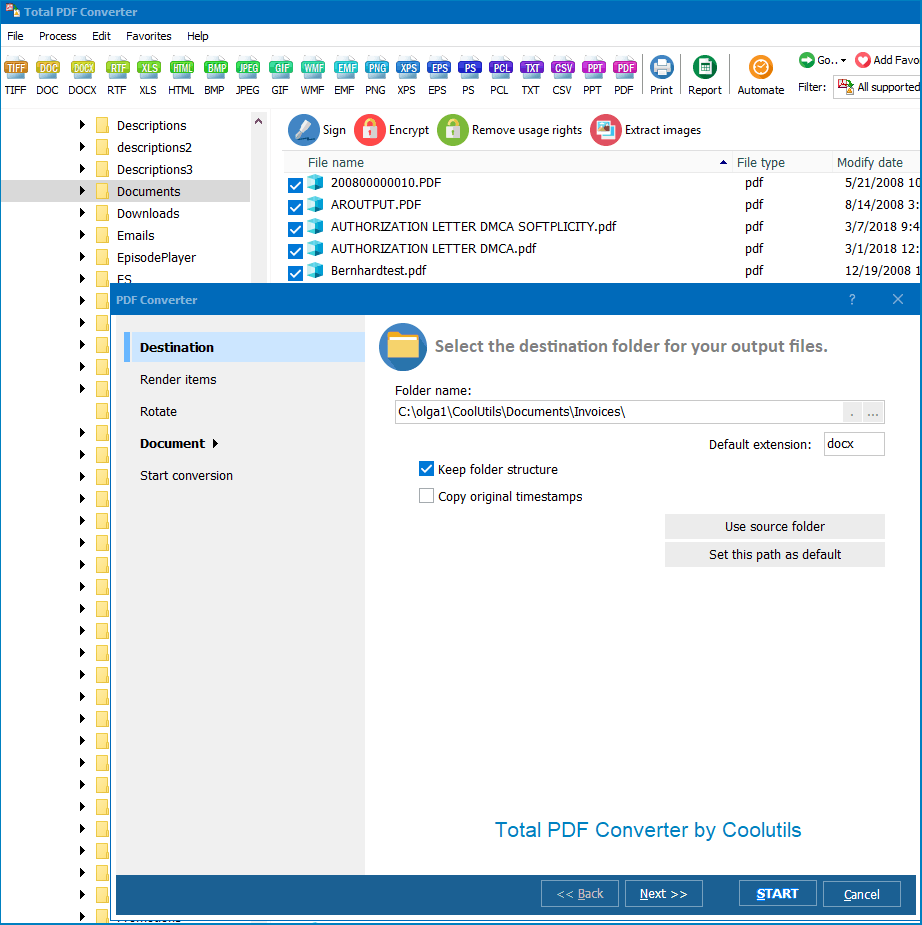

There are many benefits of converting PDF to text. For one, it allows you to edit your PDF files much more easily. You can also search through your document for specific keywords or phrases much more quickly when it is in text format. Additionally, converting your PDF files to text can help to save space on your computer or other devices.
We hope that this guide has been helpful in showing you how to convert PDF to text using CoolUtils' converter! If you have any further questions, feel free to reach out to our support team for assistance. Thanks for choosing CoolUtils!
Download free trial and convert your files in minutes.
No credit card or email required.
string src  = @"C:\test\Source.pdf";
string dest = @"C:\test\Dest.docx";

var cnv = new PDFConverterX();
cnv.Convert(src, dest, "-cDOC -log c:\\test\\PDF.log");

if (!string.IsNullOrEmpty(cnv.ErrorMessage))
    throw new Exception(cnv.ErrorMessage);
public static class Function1
    {
        [FunctionName("Function1")]
        public static async Task Run(
            [HttpTrigger(AuthorizationLevel.Anonymous, "get", "post", Route = null)] HttpRequest req,
            ILogger log)
        {
            StringBuilder sbLogs = new StringBuilder();
            sbLogs.AppendLine("started...");
            try
            {
                ProcessStartInfo startInfo = new ProcessStartInfo();
                startInfo.CreateNoWindow = true;
                startInfo.UseShellExecute = false;
                var assemblyDirectoryPath = Path.GetDirectoryName(Assembly.GetExecutingAssembly().Location);
                assemblyDirectoryPath = assemblyDirectoryPath.Substring(0, assemblyDirectoryPath.Length - 4);

                var executablePath = $@"{assemblyDirectoryPath}\Converter\PDFConverterX.exe";
                sbLogs.AppendLine(executablePath + "...");
                var srcPath = $@"{assemblyDirectoryPath}\src\sample.pdf";
                var outPath = Path.GetTempFileName() + ".docx";
                startInfo.FileName = executablePath;

                if (File.Exists(outPath))
                {
                    File.Delete(outPath);
                }

                if (File.Exists(executablePath) && File.Exists(srcPath))
                {
                    sbLogs.AppendLine("files exists...");
                }
                else
                    sbLogs.AppendLine("EXE & source files NOT exists...");
                startInfo.WindowStyle = ProcessWindowStyle.Hidden;
                startInfo.Arguments = $"\"{srcPath}\" \"{outPath}\" -cDOC";
                using (Process exeProcess = Process.Start(startInfo))
                {
                    sbLogs.AppendLine($"wait...{DateTime.Now.ToString()}");
                    exeProcess.WaitForExit();
                    sbLogs.AppendLine($"complete...{DateTime.Now.ToString()}");
                }
                sbLogs.AppendLine("Conversion complete.");
            }
            catch (Exception ex)
            {
                sbLogs.AppendLine(ex.ToString());
            }

            return new OkObjectResult(sbLogs);
        }
    }
dim C
Set C=CreateObject("PDFConverter.PDFConverterX")
C.Convert "c:\test\source.pdf", "c:\test\dest.docx", "-cDOC -log c:\test\PDF.log"
Response.Write C.ErrorMessage
set C = nothing
dim C
Set C=CreateObject("PDFConverter.PDFConverterX")
Response.Clear
Response.AddHeader "Content-Type", "binary/octet-stream"
Response.AddHeader "Content-Disposition", "attachment; filename=test.docx"
Response.BinaryWrite C.ConvertToStream("C:\www\ASP\Source.pdf", "C:\www\ASP", "-cDOC -log c:\html.log")
set C = nothing
$src="C:\\test\\test.pdf";
$dest="C:\\test\\test.docx";
if (file_exists($dest)) unlink($dest);
$c= new COM("PDFConverter.PDFConverterX");
$c->convert($src,$dest, "-cDOC -log c:\\test\\PDF.log");
if (file_exists($dest)) echo "OK"; else echo "fail:".$c->ErrorMessage;
require 'win32ole'
c = WIN32OLE.new('PDFConverter.PDFConverterX')

src = "C:\\test\\test.pdf"
dest = "C:\\test\\test.docx"

c.convert(src, dest, "-cDOC -log c:\\test\\PDF.log")

if not File.exist?(dest)
  puts c.ErrorMessage
end
import win32com.client
import os.path

c = win32com.client.Dispatch("PDFConverter.PDFConverterX")

src  = "C:\\test\\test.pdf"
dest = "C:\\test\\test.docx"

c.convert(src, dest, "-cDOC -log c:\\test\\PDF.log")

if not os.path.exists(dest):
    print(c.ErrorMessage)
uses Dialogs, Vcl.OleAuto;

var
  c: OleVariant;
begin
  c := CreateOleObject('PDFConverter.PDFConverterX');
  c.Convert('c:\test\source.pdf', 'c:\test\dest.docx', '-cDOC -log c:\test\PDF.log');
  if c.ErrorMessage <> '' then
    ShowMessage(c.ErrorMessage);
end;
var c = new ActiveXObject("PDFConverter.PDFConverterX");
c.Convert("C:\\test\\source.pdf", "C:\\test\\dest.docx", "-cDOC");
if (c.ErrorMessage != "")
  alert(c.ErrorMessage)
use Win32::OLE;

my $src  = "C:\\test\\test.pdf";
my $dest = "C:\\test\\test.docx";

my $c = CreateObject Win32::OLE 'PDFConverter.PDFConverterX';
$c->convert($src, $dest, "-cDOC -log c:\\test\\PDF.log");
print $c->ErrorMessage if -e $dest;

Related Topics
Total PDF Converter