Need help? Reach us at 

 +1 (855) 418-2323
Need help? Reach us at
+1 (855) 418-2323

 File Converters TIFF and PDF apps Forensic Freeware
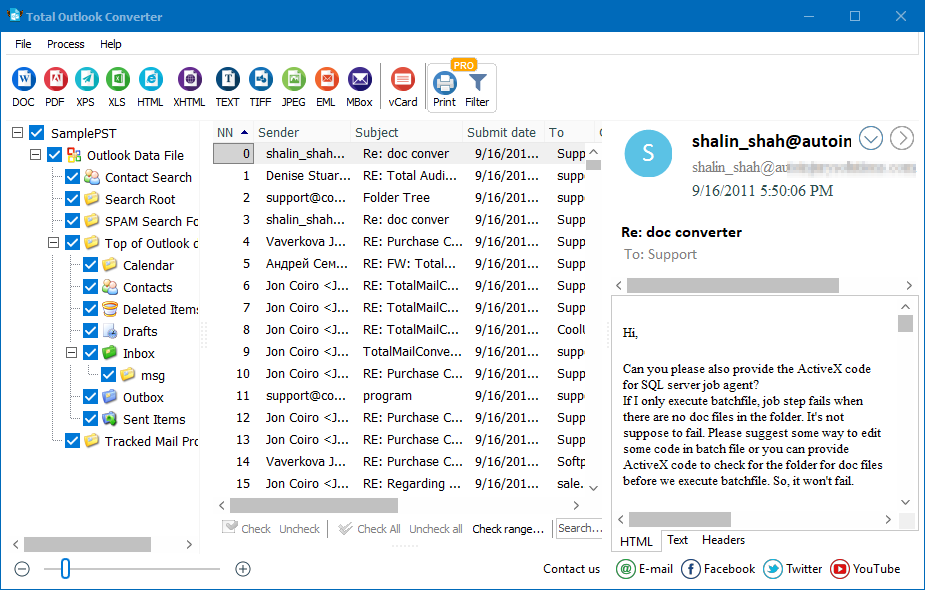
Quick answer: To convert emails with Total Outlook Converter, launch the program, add your Outlook PST or OST file, select the messages or folders, click the output format button such as PDF, TIFF, or HTML, set parameters like page counters, dates, Bates stamps, and file naming, then click Start. These video tutorials show each step, and the batch conversion runs offline.
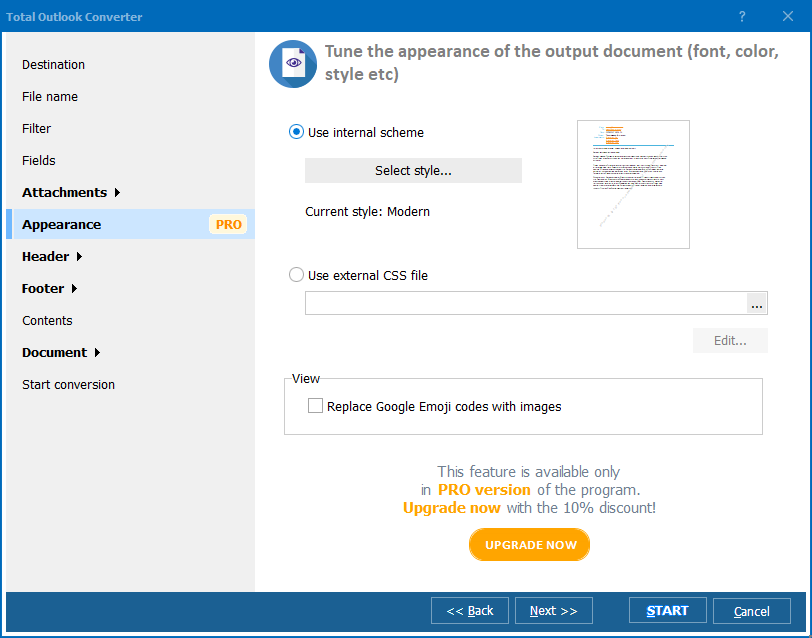
Add any watermarks to the header and the footer of each page! Dates, page counters, bates numbers, legal notes - anything you may think of.
Give your output files new descriptive names or at least add a counter for easy sorting.
With any questions or concerns please contact us via support form.
Download free trial and convert your files in minutes.
No credit card or email required.